Share projects
In eView, projects can be shared with other users in your organization. You can share projects with individual users in the "Internal" section or with entire teams in the "Teams" section.
Note
If you share projects with users or teams in eView, these projects are also shared with these users or these teams in eManage.
 Permissions for projects
When sharing projects, you can assign permissions for projects to other users or entire teams. You can select between the following types of permission:
- Edit
- Limited (Edit)
- View
Refer to the table to see which permissions you can assign to which role.
| Permissions | Designer | User | Guest |
|---|---|---|---|
| Edit | x | - | - |
| Limited (Edit) | x | x | - |
| View | x | x | x |
For example, it is not possible to assign the permission "Edit" to a user who has the role "Guest", because the permission does not match the rights of the role. Inversely, however, you can restrict a designer's involvement in a project and assign that person only the permission "View".
Note
In the product, all three types of permissions are proposed to you regardless of the role of the other user. However, the product recognizes whether the respective permission for the role applies or not. If not, the next possible permission is used.
Special features for permissions for teams
If a user already has a permission for a project (either via a team or as an individual user), and you assign them a second permission, the highest permission that has been assigned always applies to the user.
A user has the "Edit" permission for a project. You assign the "View" permission for the same project to a team in which the user is located. Since the "Edit" permission is higher, the user keeps this permission.
Share project
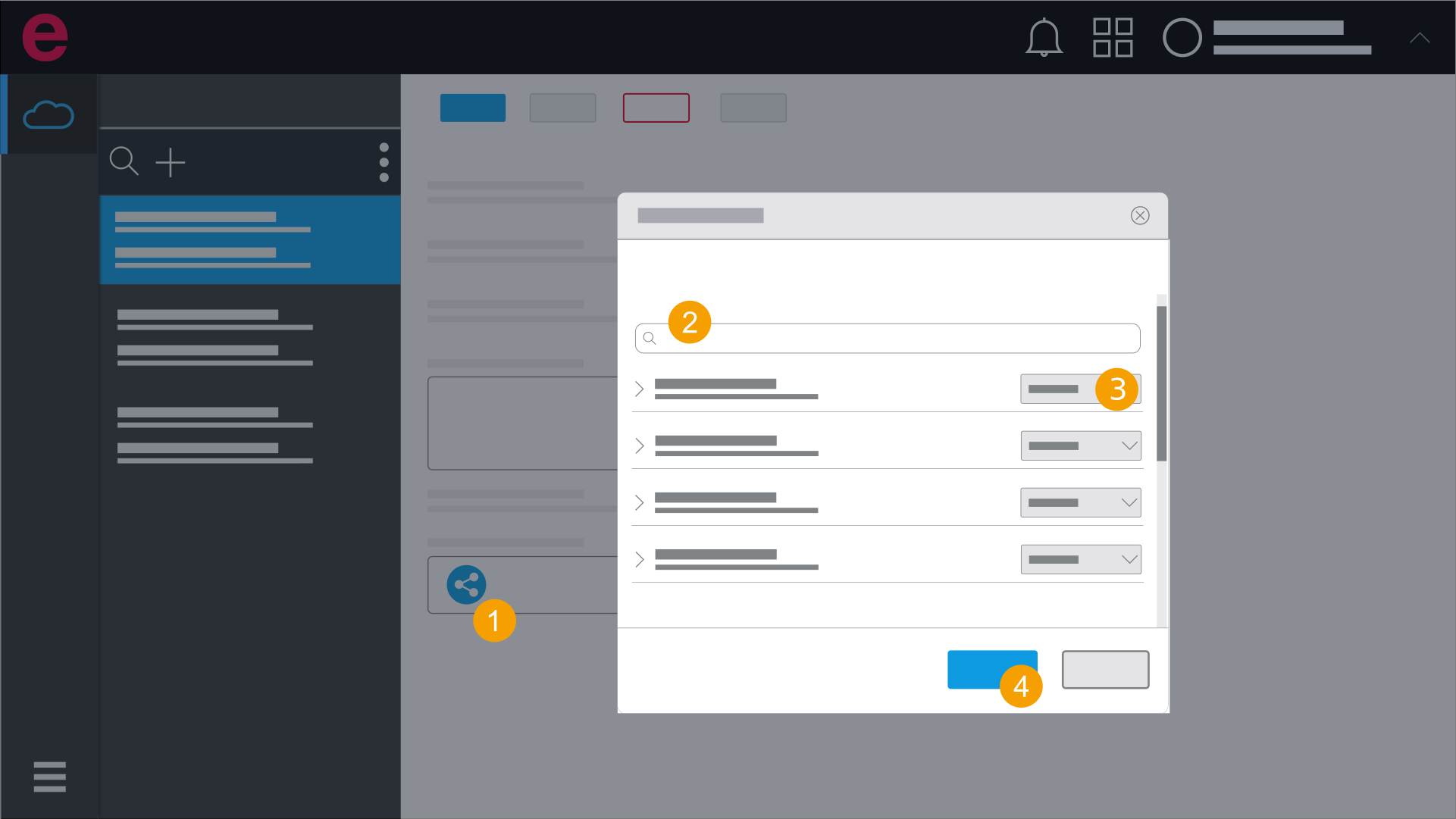
Note
In eView, you access only one project overview.
- Click Share in the project overview.
- Find a user.
- Assign rights for the project to the user.
- Click Apply.
Users with whom you have shared the project will receive an e-mail notification.
Note
Access rights for your project can be revoked again from users. The user does not receive a notification.
Share a project with a team
As an Admin and Designer you can share projects with teams. Teams are available to you in a company organization if you have purchased your licenses with the subscription model.
For detailed information on how to create or edit teams in the Eplan Cloud, refer to the Cloud help.
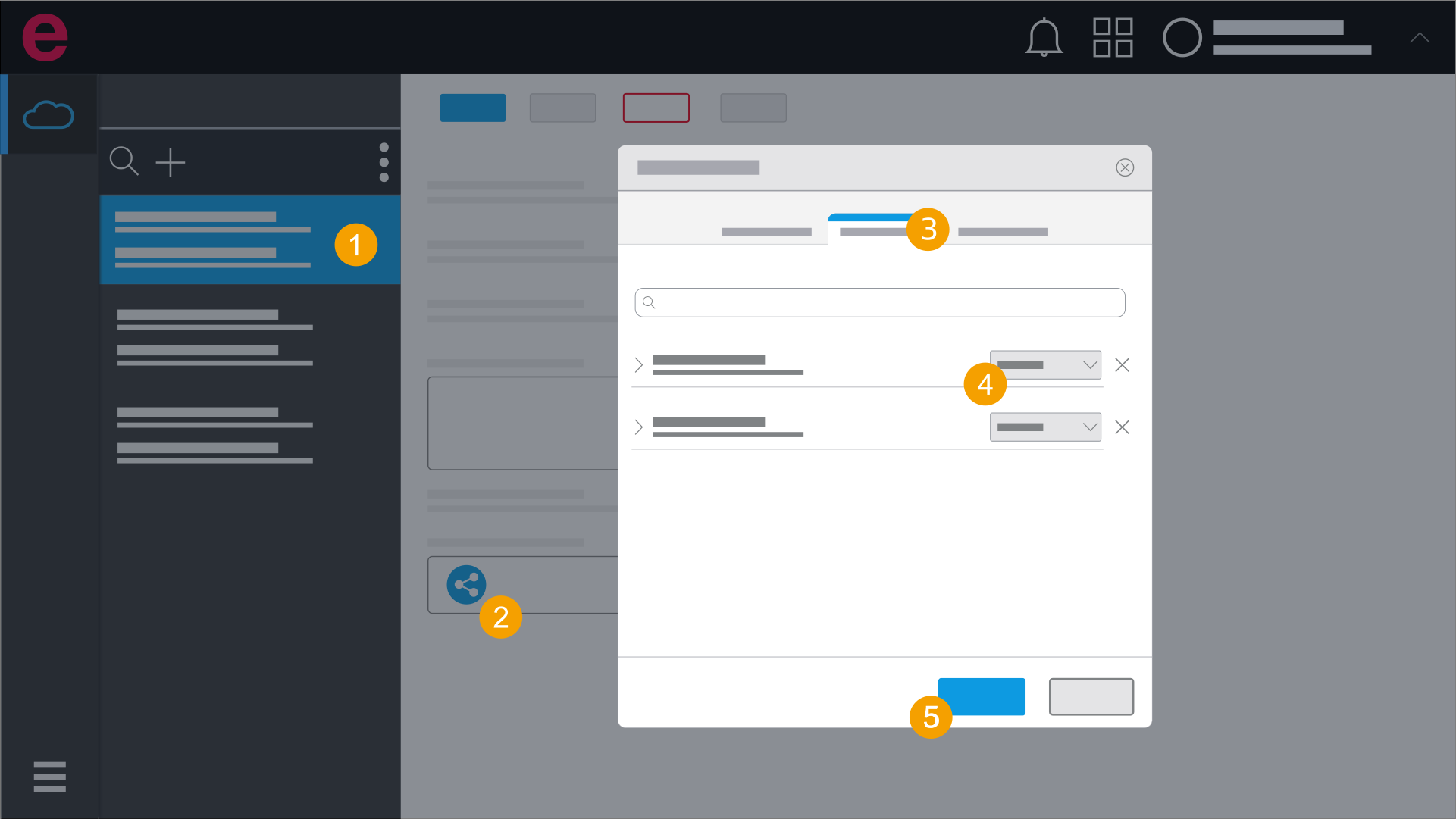
- Select a project.
- Click the
 icon in the "Shared with" area.
 - Switch to the Teams section.
- Click the desired team in the drop-down list and select a permission.
- Click Apply.
- The project is shared with the team.
To find the team or user faster, you can enter the name of the team or user or the e-mail address of the user in the search field.
You have specified the period in which the user or team will have access to the project.