Borrowing a license from the Eplan License Manager - without network connection
Licenses can only be borrowed and used in combination with the
Preconditions:
- The computer on which the Eplan product is used has no network connection to the
Eplan License Manager (ELM Configurator) . - Eplan
License Manager (ELM Configurator) is installed on a server of your company and was activated with a Concurrent License: - Activating a Concurrent License - with Internet connection
- Activating a Concurrent License - without Internet connection
- You have the name and port number of the License Manager.
- The Eplan product is installed and is started for the first time. The dialog for licensing appears.
The borrowed license can be borrowed at maximum for a period specified by the
The borrowing period can be extended. Extending the borrowing period
Make sure to perform all steps in the following order:
 1a. Creating a request file during initial installation
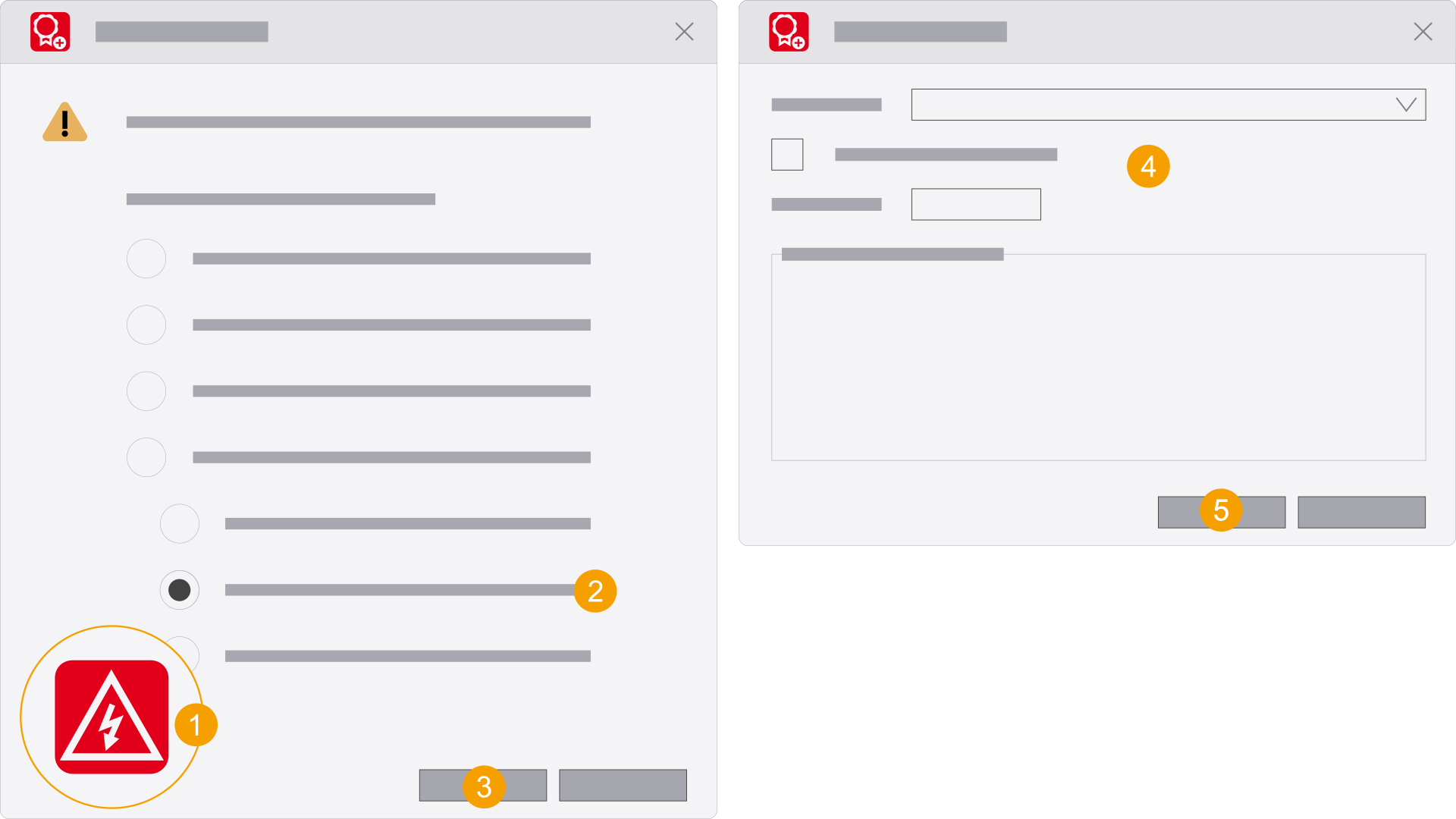
- Start the Eplan product by double-clicking the program icon.
- Select the Create request file option under Borrow license.
- Click OK.
- Select the file path and the borrowing period and save the file
*.egr . - Click Create.
- Click Cancel.
The Activate license dialog is opened.
The Create request file dialog opens.
The
The Select license dialog is opened.
1b. Creating a request file for an existing installation
An error message can occur during the first connection to the new License Manager. End the connection to the License Manager once by returning the borrowed license or by disconnecting the connection. Then you borrow the license again or reconnect the product with the License Manager.
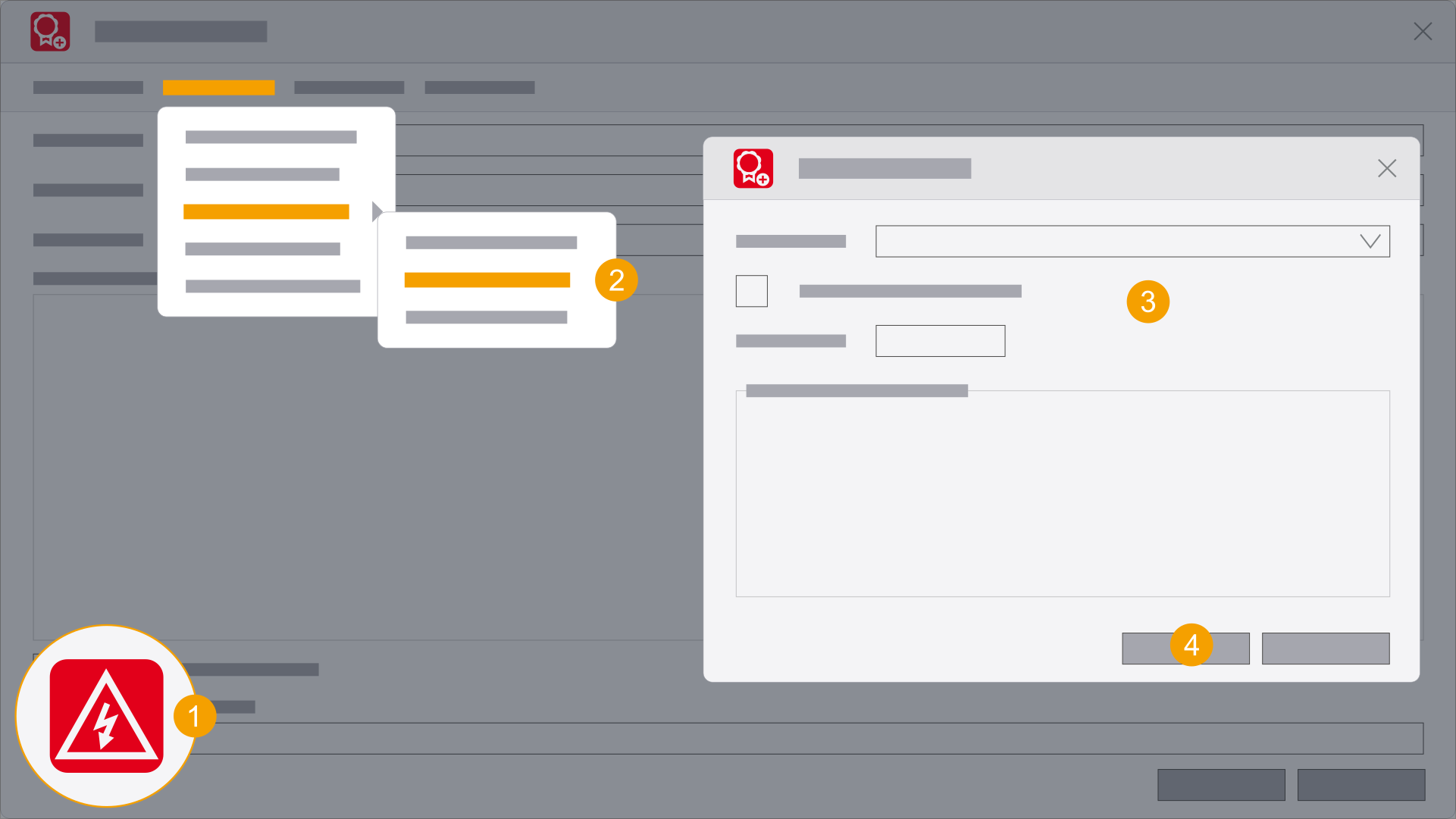
- Start the Eplan product while holding down the Shift key and double-click the program icon.
- Select the following menu items: Concurrent License > Borrow license > Create request file.
- Select the borrowing period and save the file
*.egr . - Click Create.
- Click Cancel.
The Select license dialog is opened.
The Create request file dialog opens.
The
The Select license dialog is opened.
2. Transferring the request file and receive a confirmation file
- Send an e-mail with the request file
*.egr and the administrator of the License Manager. - Receive an e-mail with the confirmation file
*.egb from the administrator of the License Manager. For information on how the administrator can create the confirmation file, see Creating a confirmation file for borrowing. - Save the confirmation file
*.egb .
3a. Loading the confirmation file during initial installation
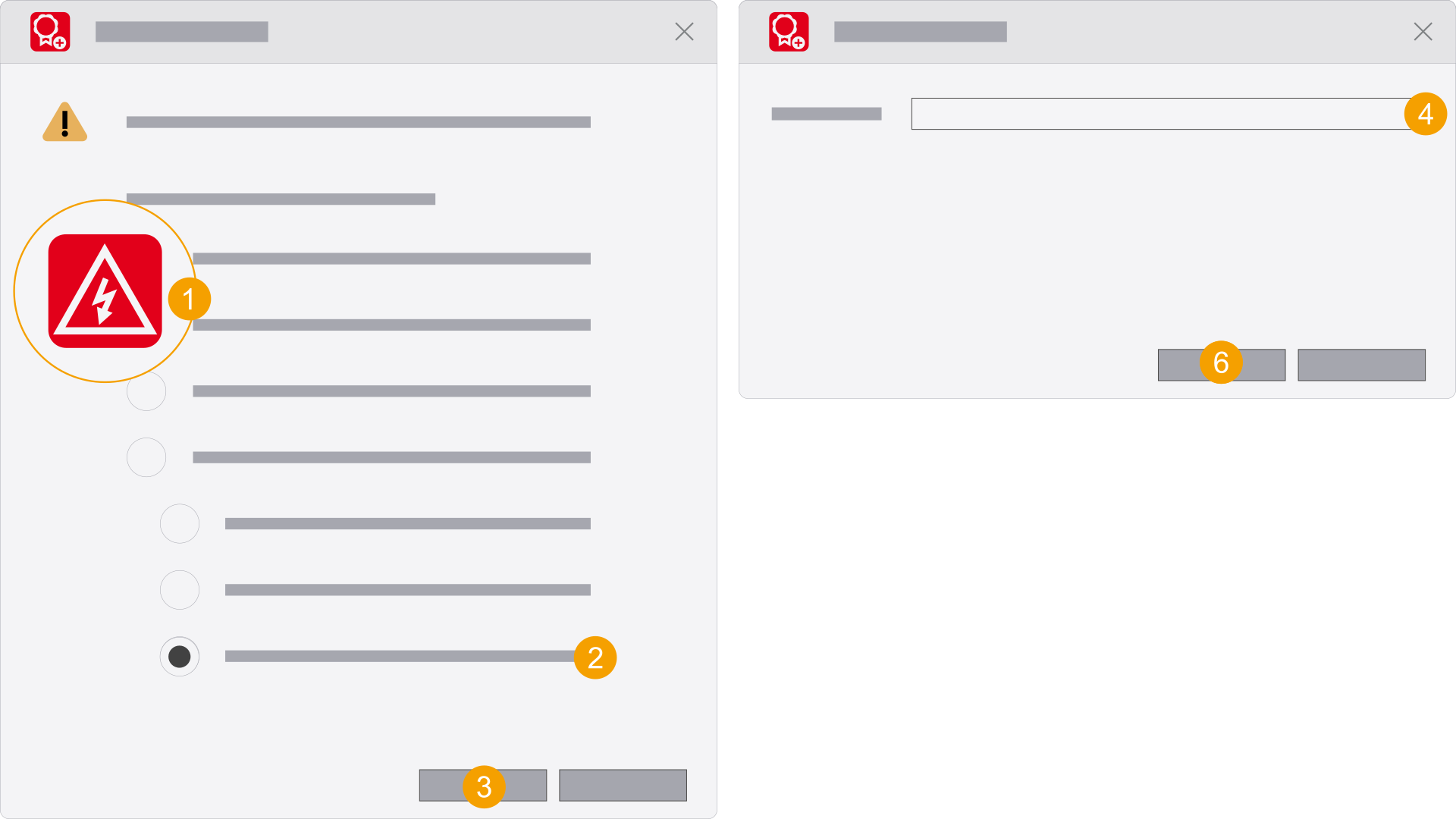
- Start the Eplan product by double-clicking the program icon.
- Select the Load confirmation file option under Borrow license.
- Click OK.
- Select the
*.egb confirmation file. - Click Open.
- Click Load.
- Click Close.
- Click OK.
- The Eplan product can now be used.
- The Eplan product starts.
The Activate license dialog is opened.
The Load confirmation file dialog is opened.
The file is displayed.
The Borrowed systems and extensions are listed.
The Check license dialog is opened and informs you about the borrowing period.
3b. Loading the confirmation file at existing installation
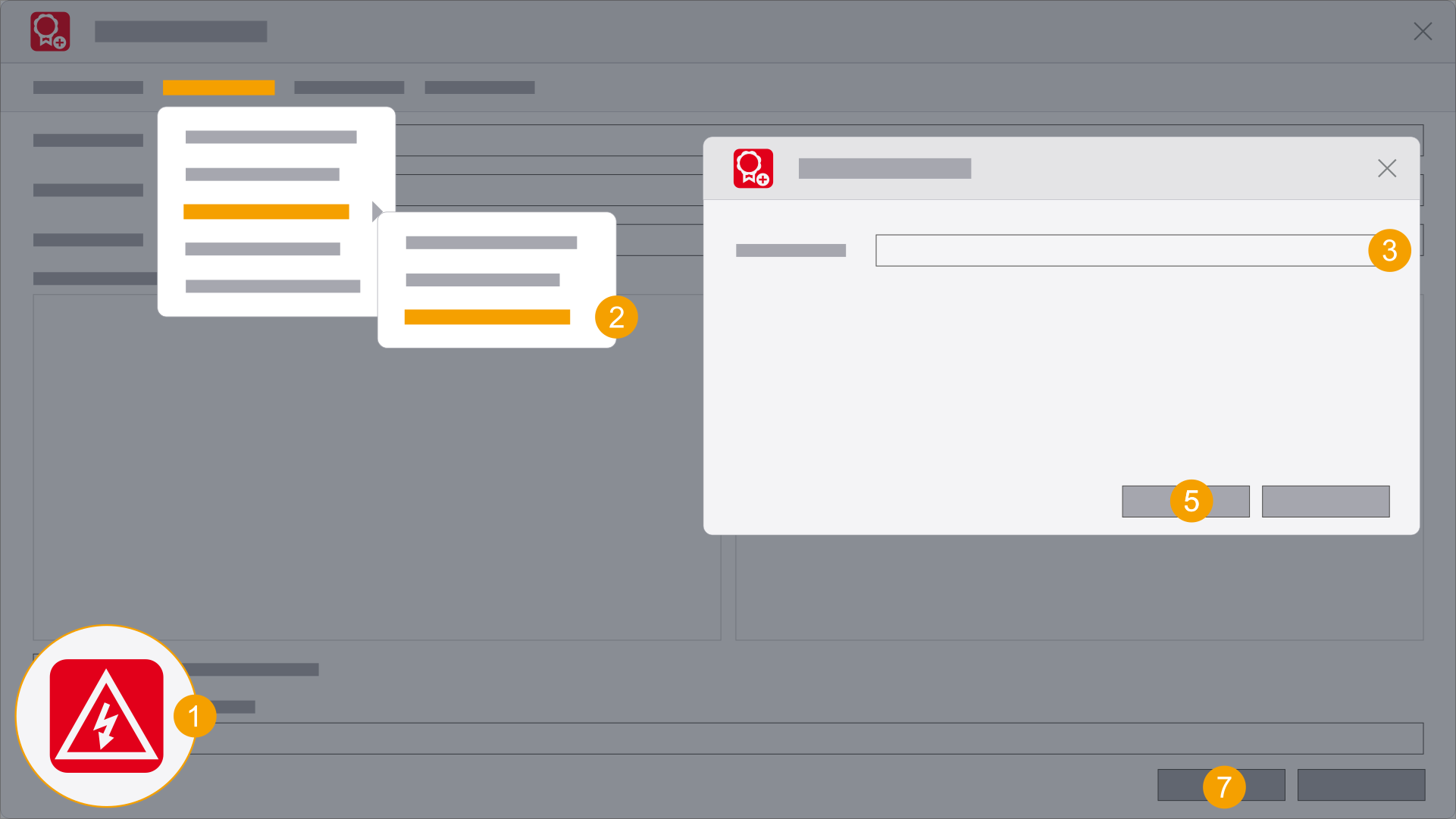
- Start the Eplan product while holding down the Shift key and double-click the program icon.
- Select the following menu items: Concurrent License > Borrow license > Load confirmation file.
- Click
 and select the
 *.egb confirmation file. - Click Open.
- Click Load.
- Click Close.
- Click OK.
- The Eplan product can now be used.
- The Eplan product starts.
The Select license dialog is opened.
The Load confirmation file dialog is opened.
The file is displayed.
The Borrowed systems and extensions are listed.
The Check license dialog is opened and informs you about the borrowing period.