Create, change and rename an organization
Prerequisite: Open My settings.
 Create organization
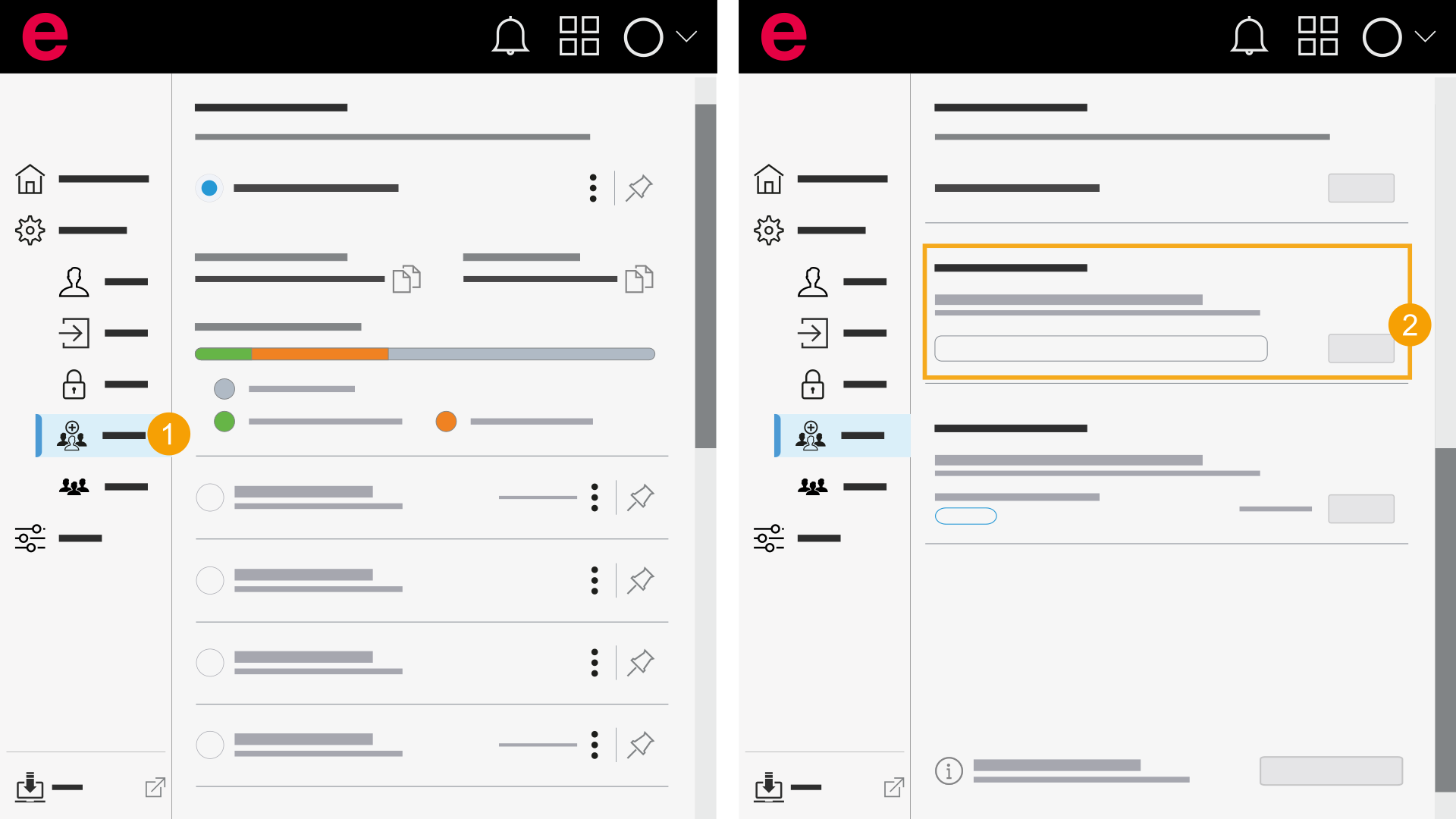
- My settings > General > Organizations
- In the navigation bar, click General > Organizations.
- Enter a name for the organization and click Create.
- You have created a new organization.
- You receive an e-mail invitation to the User management.
- You are the main administrator of the organization.
The organization name is displayed in the Cloud menu on the right-hand side in the Organizations area.
Switch organization
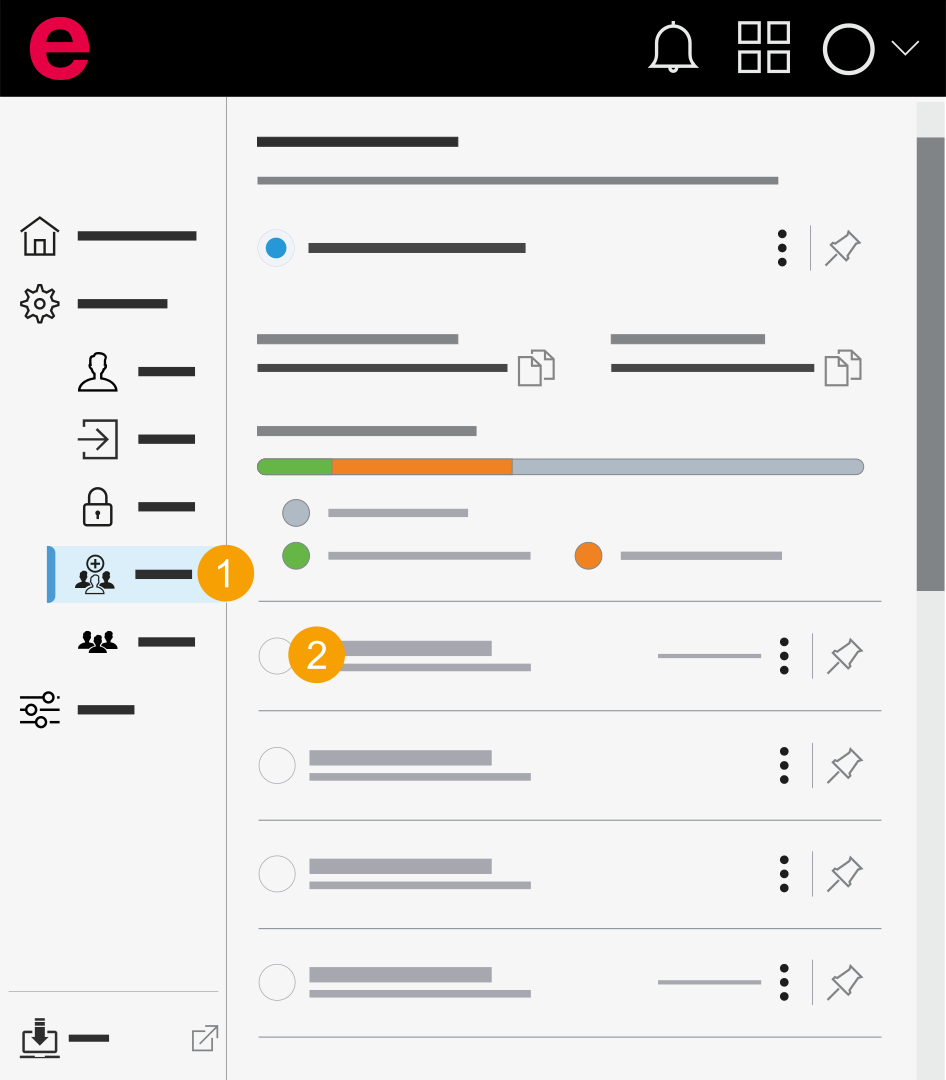
- My settings > General > Organizations
- In the navigation bar, click General > Organizations.
- Click on the organization you want to switch to.
- The name of the organization you switched to is displayed in the header under your display name.
Rename organization
You can only rename the organization if you are the main administrator of the organization.
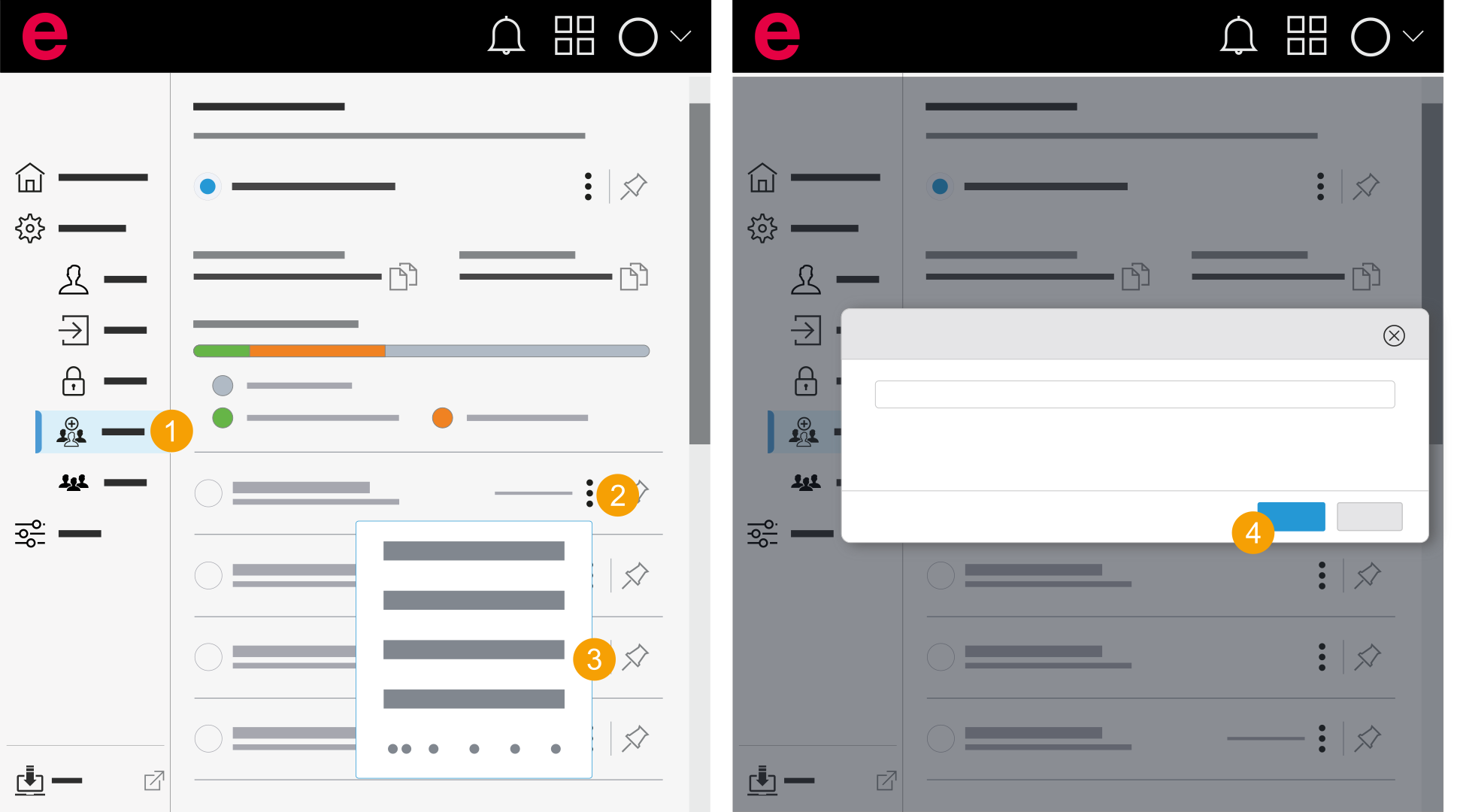
- My settings > General > Organizations
- In the navigation bar, click General > Organizations.
- Click the
 icon next to the organization.
 - Click Rename.
- Enter the new name for the organization and click Rename.
- The name of the organization has been changed.
The Rename organization dialog opens.
The renaming is confirmed.