Filter parts
This functionality is available to you in a different scope in the Eplan Platform and the browser.
Precondition:
- You have signed in to the Eplan Cloud and are in an organization.
- Create an account if you do not have an Eplan Cloud account yet. Information on this topic is available here.
 Filter parts
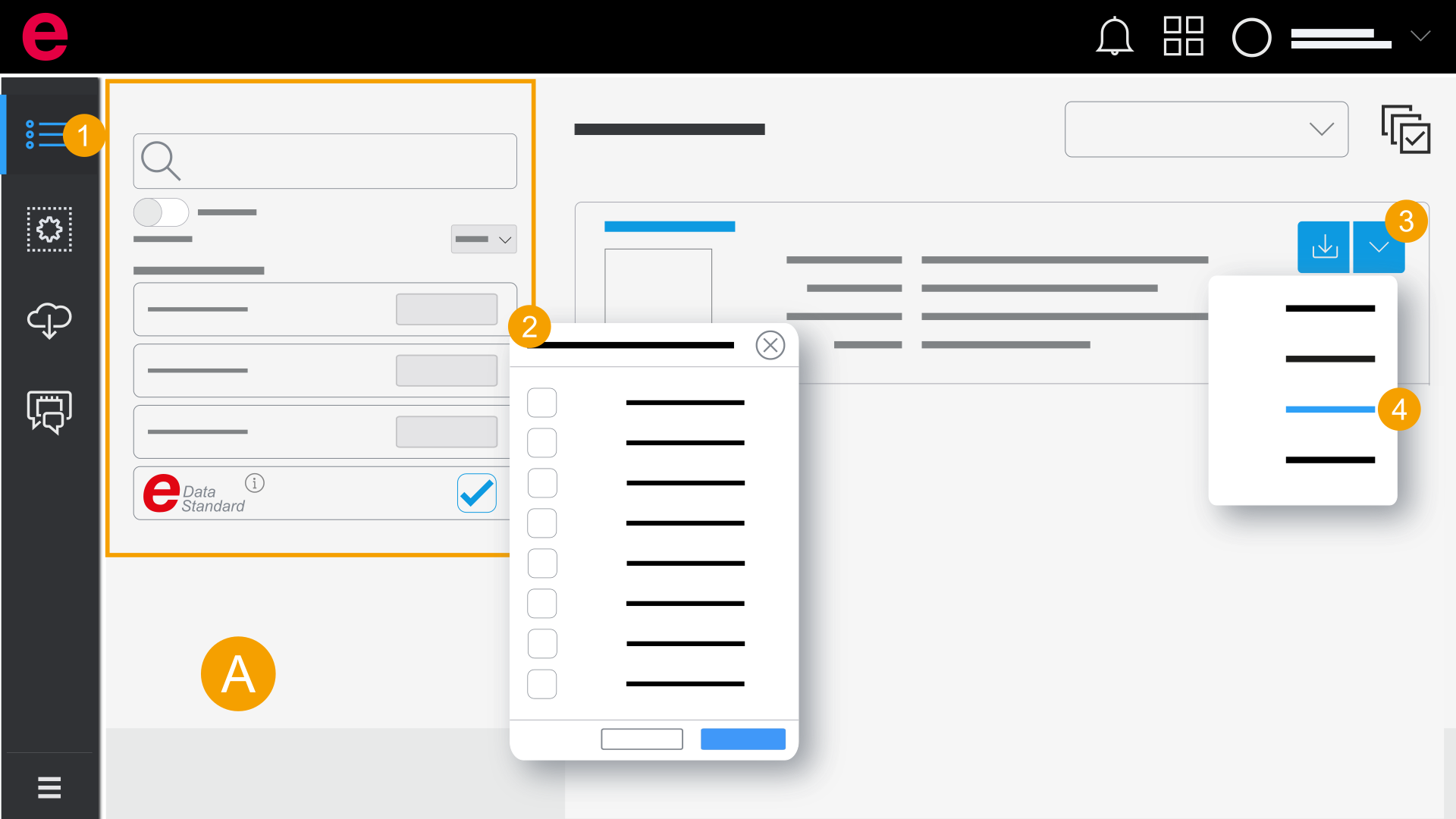
- Parts list
- Click Parts list in the navigation bar.
- Search the desired part by means of the filter.
- Search (part number, type number, text, etc.)
- Manufacturer
- Catalogs
- Eplan product groups
- ECLASS classification
- Manufacturer catalog
- Data types
- Commercial data
- Function template
- Logic macro
- 2D graphic data
- Connection point pattern
- Drilling pattern
- 3D graphic data
- DXF data
- Eplan Data Standard
- Open the drop-down list at the desired part.
- Select one of the functions.
Open filters
The filter is closed as of a specific window size.
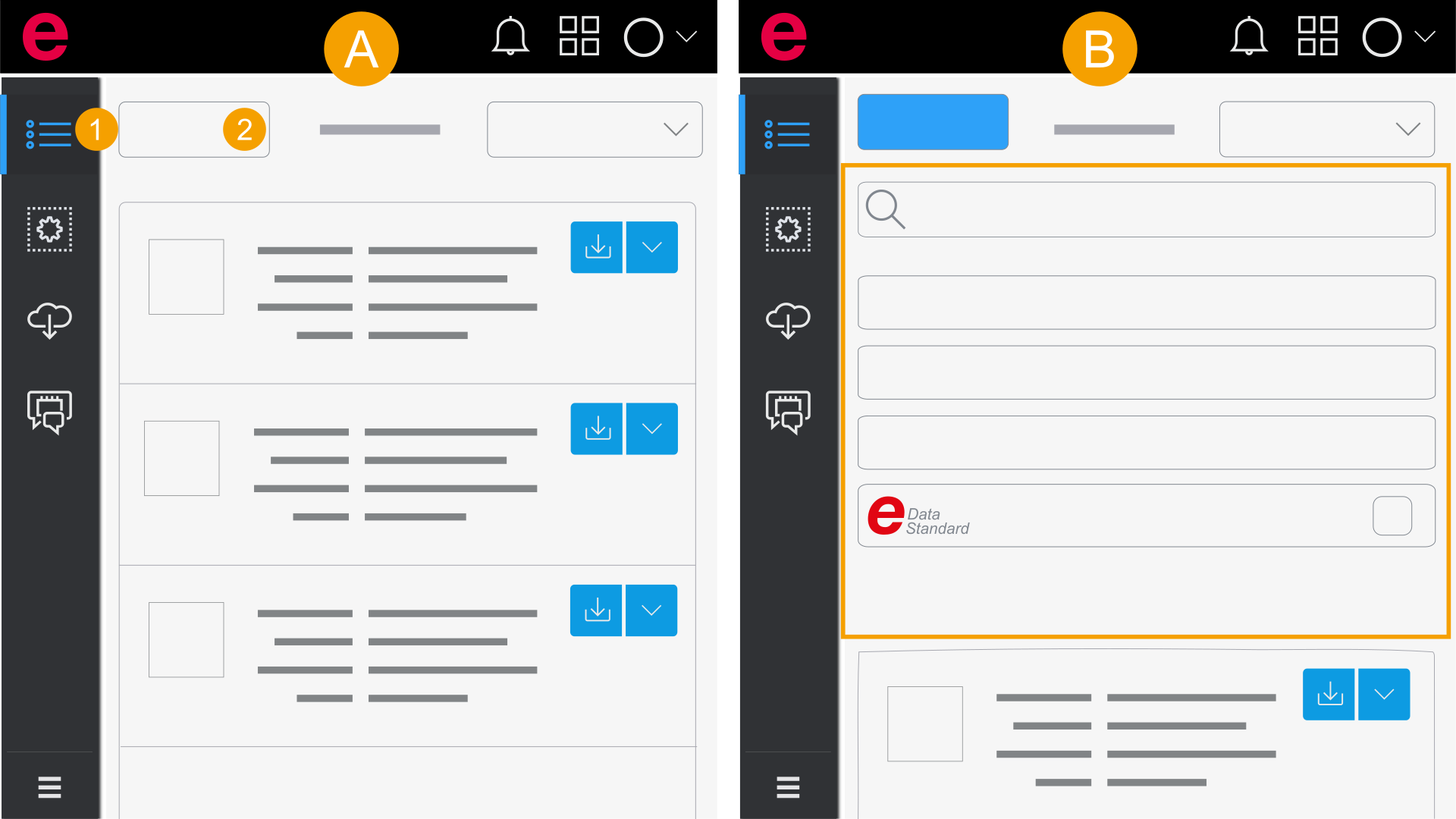
- Parts list with closed filter
- Parts list with opened filter
- Click Parts list in the navigation bar.
- Click Filter.
- The filter is opened and can be used.
Use search operators
When entering your search you determine your search results more specifically by means of search operators.
"xyz" = This word has a higher relevance during the search and in the search result.
+xyz = This word must be contained in the search result.
-xyz = This word must not be contained in the search result.
Example
 Valve +Fuse "control" -blue
The search result is structured as follows:
Valve = The word "Valve" is contained optionally in the search result.
+Fuse = The word "Fuse" is contained in the search result.
"Control" = The word "Control" receives higher relevance during the search.
-blue = The word "blue" is not contained in the search result.