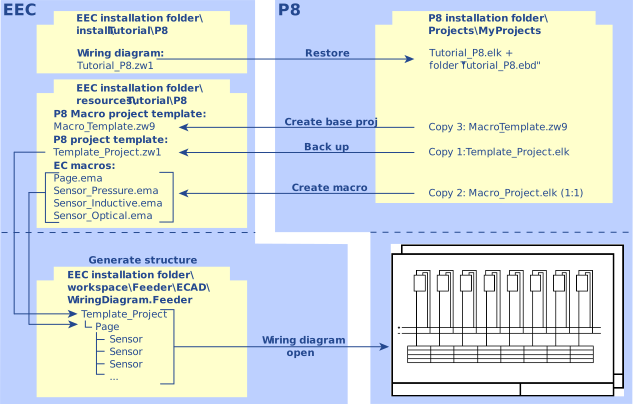
To prepare the creation of macros, copies of the compressed project file Tutorial_P8.zw1 are created and variously re-saved.
The first copy (Template_Project.elk) is saved as an empty template. When generating the structure, the macros of the page and sensors are inserted in this file.
The second copy (Macro_Project.elk) is saved as a macro project. This is used to create the macros for the page and the sensors:
Create path for macros:
- Start EPLAN Electric P8.
- Select the following commands: File > Settings.
- Navigate to User > Management > Directories.
- Specify the <EEC installation folder>\resources\ECAD\Tutorial\P8 folder for the Templates.
- Specify the <EEC installation folder>\resources\ECAD\Tutorial\P8 folder for the Macros.
- Confirm with [OK].
Enter the folder where EEC is installed instead of EEC installation Folder. The EPLAN Electric P8 projects are stored in the default folder.
Restoring the project Tutorial_P8.zw1:
- Select the following commands: File > Open > Browse.
- In the Open project dialog navigate to the following file:
<EEC installation folder>\install\Tutorial\P8\Tutorial_P8.zw1- Click [Open].
- The Restore project dialog opens.
- The file Tutorial_P8.zw1 is entered into the field Projects .
- Enter into the field Project name the text Feeder.
- Confirm with [OK].
- The Backstage view is closed, and the project is opened in the page navigator.
Create the first copy of the Feeder project:
- Select the Feeder project.
- Select the following commands: File > Copy.
- The Copy project dialog opens.
- Select the Only header data option.
- In the Target project field, enter the file name:
Template_Project.elk- Confirm with [OK].
- The Restore project dialog closes and the project in the page navigator opens.
Back up the Template_Project project:
- Select the Template_Project project.
- Select the following commands: File > Back up.
- The Back up projects dialog opens.
- Select in the field Backup directory:
<EEC installation folder>\resources\ECAD\Tutorial\P8This directory should correspond to the path variable $(MD_MACROS).
- Confirm with [OK].
- The Back up projects dialog closes.
Create another copy of the Feeder project:
- Select the Feeder project.
- Select the following commands: File > Copy.
- The Copy project dialog opens.
- If necessary, highlight the Entirely incl. report option.
- In the Target project field, enter the file name:
Macro_Project.elk- Confirm with [OK].
- The Copy project dialog closes and the project in the page navigator opens.
Change the settings of the Macro_Project project:
- Highlight the Macro_Project project.
- Select the File command.
- The Backstage view Project properties with the Properties tab opens.
- For the Type of project in the Value column, select Macro project.
- Close the Backstage view.
Create the macro template as the basic project:
- Highlight the Macro_Project project.
- Select the following commands: File > Extras > Command group Back up > Create basic project.
- The Create basic project dialog opens.
- Navigate to the following folder: <EEC installation folder>\resources\ECAD\Tutorial\P8.
- Enter Macro_Template.zw9 in the File name field.
- Confirm with [Save].
- The Create basic project dialog closes and the basic project is saved.
The projects Feeder and Template_Project close:
- Select the Feeder and Template_Project projects.
- In the popup menu select: Project > Close.
- Only the Macro_Project project is still available in the page navigator.
This completes all preparatory work.