Scan QR code
With a mobile device, you can scan a QR code and view a virtual 3D model of an enclosure in your immediate environment.
 Prerequisites
- You have a mobile end device with a camera function.
- You have installed the "Vuforia View" app on your end device.
- You have an Eplan ID.
Download the "Vuforia View" app
The Vuforia View app is required to scan the QR code. You can find the app in the following stores:
- Google Play Store
- Apple Store
- Microsoft Store
eView AR
- Scan a QR code on an enclosure.
You will be redirected to the virtual 3D model. The 3D model superimposes the real enclosure.
View the enclosure by using your fingers on the touchscreen to perform common motions such as zooming and panning.
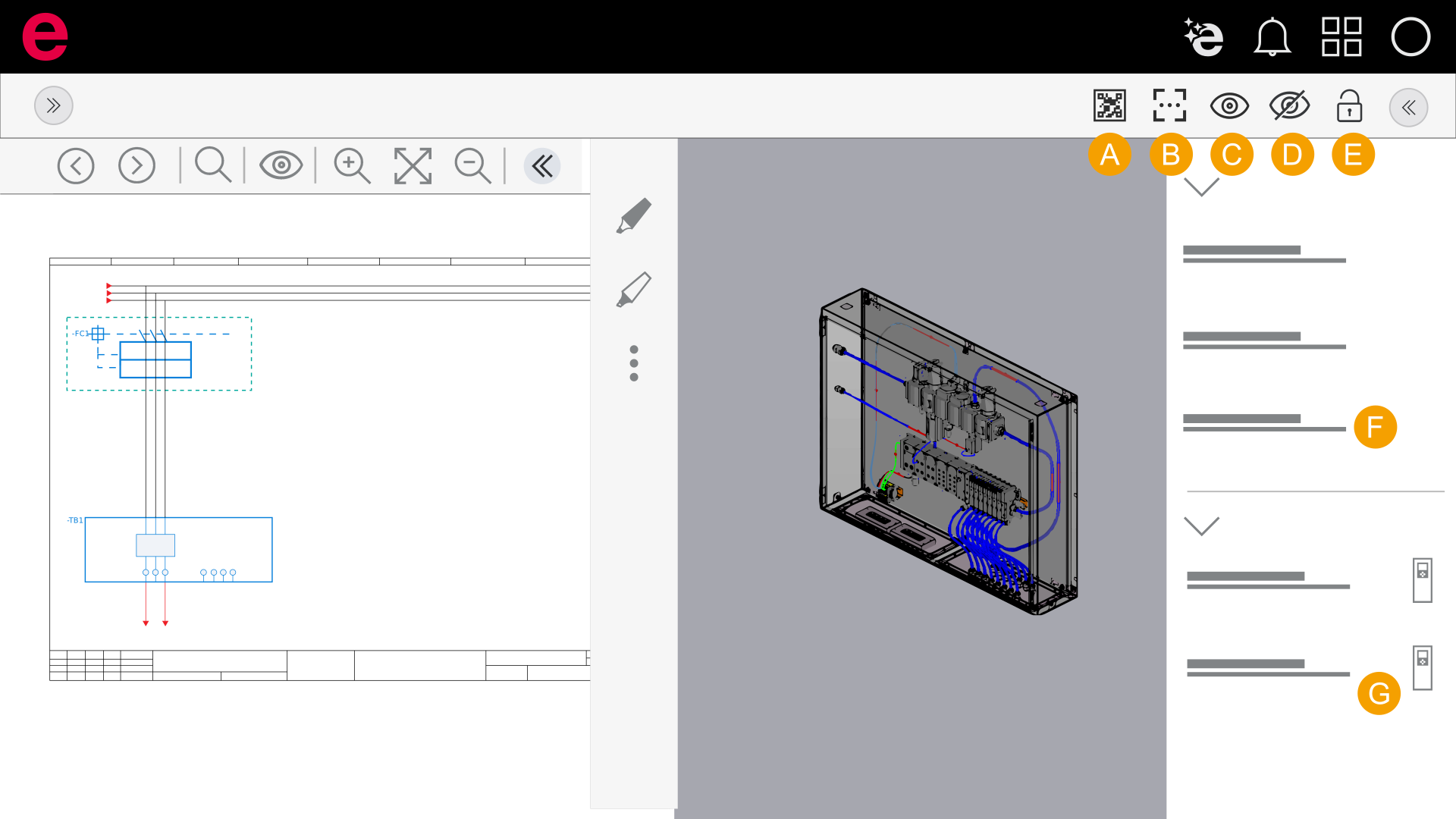
- Scan QR code
- Align QR code
- Show all components
- Hide components
- Generate a still image of the background; the device can still be moved
- Interface to eView
- Interface to the Data Portal
eView Free AR
- Scan a QR code.
- Place the virtual 3D model in your environment.
- Find a horizontal surface in your room.
- Tap the screen and place your enclosure.
View the enclosure by using your fingers on the touchscreen to perform common motions such as zooming and panning.