Create, add or remove account
Prerequisite: My settings is open Open My settings.
Important
When you sign in to the Eplan Cloud for the first time, you can either create an Eplan account directly or use another software provider's account. In both cases, an Eplan ID is automatically created for you.
After the first sign-in you additionally have the following options:
- Create Eplan account: You have signed in with another software provider's account and now want to create an Eplan account.
- Add accounts: You have first created an Eplan account and now want to add the account of another software provider.
 Create Eplan account
To create the Eplan ID you can either create an Eplan account or use another account. If you have already signed into the Eplan Cloud with another account, you can create your Eplan account later.
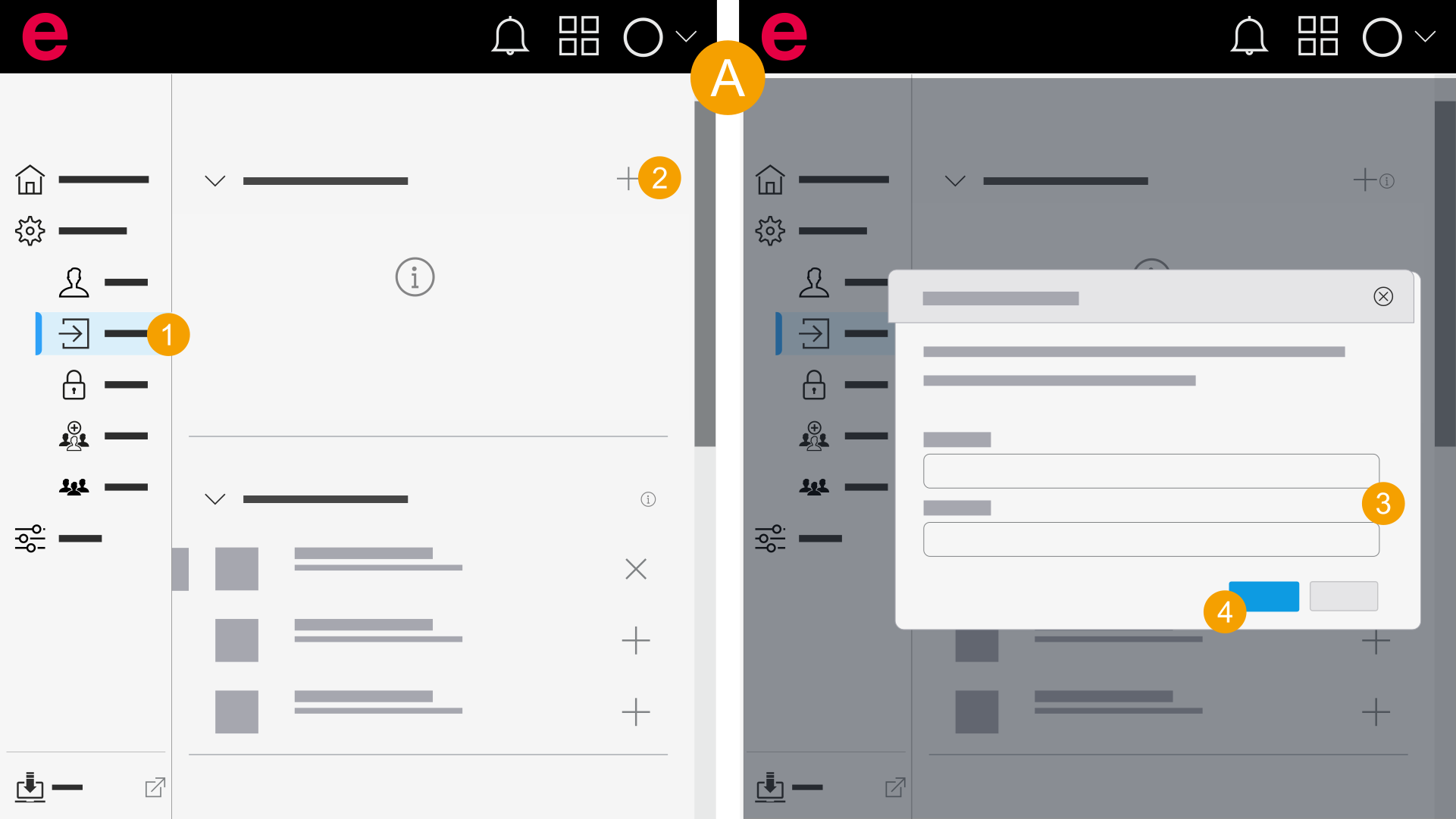
- My settings > General > Sign-in
- In the navigation bar, click General > Sign-in.
- Click the
 icon.
icon. - Enter your e-mail address.
- Click Confirm.
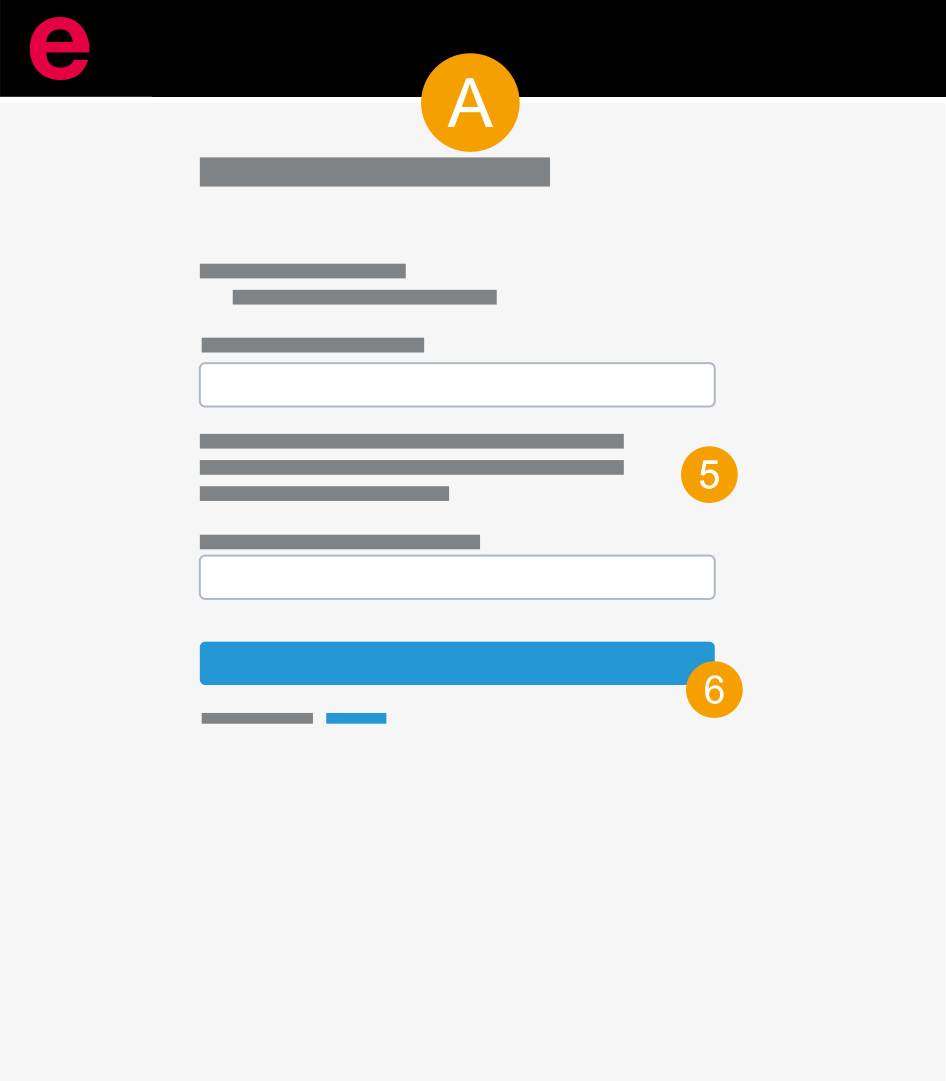
- Enter your password.
- Click Create Eplan account.
- You have created the Eplan account.
Add accounts (Microsoft, Google)
The Microsoft account must be integrated into Microsoft Entra ID. For more information, see Microsoft Entra ID.
The Google account must be integrated into Google Workspace. Further information is available in Google Workspace.
To create the Eplan ID you can either create an Eplan account or use another account. If you have already signed in to the Eplan Cloud with an Eplan account, you can add a further account to the Eplan Cloud later on.
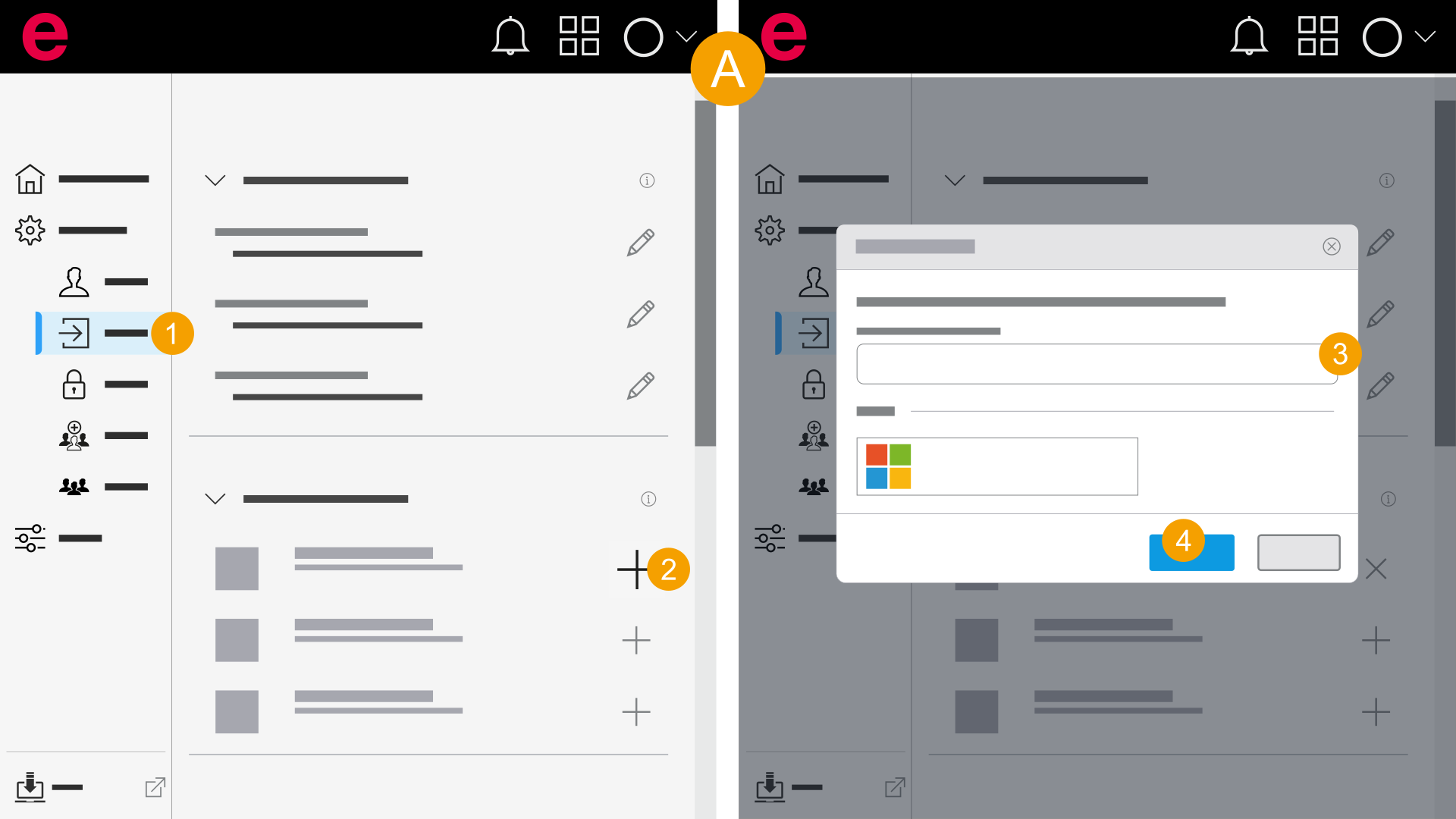
- My settings > General > Sign-in
- In the navigation bar, click General > Sign-in.
- Click the icon.
- Enter your password.
- Click Next.
- You have added the account.
Remove accounts (Microsoft, Google)
You can only remove another account if you have an Eplan account.
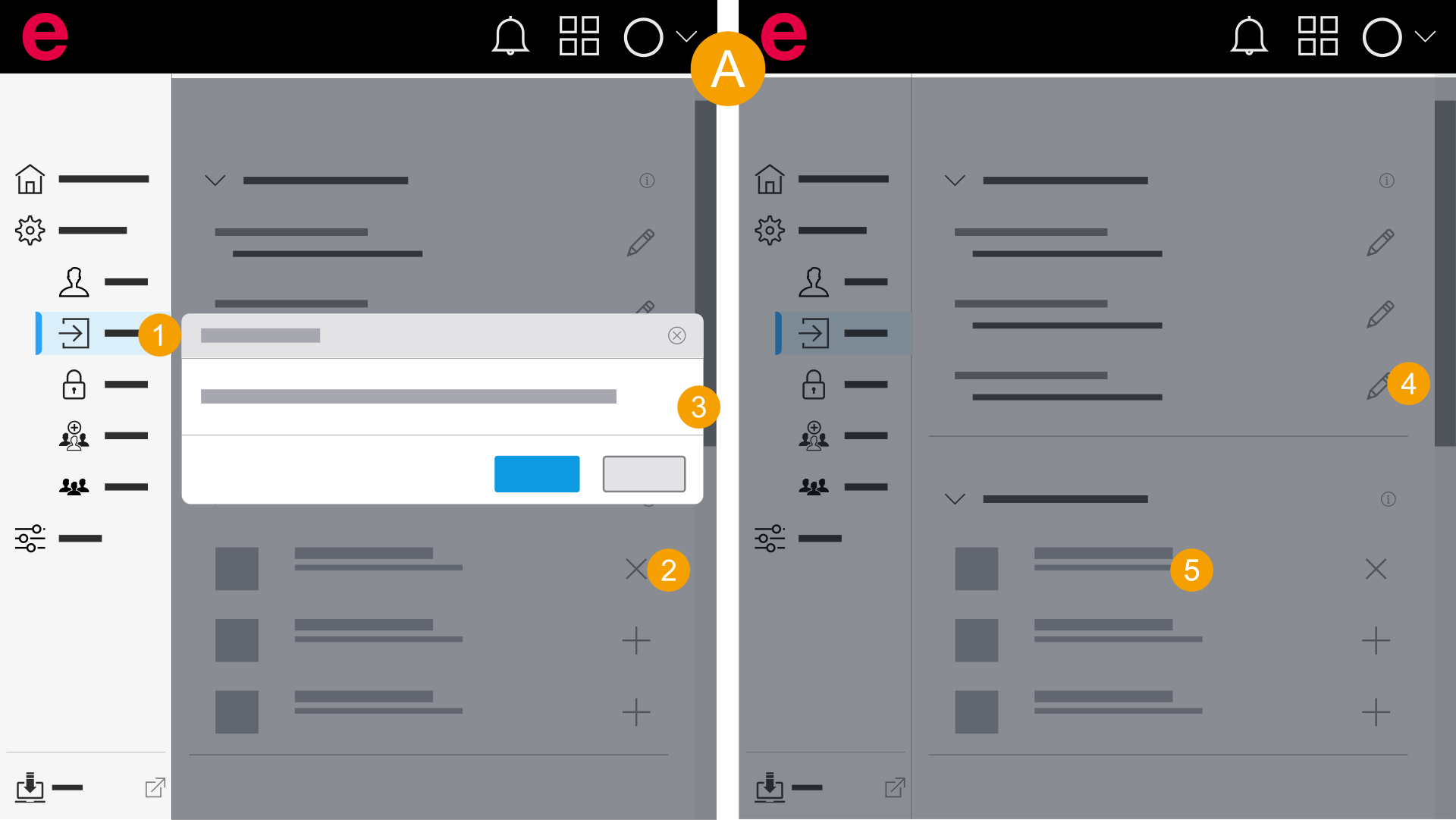
- My settings > General > Sign-in
- In the navigation bar, click General > Sign-in.
- Click the
 icon.
icon. - Click Remove.
- Enter your password.
- Click Next.
- You have removed the account.
Remove accounts with two-factor authentication
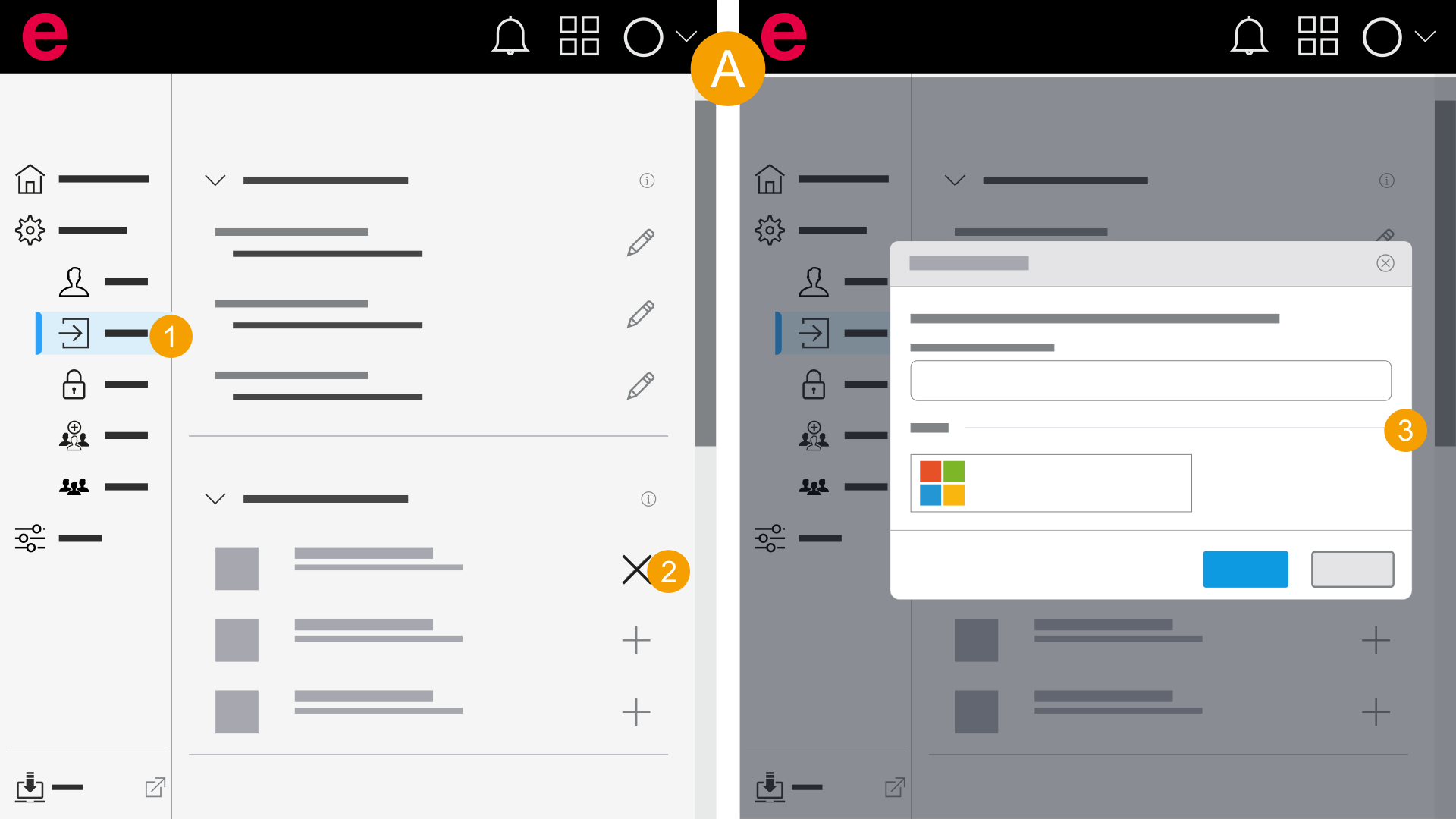
- My settings > General > Sign-in
- In the navigation bar, click General > Sign-in.
- Click the icon.
- Enter your password or use your other account and click Next.
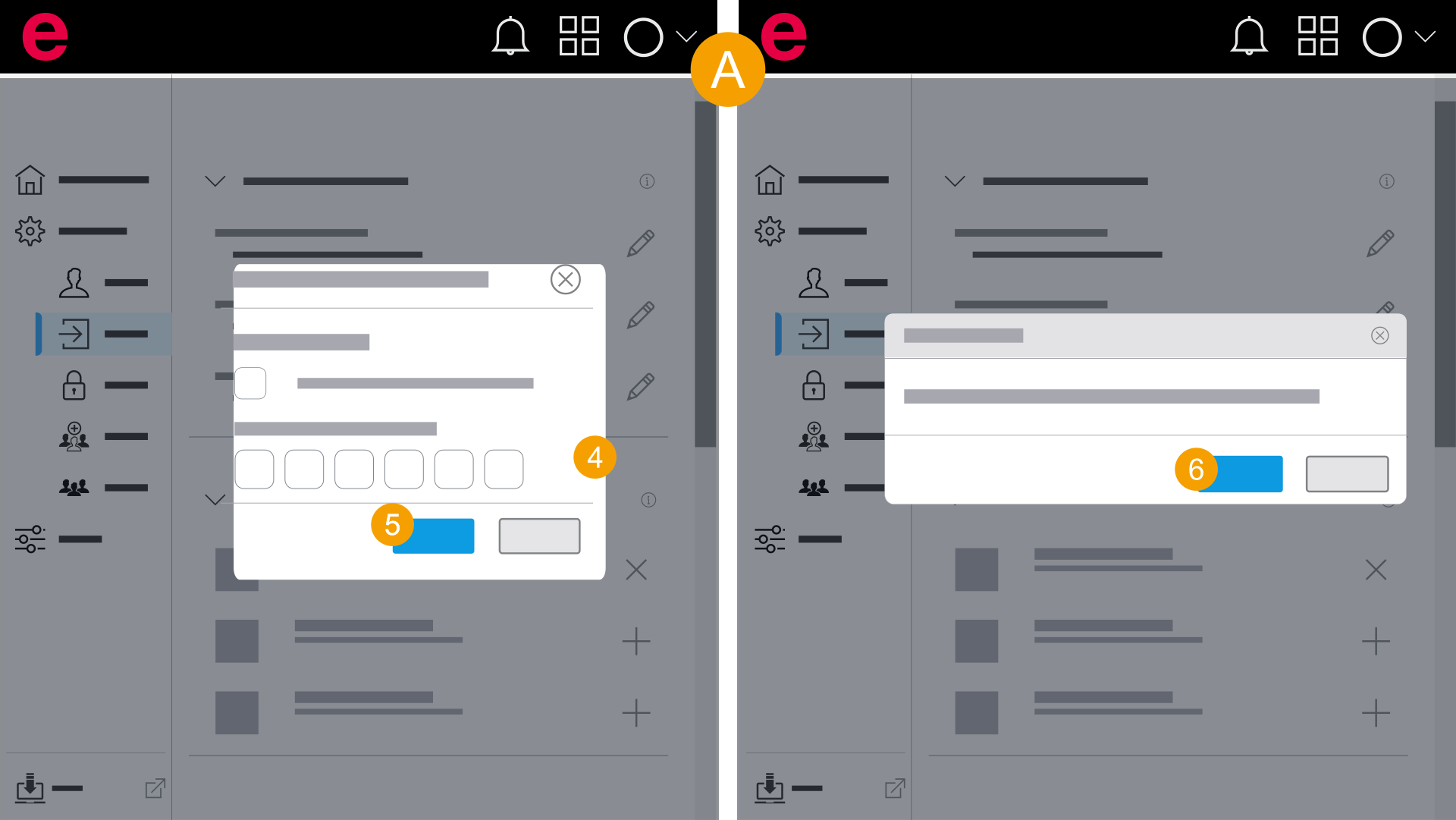
- Enter the code that is displayed in the authentication app.
- Click Use recovery code.
- Enter the recovery code.
- Click Next.
- Click Confirm.
- You have changed your password.
You can also use the recovery code: