Create database
The data management lets you create a new database. A new database that you create in the Eplan Cloud data management is not automatically selected or set in the installed Eplan solution. After you create the database in the Eplan Cloud, you can define it as the database source in the Eplan solution. Only then is it possible to synchronize between your local parts data and your parts data in the cloud.
In Eplan Cloud
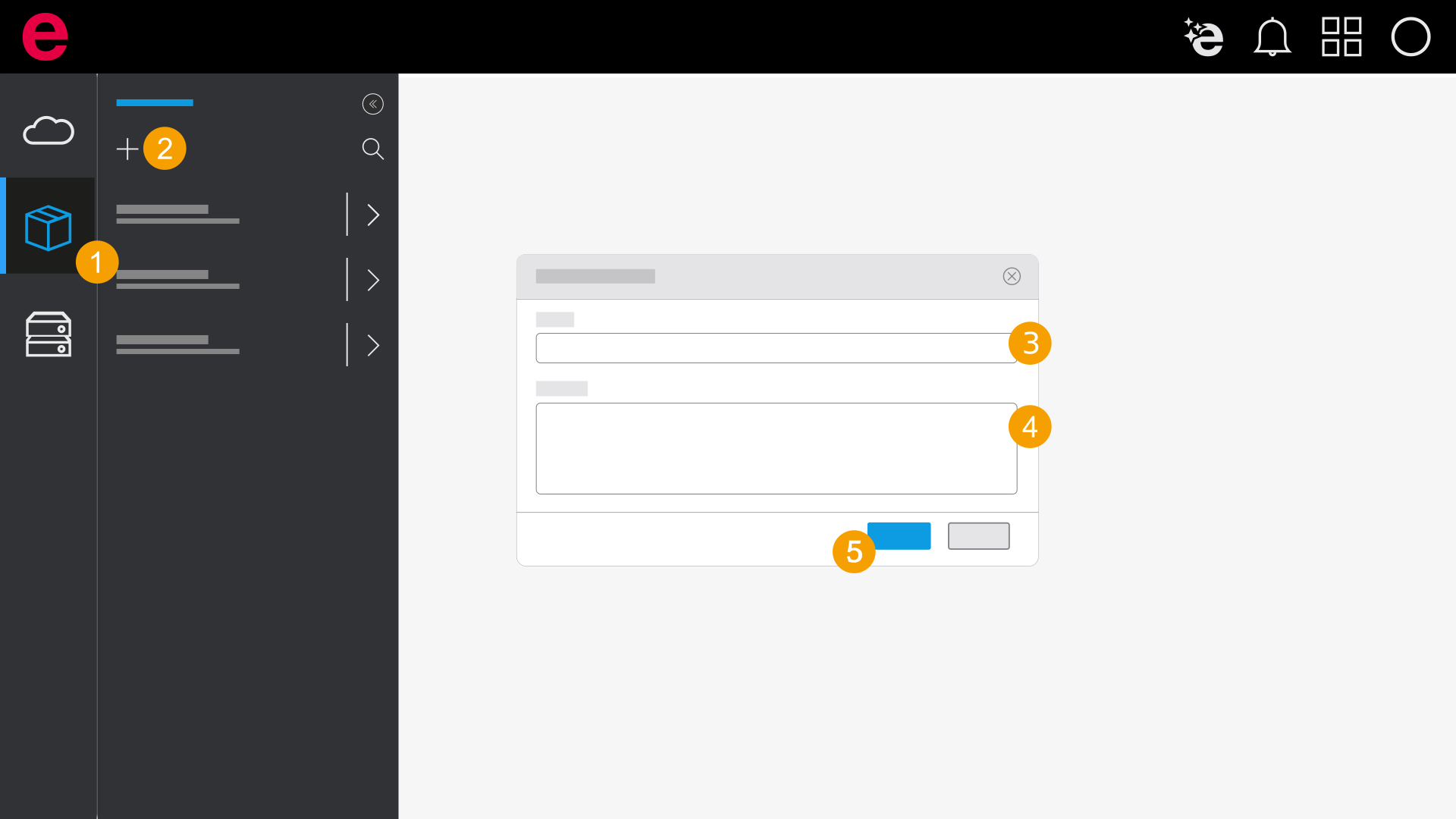
- Click Parts data in the navigation bar.
- Click the
 icon.
icon. - Enter a name for the database.
- Enter a description for the database.
- Click Create.
- The database is created. If necessary, set the newly created database as the database source in the installed Eplan solution.
In the installed Eplan solution
Alternatively, you can create an Eplan Cloud database using the installed Eplan solution and then upload it.
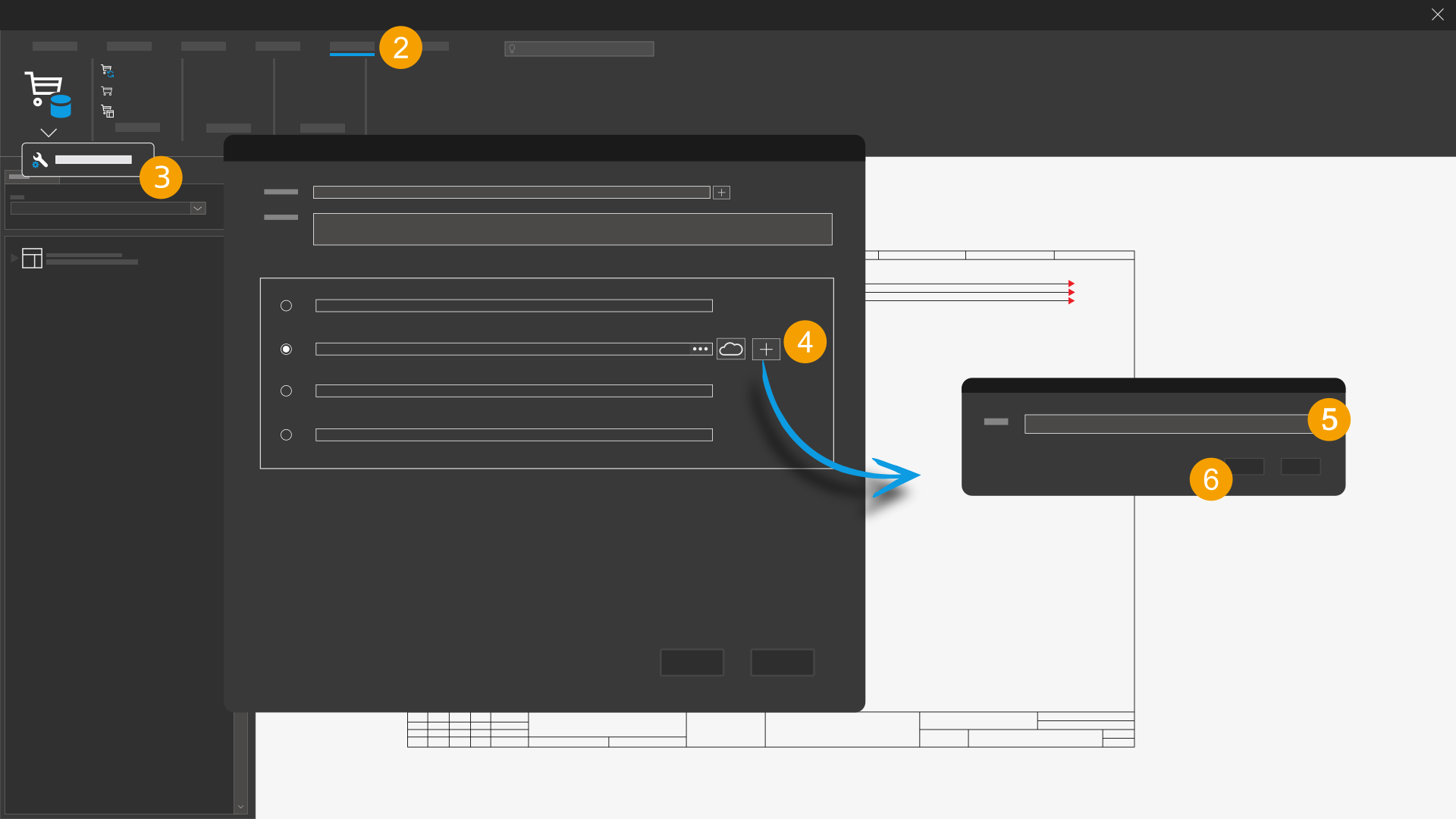
- Open your installed Eplan solution.
- Click the Master data tab.
- In the Parts > Management command group, click Settings.
- In the Database source section, click the
 button next to the Eplan Cloud option.
 - Enter a name for the database.
- Click Create.
The Settings: Parts (user) dialog opens.
The Create new Eplan Cloud database dialog opens.
You then return to the Settings: Parts (user) dialog. The new Eplan Cloud database created here is used as the new database source. Accordingly, the database name is displayed in the field as the selected database.
The created database is now also available in the Eplan Cloud data management. Synchronization between the local database and the Eplan Cloud database is now possible.
Further information about the dialog settings is available here.