Download Eplan Cloud database into installed Eplan solution
To use a database created in the Eplan Cloud in the installed Eplan solution, you must first select it as the database source.
When you select an Eplan Cloud database in the installed Eplan solution for the first time, the data is downloaded and a local copy is created from the database. This allows synchronization between the Eplan Cloud and the installed Eplan solution. You can then edit the parts data both locally and in the Eplan Cloud.
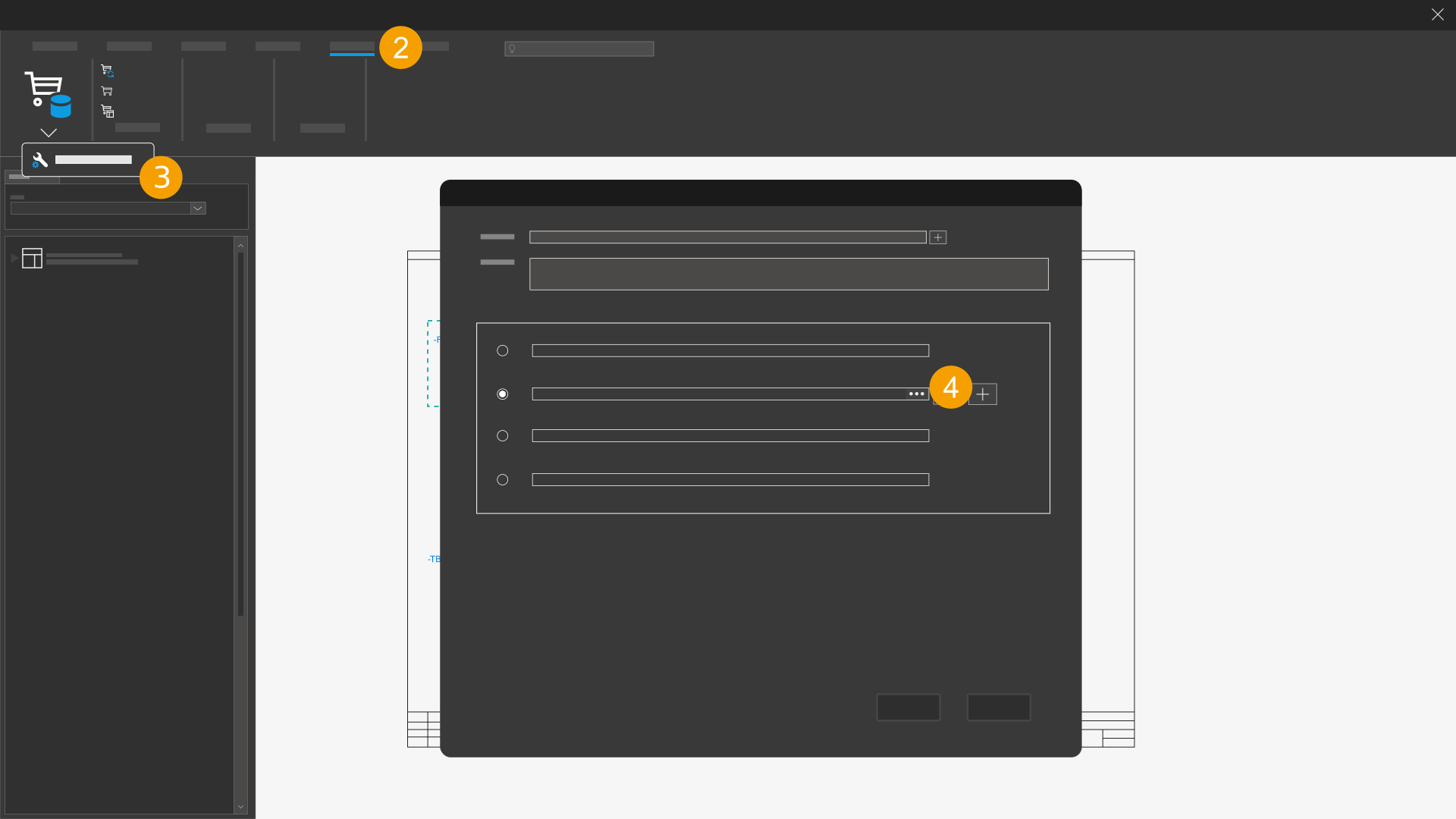
- Open your installed Eplan solution.
- Click the Master data tab.
- In the Parts > Management command group, click Settings.
- In the Database source section, click the
 icon next to the Eplan Cloud option.
 - Select the database that you want to download from the Eplan Cloud data management.
- Click OK.
- Click OK.
- The data is downloaded and a local copy is created from the database. Synchronization between the local database and the Eplan Cloud database is now possible.
The Settings: Parts (user) dialog opens.
The Select Eplan Cloud database dialog opens.
You then return to the Settings: Parts (user) dialog. The Eplan Cloud database that you select here is used as the new database source. Accordingly, the database name is displayed in the field as the selected database.
Further information about the dialog settings is available here.
Part-specific master data
The files that you enter at the parts (macros, images, documents) are not downloaded if an Eplan Cloud database is specified as the database source. You must download this data separately as master data from the Eplan Cloud. To do this, you have to specify a corresponding Eplan Cloud master data scheme in the Settings: Directories dialog.