Edit parts data
In the data management, you have the possibility to extend and edit parts data (technical data, function templates, accessories, etc.).
 Properties
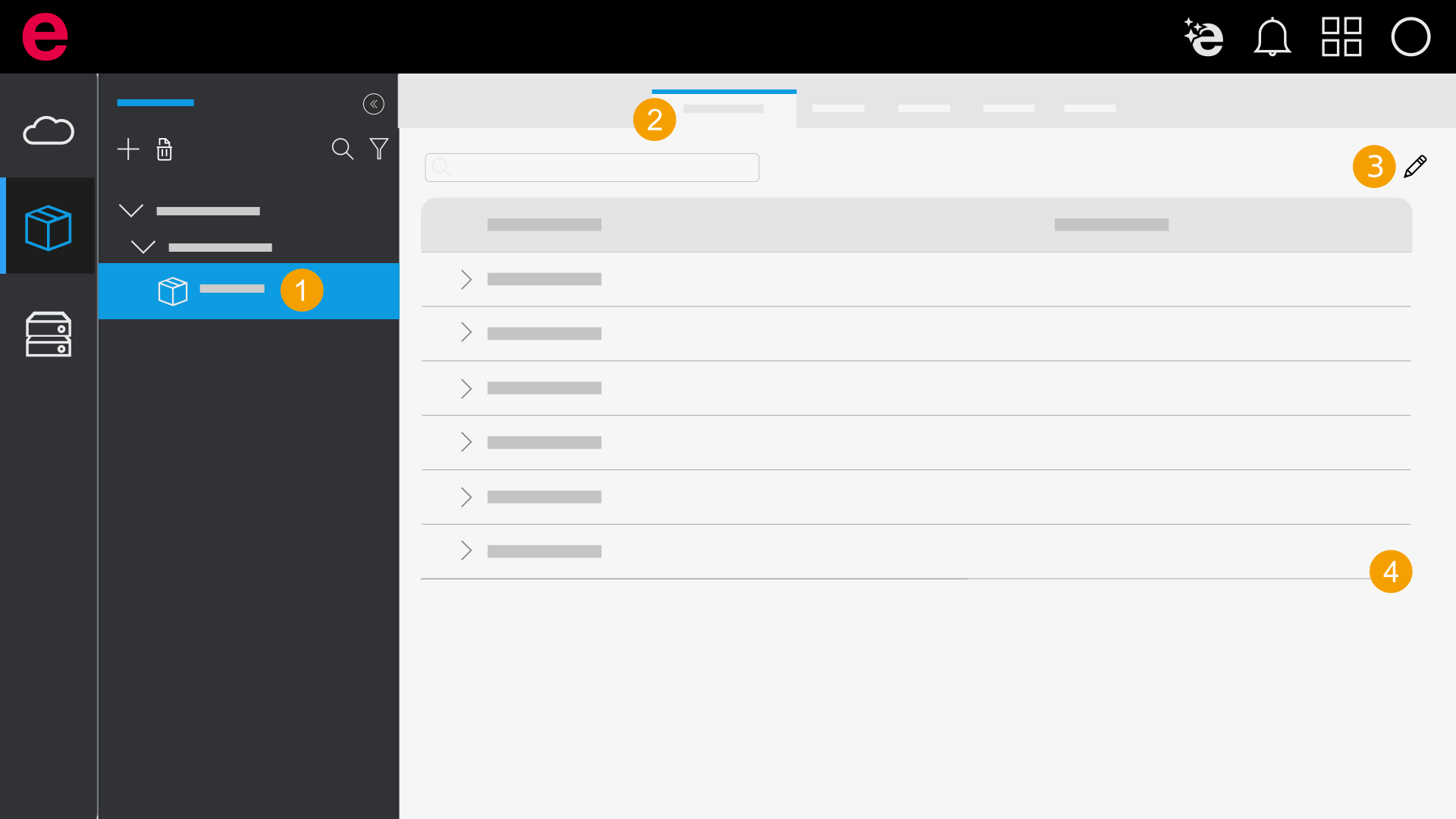
- Select a part in the selection area.
- Click Properties.
- Click the
 icon.
icon. - Assign the desired values in the properties.
- Click Save.
- The changes are saved.
You can edit the properties.
Assign function templates
Select a function definition to create a function template. Information on function templates is available here.
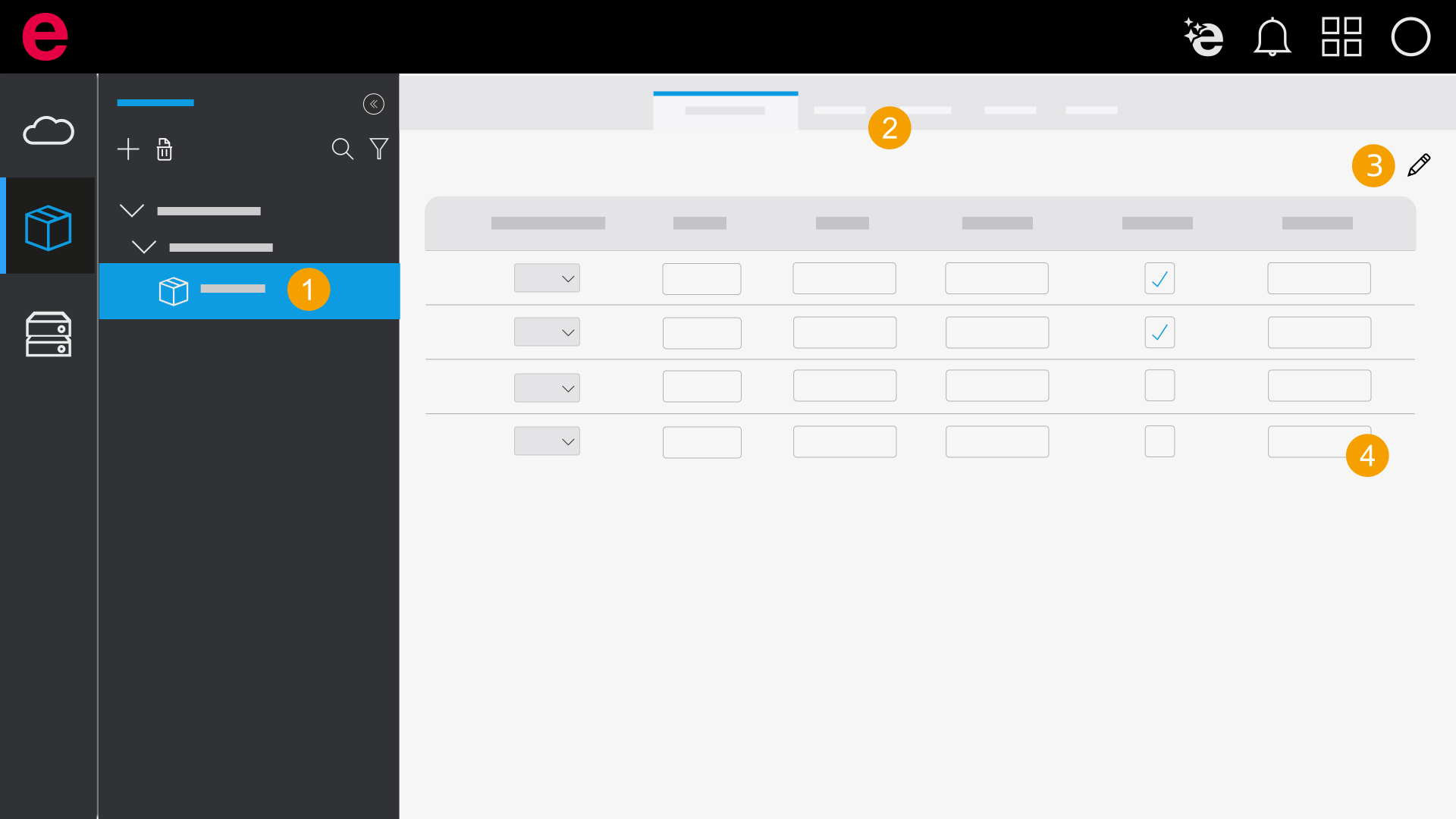
- Select a part in the selection area.
- Click Function templates.
- Click the icon.
- Select a function definition. Further information on function definitions is available here.
- Edit the function template.
- Click Save.
- The changes are saved.
You can edit the function templates.
Accessories
In the data management and the installed Eplan solution, a distinction is made between main parts and accessory parts. Assign parts that are marked as accessories to your main parts as alternatives. Accessory lists and accessory placements help you organize your accessories.
Accessory placements contain information on the placement of accessories in the layout space, taking into account a specific reference point. The specifications make it easier for you to insert accessories in the 3D mounting layout with Eplan Pro Panel. Further information on accessory placement is available here.
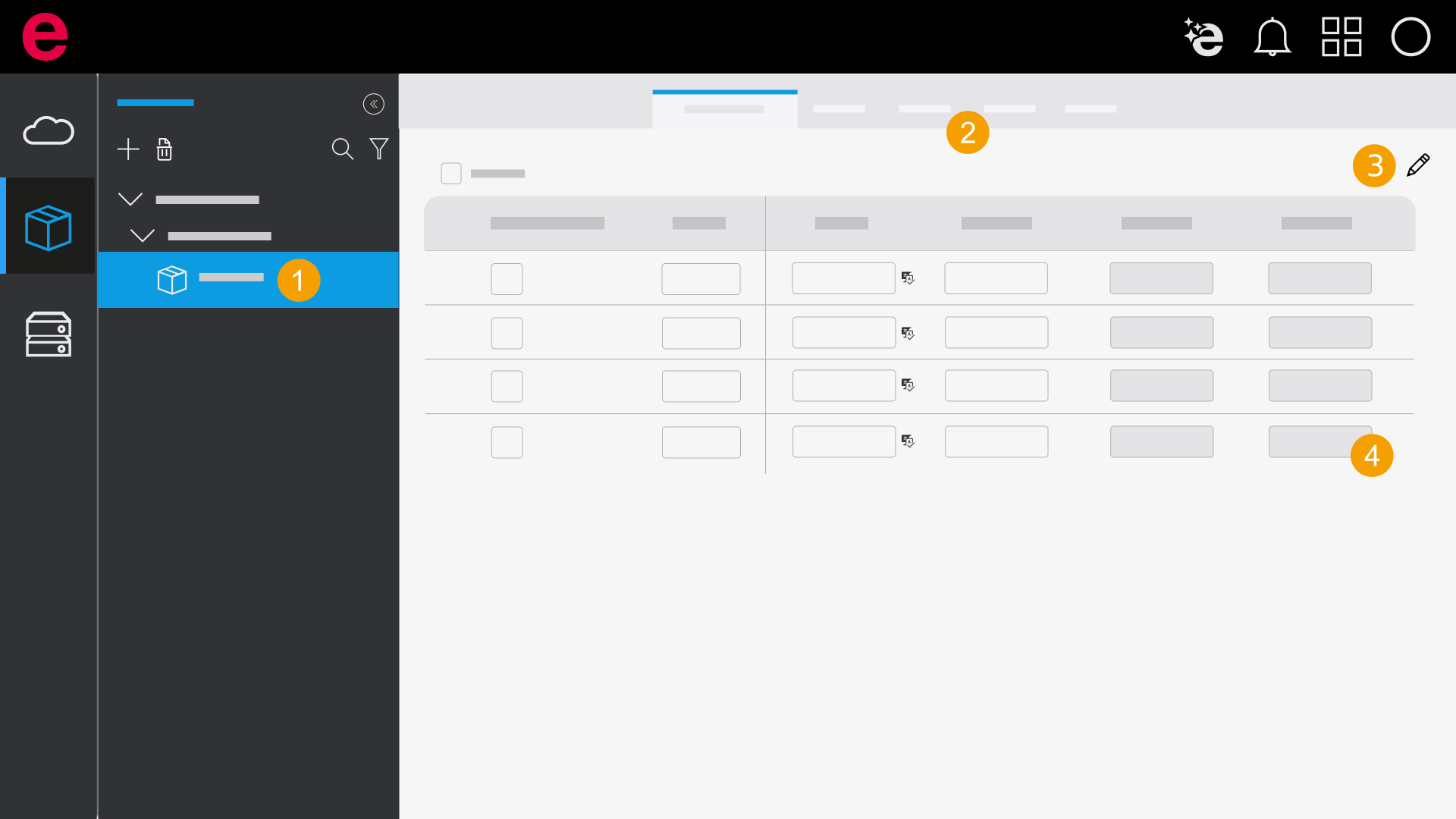
- Select a part in the selection area.
- Click Accessories.
- Click the icon.
- Add accessory parts or edit existing accessory parts.
- Click Save.
- The changes are saved.
You can edit the area.
Note
If the part is marked as an accessory, you cannot add accessory parts.
Manufacturing
In the Manufacturing area, you can assign one or more drilling patterns to a part for manufacturing.
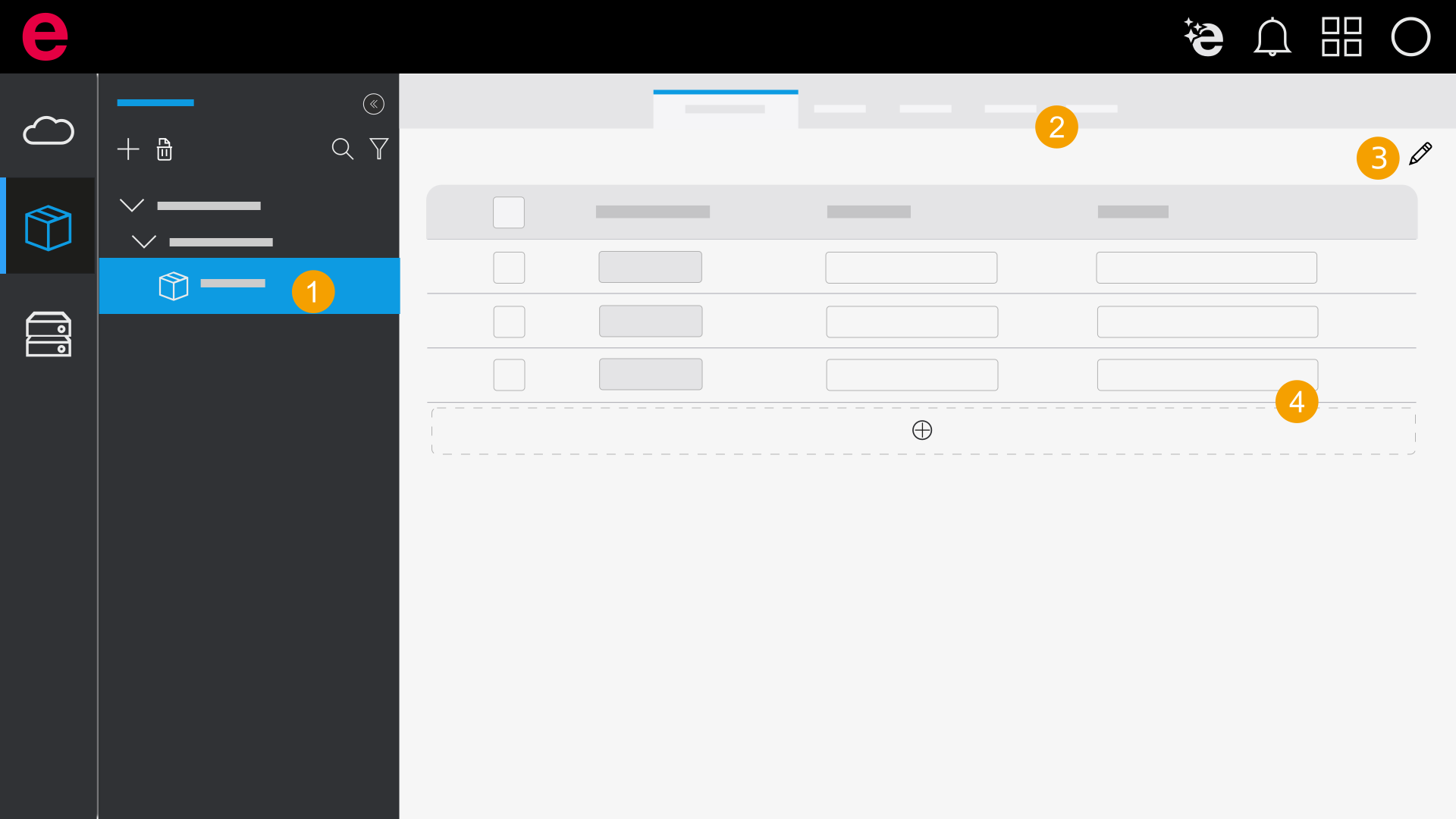
- Select a part in the selection area.
- Click Manufacturing.
- Click the icon.
- Add drilling patterns or edit existing drilling patterns.
- Click Save.
- The changes are saved.
You can edit the area.