Create and rename folder
Create folder
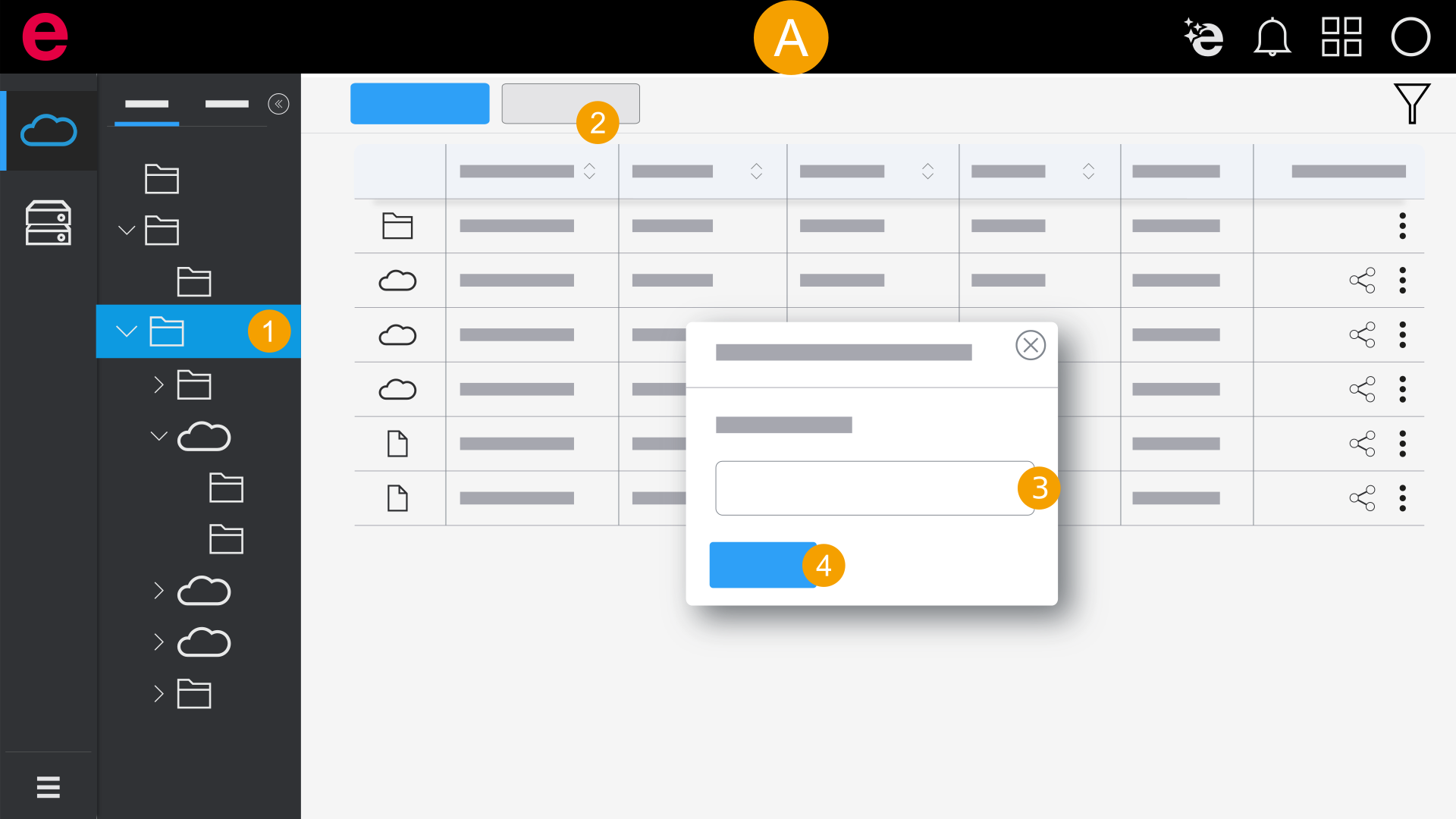
- Select a folder in which the new folder is to be created.
- Click Create folder.
- Enter the name of the new folder.
- Click Create.
- The folder is created.
If you want to create a folder on the top level, navigate in the navigation path in the header to the Internal path element.
The Create new folder dialog opens.
Folder names should be assigned once and should be unique. If a folder name is assigned multiple times, these folders cannot be moved into a shared folder.
Rename folder
If a folder is renamed in the data management, the new folder name is also applied in eView, as long as the folder contains a project published in eView.
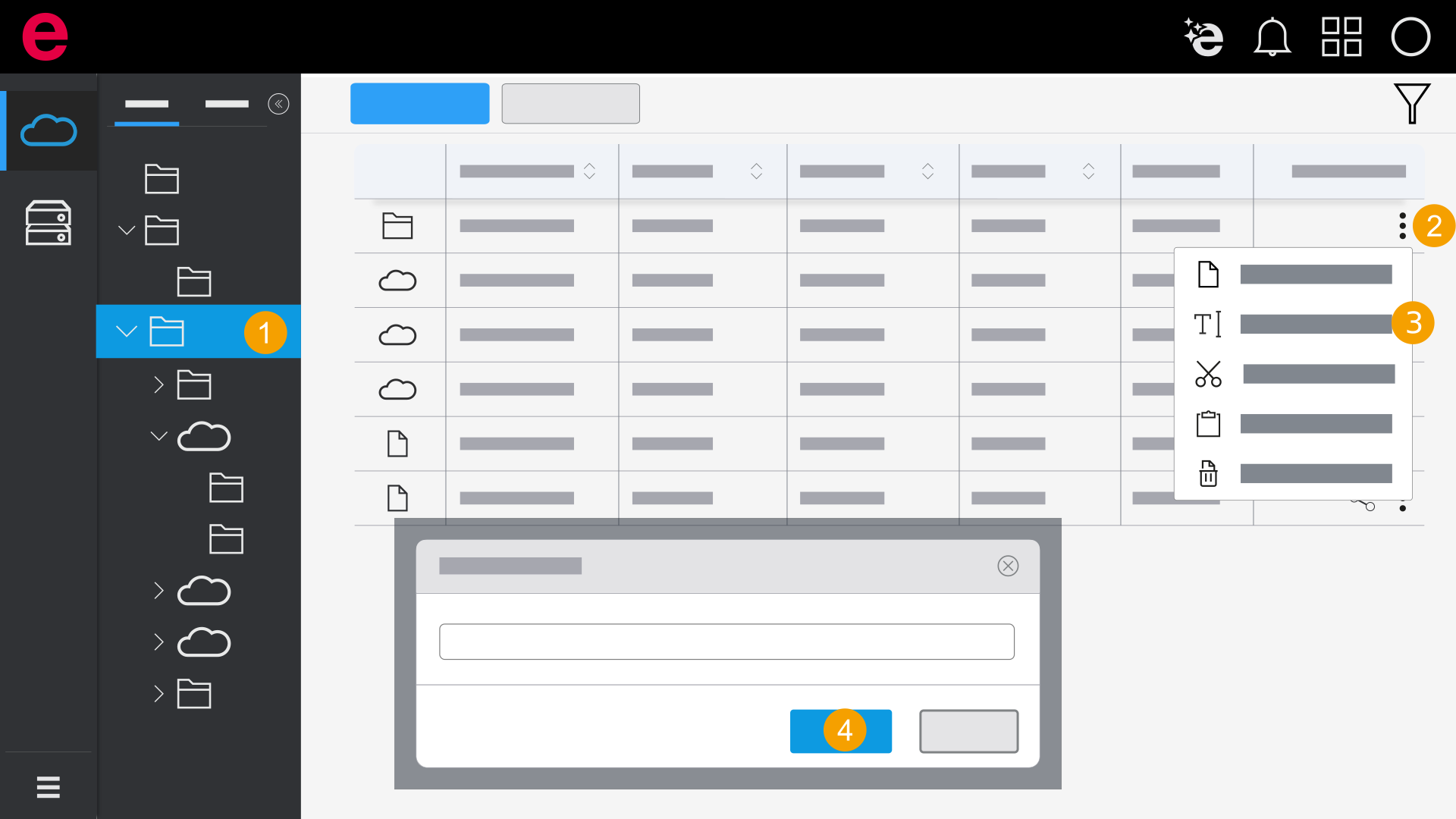
- Click the
 icon next to the folder in the Actions column.
 - Click Rename.
- Enter the new name for the folder.
- Click Rename.
- The folder is renamed.
The dialog opens.
Folder names should be assigned once and should be unique. If a folder name is assigned multiple times, these folders cannot be moved into a shared folder.