Share a file with a team
You share your project or files with a team in your company organization or organization.
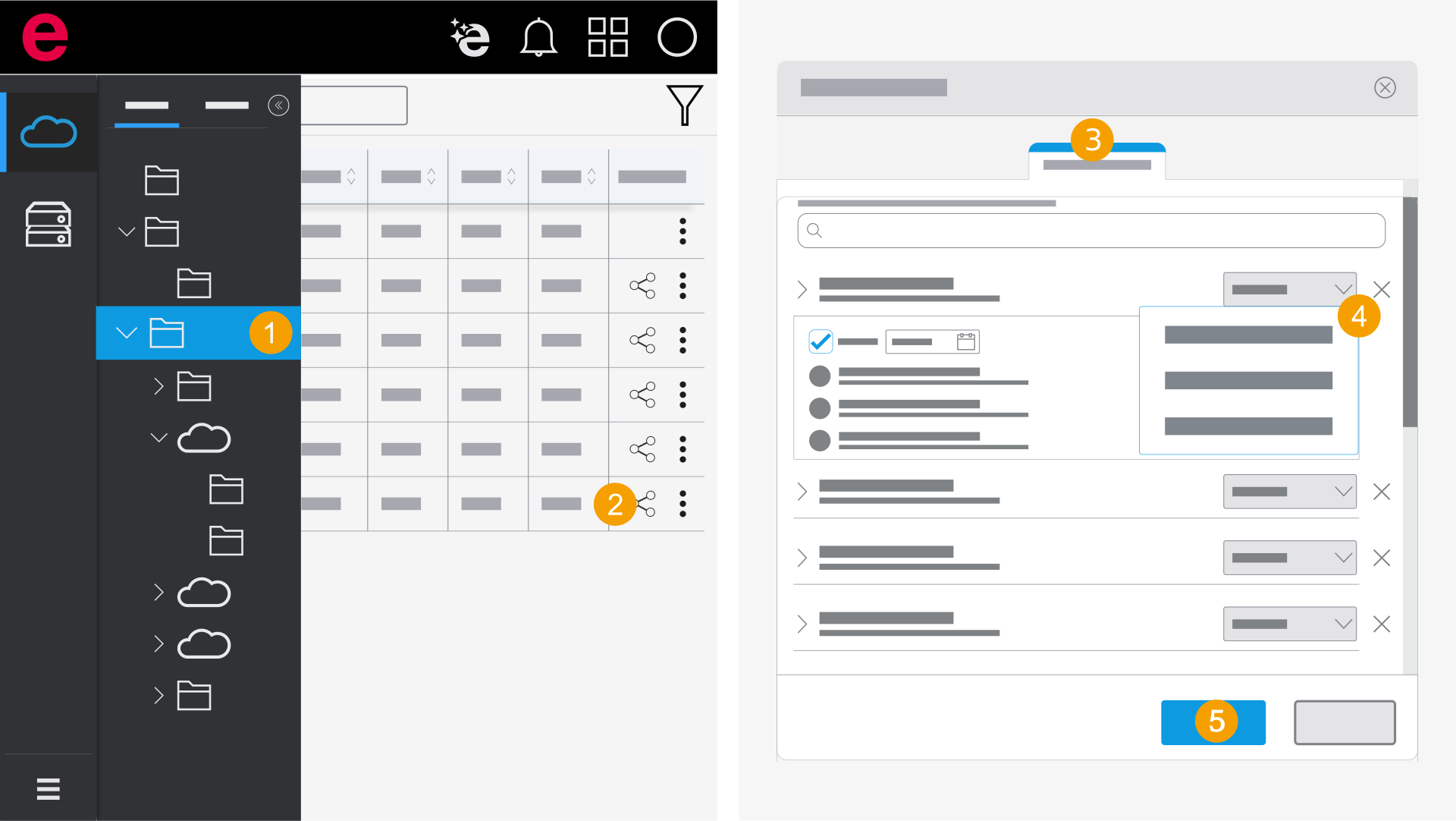
- Open the folder with the desired file.
- Click the icon
 in the Actions column.
 - Switch to the Teams area.
- Click the drop-down list next to the desired team and select a permission.
- Click Apply.
- The file is shared with the team.
If a user already has a permission for a project or a file and you also assign them a further permission, the highest permission in each case always applies.
Example: A user has the Edit permission for a project. If you assign the team to which this user belongs the View permission for the same project, the user still keeps the higher Edit permission.
To find the team or user faster, you can enter the name of the team or user or the e-mail address of the user in the search field.