As a part of your EADN (Eplan API Developer Network) partnership with Eplan GmbH & Co. KG, you get the opportunity to sign your software interface with our products. This allows you (or your customer) to use the API assembly without having an Eplan API developer license on his workstations. Instead, he receives – through you – a runtime license for an API interface.
This chapter describes how you (or your developers) should proceed, to get properly signed EADN modules.
At first there should be clarified why signing is necessary. There are 2 kinds of API licenses:
a) API developer license – It should be used only for development and testing of an API interface. Normally it has a limitation of a maximum size of Eplan projects to 5 pages. Only unsigned API programs can be loaded using it.
b) API runtime license – In this case there can be used only signed API programs, so we need to sign it. The routine how to do it is described bellow.
A user can check available licenses and select one by starting Eplan with shift key (then the Select license dialog will appear). When Eplan is already running, the current license can be retrieved from:
a) the About Eplan dialog
b) in the API using the EplApplication.License property and the License class.
EADN / API Runtime signing uses a concept of combining standard .NET strong-naming with additionally including an Eplan license option to the software.
To achieve this combination, please follow the instructions in this chapter.
After you have concluded your EADN contract or purchased an API Runtime license and you created a new software interface with Eplan, the main administrator of your Eplan cloud organization will get informed about a new entitlement for using the cloud-based EADN Signing service. Additionally, you will receive a file containing the public part of a standard signature key, normally used for strong-naming a .NET assembly. We created this key especially for your software.
For using the Eplan-Cloud based signing service, you have to be member of the regarding organization and got assigned the role User to the application EADN Singing:

Public pre-signing keyfiles (e.g. 1234_public.snk, refer to Delay sign the assemblies) that are used inside a Visual Studio project must match the used Eplan Cloud organization.
To verify which pre-signing keyfiles can get used inside the active Eplan Cloud organization, authorize (refer to Authorize manual usage of EADN-Signing) and use the endpoint GET /licenses and check the result.


The above example shows property optionId with the value 1234, which means assemblies with the used pre-signing keyfile 1234_public.snk would be allowed to get signed inside the active Eplan Cloud organization.
Example of response if no pre-signing key is assigned to the current organization ➔ organization not allowed to sign assemblies.

Notice:
In case no valid license (optionId) is shown, please use Eplan Global Support Portal for getting help.
Take the following steps to get your application EADN / API Runtime signed:
In your software projects, you need to add an additional attribute to your AssemblyInfo files of all the assemblies that are referencing Eplan API Assemblies. The EplanSignedAssemblyAttribute is implemented in the Eplan.EplApi.Starter.dll, which you always have to reference in your API application. The following example shows how to use the attribute in your AssemblyInfo file:
| C# |
Copy Code
|
|---|---|
using System.Reflection; using System.Runtime.CompilerServices; using System.Runtime.InteropServices; using Eplan.EplApi.Starter; //.. [assembly: EplanSignedAssemblyAttribute(true)] |
|
Important:
Eplan checks the signature for all DLLs and exe files that directly or indirectly use Eplan API functions. Therefore, please ensure to add the EplanSignedAssembly attribute in the AssemblyInfo.cs files of every DLL and exe file using Eplan API functionality directly or indirectly.
The easiest way for delay signing your assemblies (DLL or exe) is entering the public key file in the signing properties of your software projects in Visual Studio. Check Sign the assembly and activate the Delay sign only flag. See the following image:

The delay signing is done, when building the software project and with it creating the assembly.
Alternatively, you can use Microsoft's Assembly Linker Al.exe to manually delay sign assemblies. Please refer to respective MSDN documentation.
Log in to the Eplan Cloud Developer Portal https://developer.eplan.com.
Notice:
An Eplan Cloud account is required to access the Developer Portal.
Notice:
Manual signing via the Developer Portal is intended only for testing. The main purpose of the service is automatic signing (refer directly to Fully automated signing process).
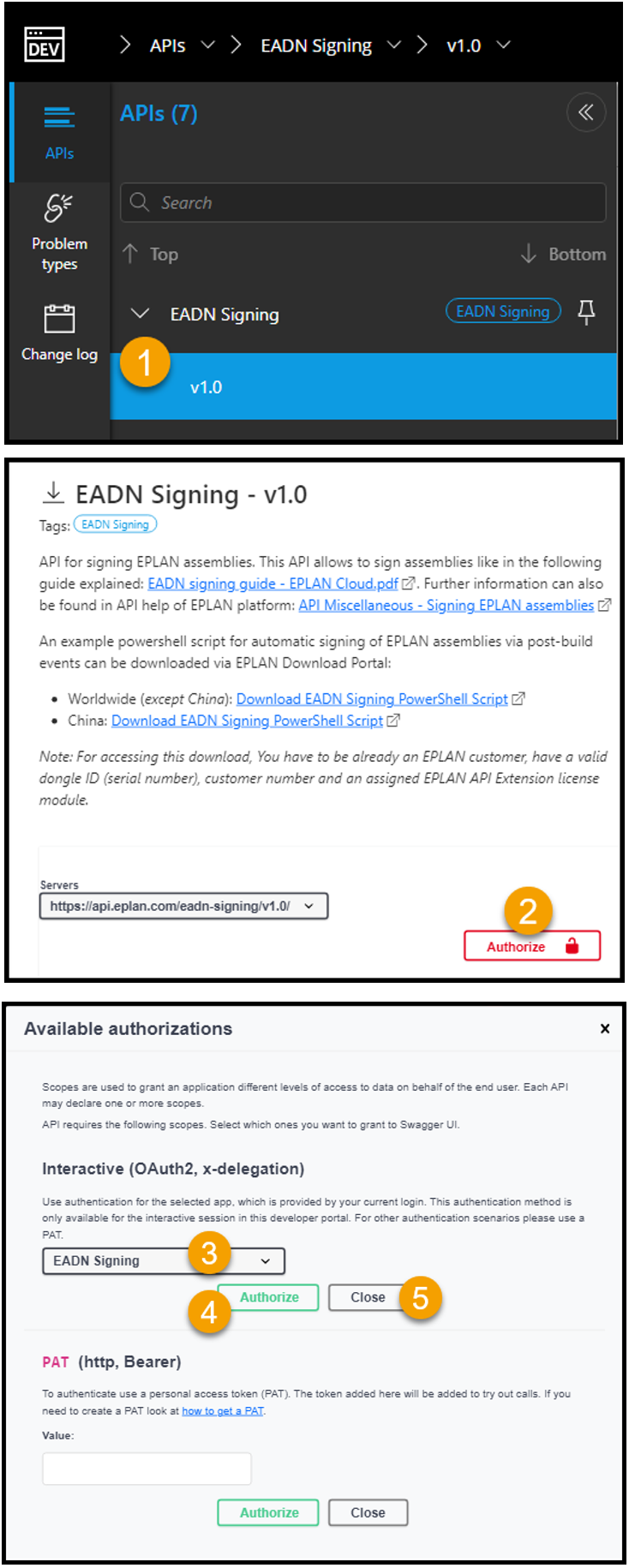

After successful authorization, the entry USER is displayed as active role:

Example when authorization was not successful:

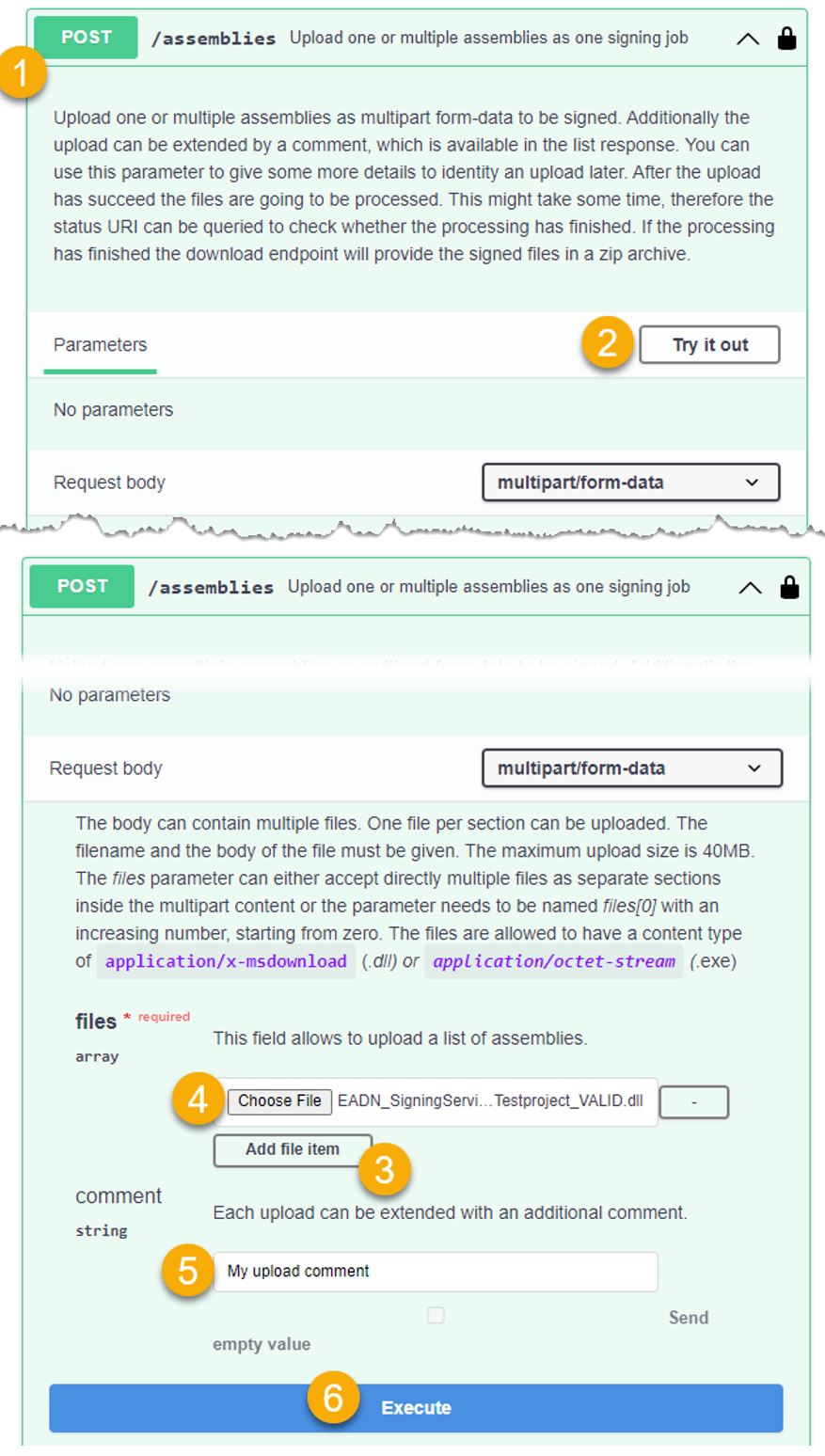
Log in to the Eplan Cloud Developer Portal https://developer.eplan.com.
If required, perform Authorize manual usage of EADN-Signing.
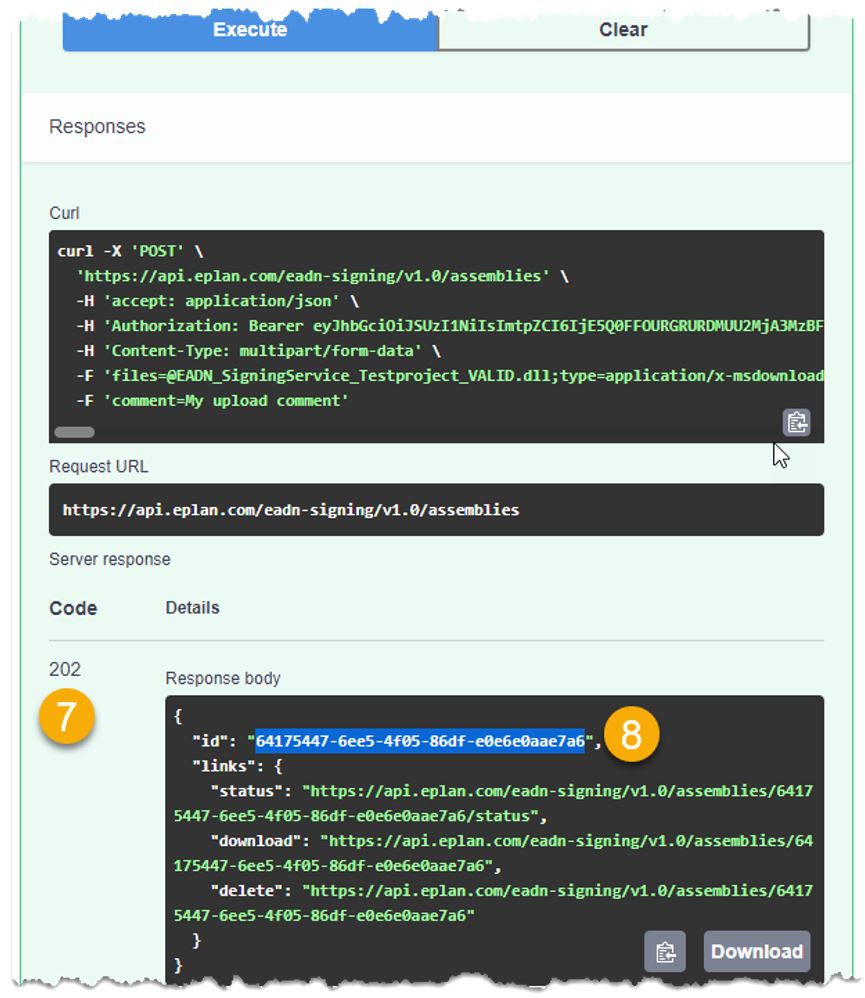
Make sure you have the ID of the desired upload process handy (see also Select and copy value of ID in Response body).
Log in to the Eplan Cloud Developer Portal https://developer.eplan.com.
If required, perform Authorize manual usage of EADN-Signing.
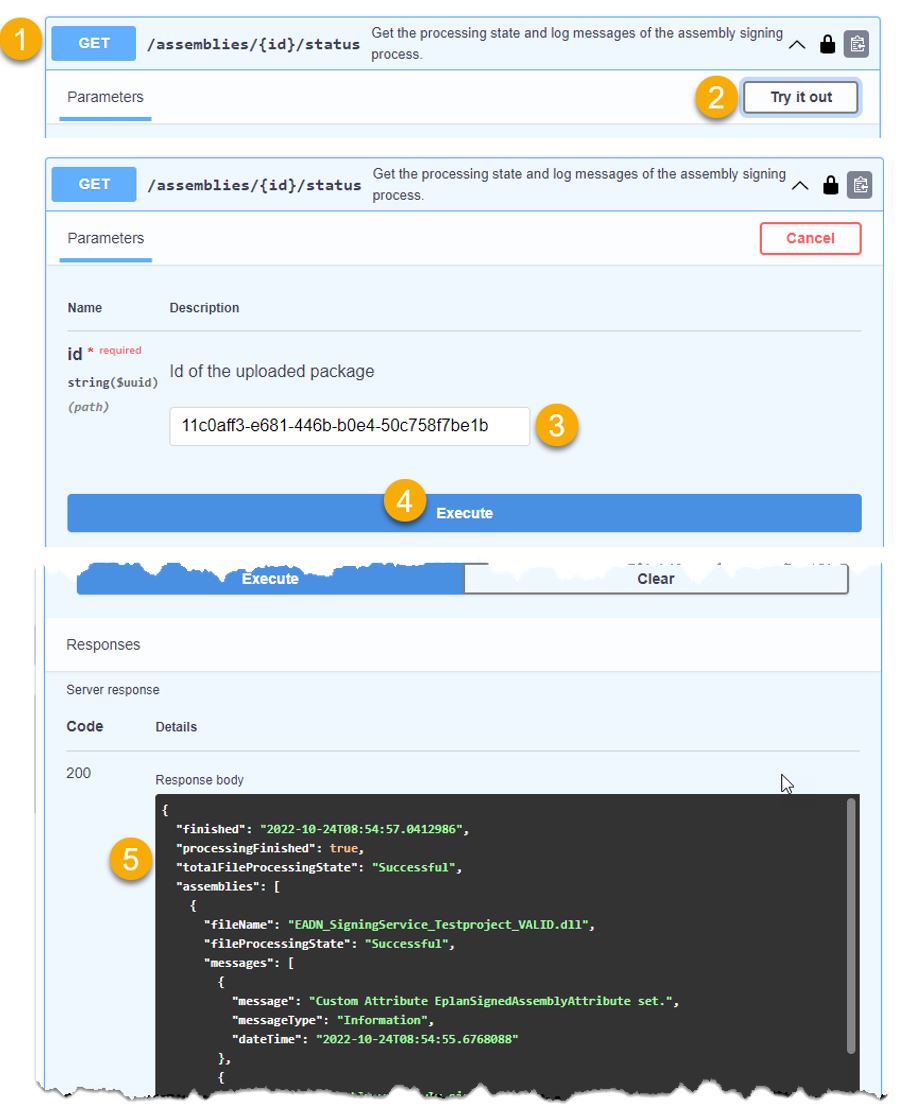
Make sure you have the ID of the desired upload process handy (see also Select and copy value of ID in Response body).
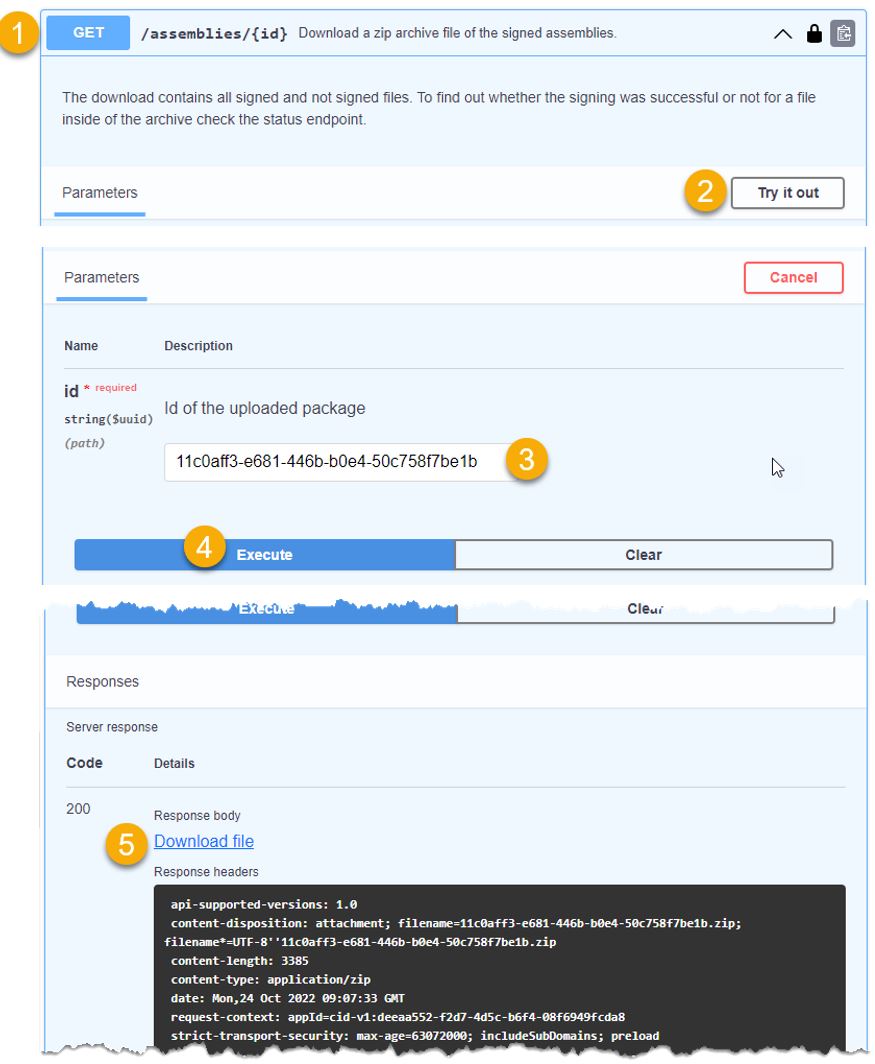
Log in to the Eplan Cloud Developer Portal https://developer.eplan.com.
If required, perform Authorize manual usage of EADN-Signing.
(see also Limitations below)
Make sure you have the ID of the desired upload process handy.
(see also Select and copy value of ID in Response body)
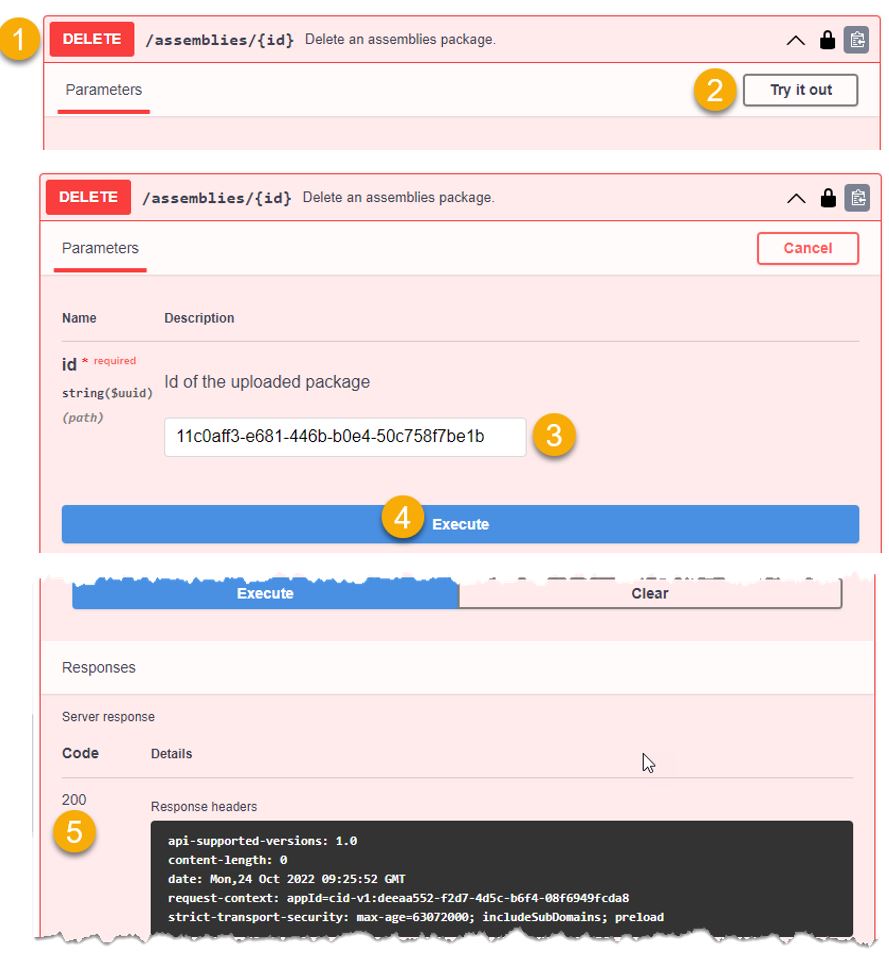
Preparations / prerequisites
To take advantage of fully automated signing of assemblies during the build process of Visual Studio, you must create a personal access token (further called PAT) for the application EADN Signing inside the profile editor of your Eplan Cloud organization.
See Eplan Cloud help:
• Open My Settings
• Add personal access token (PAT)
• Roles and permissions
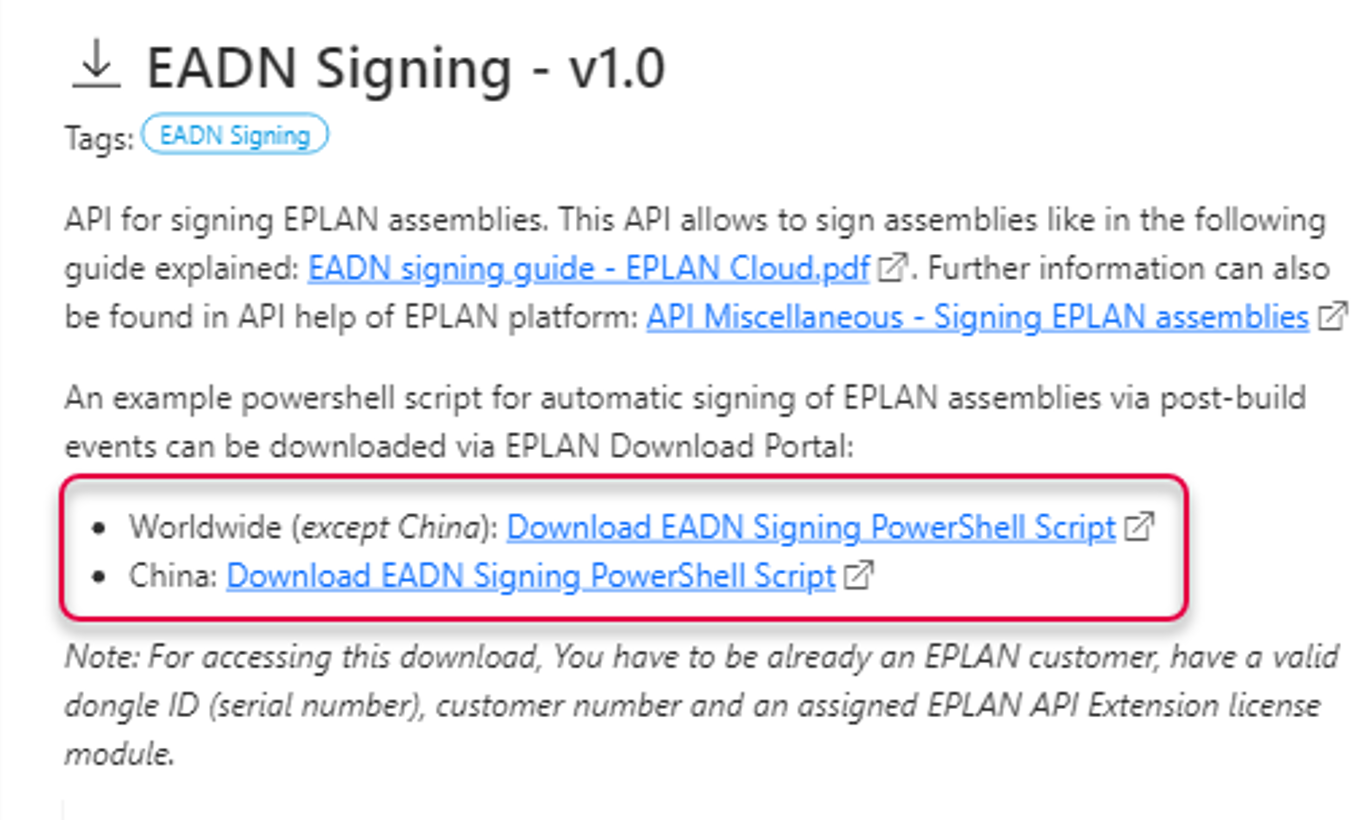
Download the provided PowerShell script from the Developer Portal EADN Singing for using it in Post-build event of Visual Studio.
An example for calling the script including available parameters can be found inside the script itself:
|
Copy Code
|
|
|---|---|
# Example command line:
#
# powershell -ExecutionPolicy Bypass -file "<YourFolderName>\PostBuildScript.ps1"
|
|
| Parameter name | Mandatory | Description |
|---|---|---|
| baseUrl | No | Only for signing in Chinese environment; use parameter value*: https://api.eplan.com.cn/eadn-signing/v1.0 |
| comment | No | Comment for complete upload job |
| accessToken | Yes | PAT which was created in User profile |
| assemblies | Yes | Filename(s) of assemblies / executables which have to get signed |
| destinationPath | Yes | Local target folder for downloading result-package (via PowerShell script target directory is tried to get created if missing) |
| deleteAfterwards | No | Delete upload-job after tried signing automatically (Note: storage quota limitations) |
*current baseUrl can be viewed at any time in the Developer Portal
This allows, for example, files with the same name to be processed in one signing operation.
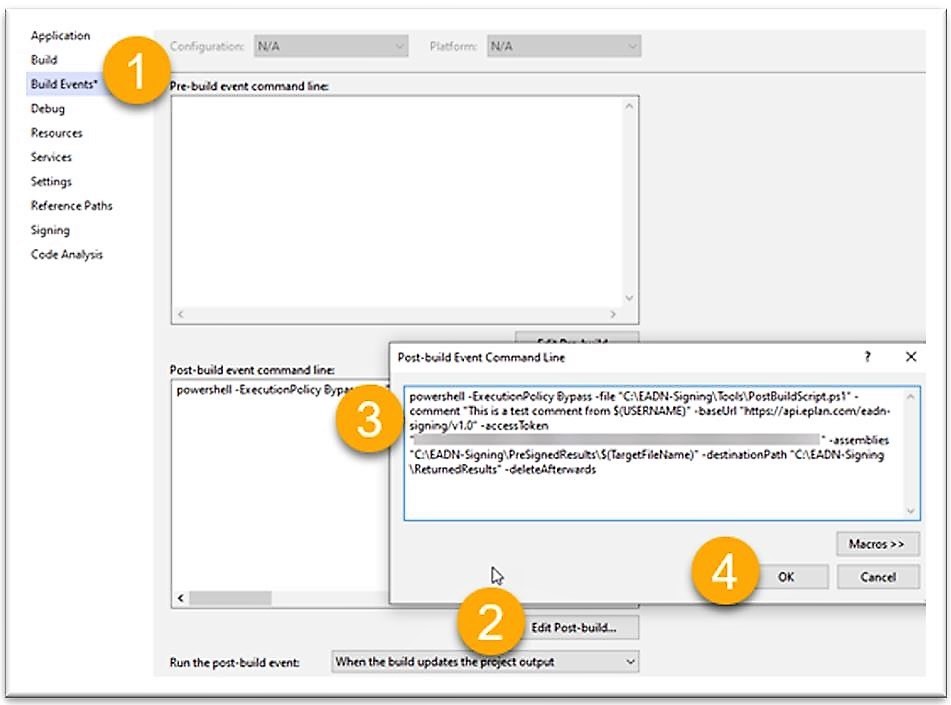
Output console will show details after building:
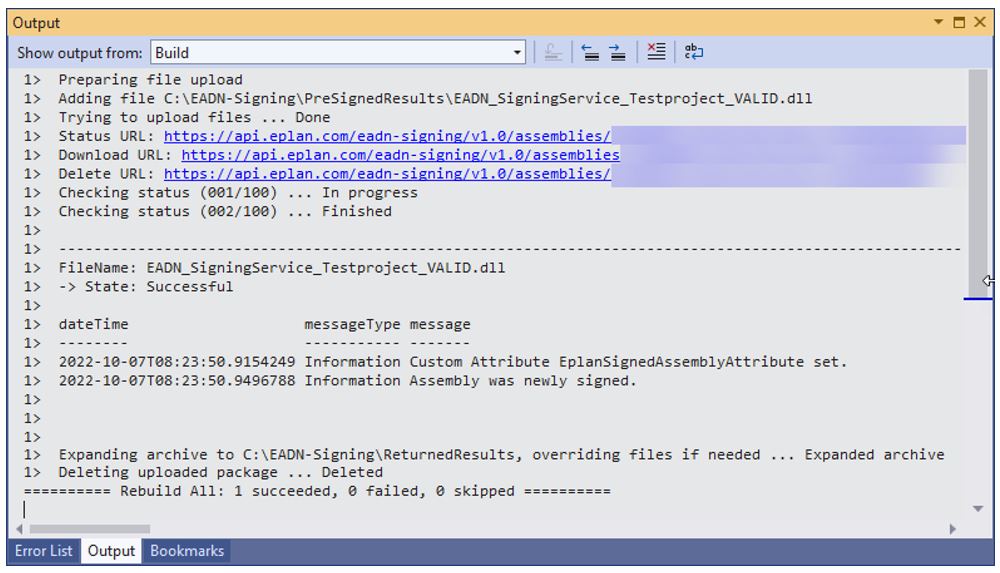
All files (no matter if singing process was successful or not) will get extracted to the given folder in the destinationPath parameter.
• The filenames in one upload have to be unique. Adding the same filename multiple times (on the same folder level) is not allowed, because it can not be reflected in the ZIP-file for download.
• Each upload job can have a max. total file size of ~40 MB
• There is an upload limit of max. 9999 kept upload jobs for each organization.
• No automatic “cleanup” is done in organization storage.
• If upload limit is reached, older uploaded files have to get deleted before new uploads are possible.
If you use an automatically created serialization DLL for your classes, you need to delay-sign them via the sgen.exe tool. This tool can be found the SDK directory of your development environment.
As you probably know, any strong-named .NET assembly can only reference / load other strong-named assemblies. In case your application registers COM DLLs, the development environment normally automatically creates so-called interop DLLs, which contain the .NET wrapping of the respective COM methods. Normally, these DLLs are not signed. To create these assemblies in an already delay-signed way Microsoft provides the command line tool tlbimp.exe – also to be found in the SDK directory of your development environment. See the following example, how it is used:
If you encounter issues with the signing process, please contact the Eplan Global Support Portal.
