Importing and exporting XLSX files
 General requirements
- You have selected a library.
- You have selected a project.
- You have selected a configurator.
- You have opened the Configure and generate selection area.
Structural requirements
The XLSX file must have specific structure elements so that it can be used in the Project Builder.
The internal name of the corresponding element in the XLSX file must exist so that the contents of an XLSX file can be assigned to the configuration variables, Macro Typicals and Typical Groups available in the Project Builder. If a translated display name exists, it is therefore supplemented with the technically required, model-internal name. The model-internal name is enclosed by braces { }. If no translated display names exist for an element, these braces are not required.
Example: Internal name and translated display name of a configuration variable
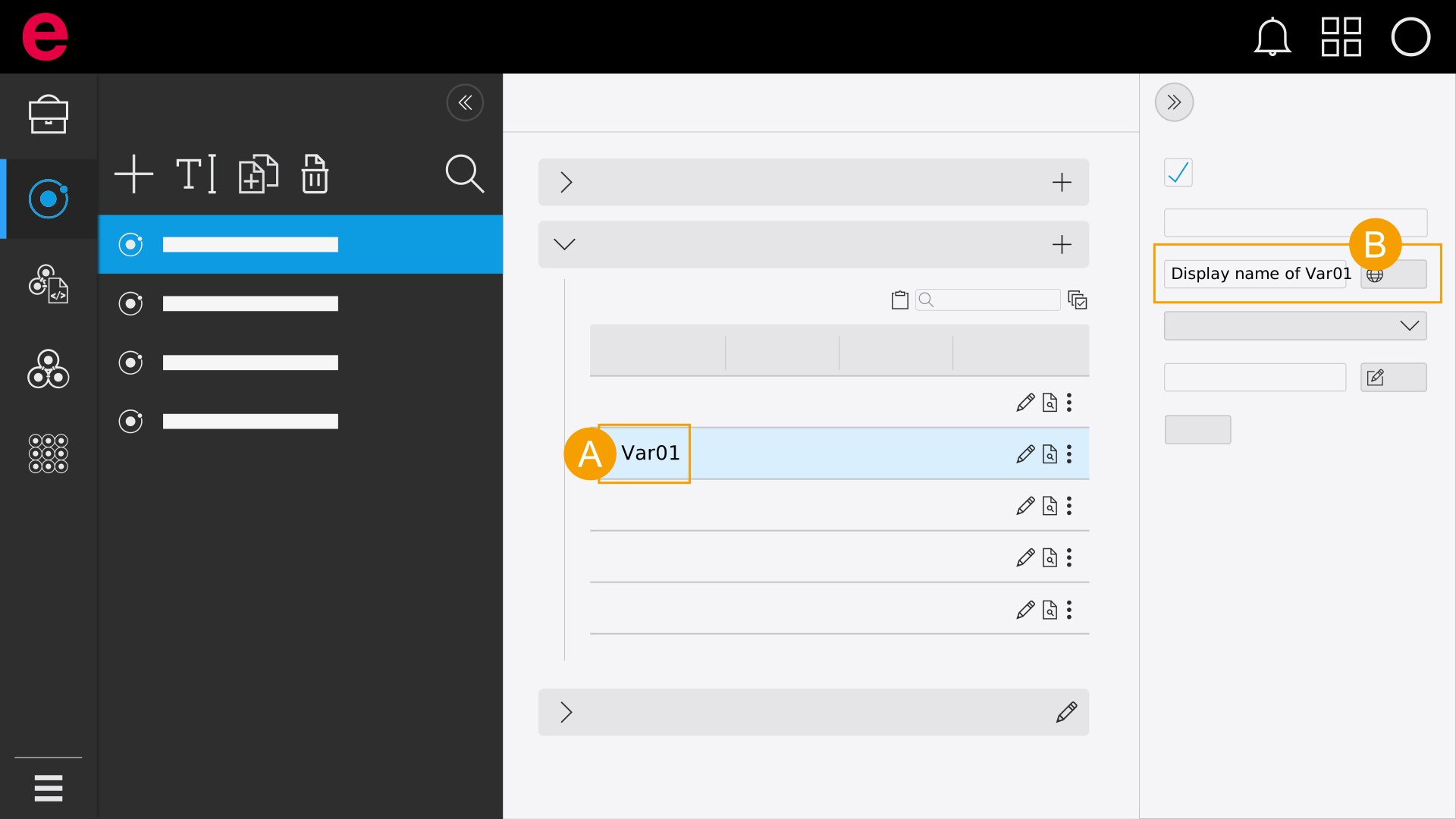
- Configuration variable with internal name
Var01 - Display name of the configuration variable
Here you see the appearance of the internal name and the translated display names of the configuration variable in an XLSX file:
| A | B | |
|---|---|---|
|
1 |
* |
|
|
2 |
|
|
|
3 |
|
|
* The cell A1 of an XLSX file is reserved for the specification of the configurator element.
Note
- When exchanging data via an XLSX file, only the first worksheet of the XLSX workbook is taken into consideration.
- In case of a data exchange via an XLSX file, the braces { } in the display name as well as entries in the selection lists of configuration variables should not be used, since the required uniqueness is otherwise not ensured during the import.
Example: Configurators and elements
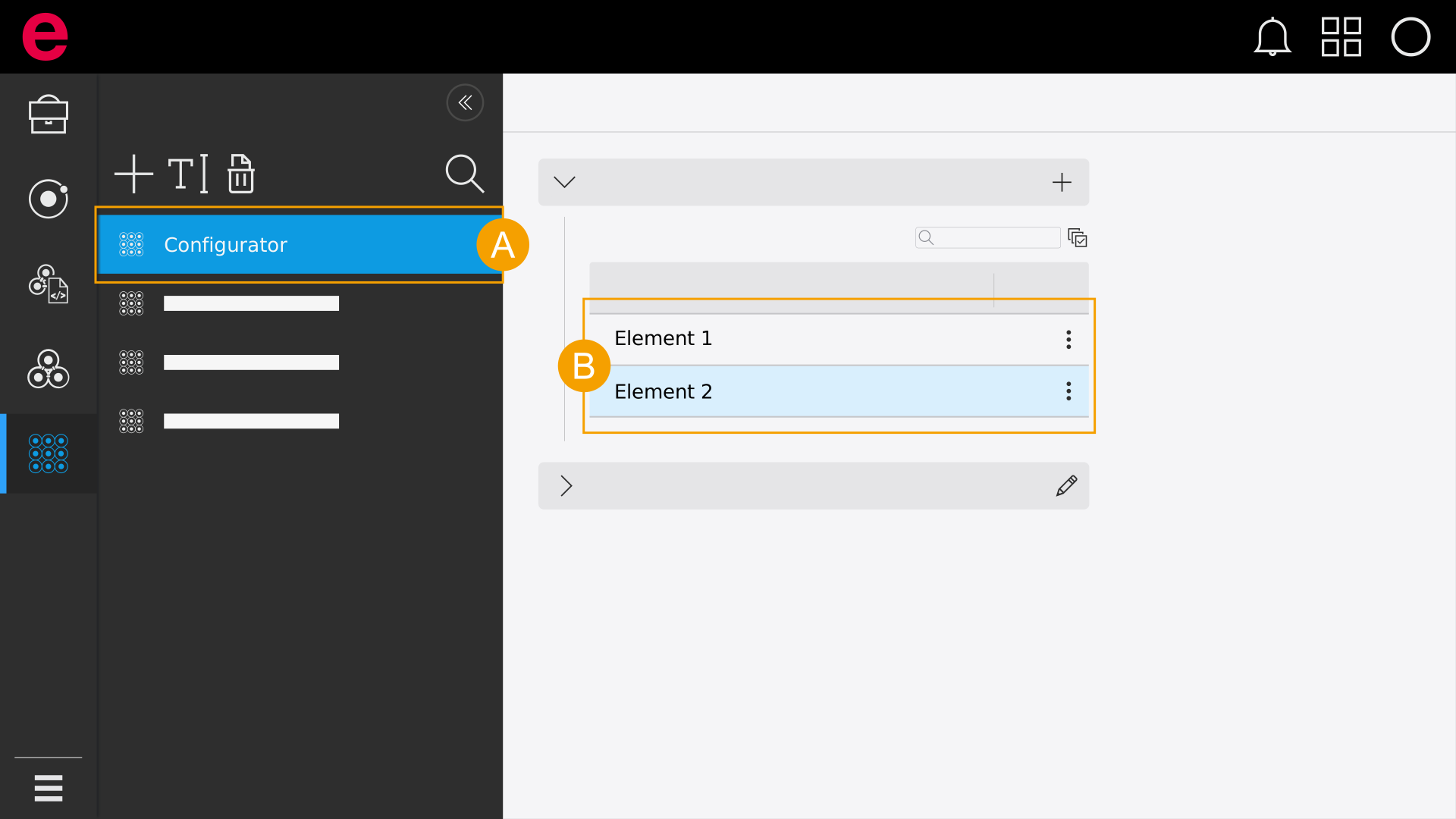
- Appearance of a configurator with name
Configurator in the Designer - Appearance of the configuration elements
Element 1 andElement 2 in the Designer
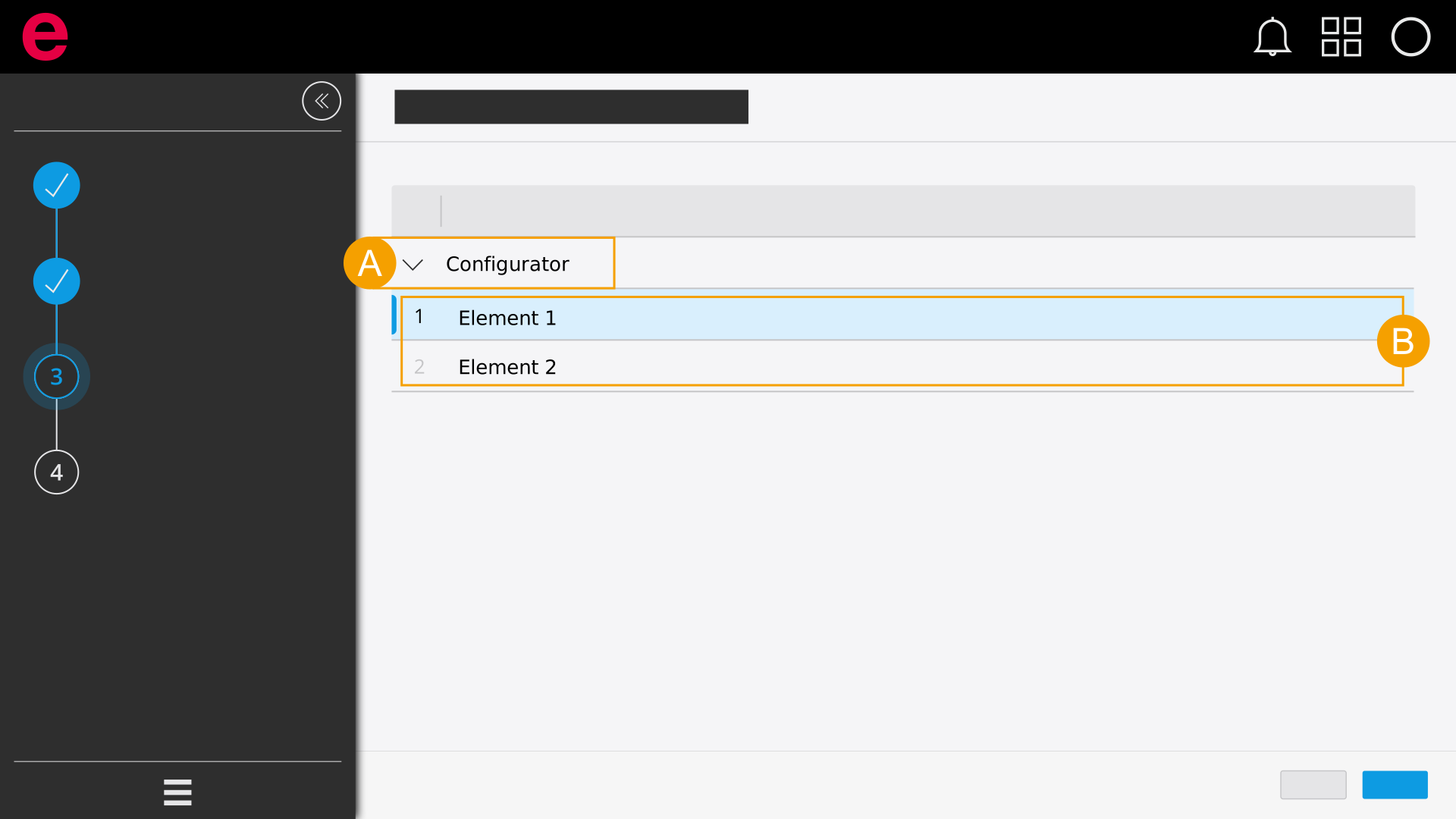
- Appearance of a configurator with name
Configurator in the Project Builder - Appearance of the configuration elements
Element 1 andElement 2 in the Project Builder
The export result of an XLSX file of the configurator element
| A | B | |
|---|---|---|
|
1 |
|
|
|
2 |
|
|
|
3 |
|
|
|
4 |
|
|
The higher-level configuration variables are specified as of row 2 of the XLSX file. Column A contains the name, and column B the value for a specific configuration variable. The exact designation of the configuration variable must be entered as the name. The value to be defined must be available for selection in the variable and fit the data type. The order of the variables is irrelevant.
Note
A configuration element only has to be specified during the usage of the silent mode. This is irrelevant during a manual import of an XLSX file in the Project Builder. The contents of cell A1 in the XLSX file are not checked in this use case.
Example: Basic structure of an XLSX file (without translated display names)
| A | B | |
|---|---|---|
|
1 |
|
|
|
2 |
|
|
|
3 |
|
|
|
4 |
|
|
|
5 |
|
|
|
6 |
|
|
|
7 |
|
|
|
8 |
|
|
|
9 |
|
|
|
10 |
|
|
|
11 |
|
|
Example: Basic structure of an XLSX file (with translated display names)
| A | B | |
|---|---|---|
|
1 |
|
|
|
2 |
|
|
|
3 |
|
|
|
4 |
|
|
|
5 |
|
|
|
6 |
|
|
|
7 |
|
|
|
8 |
|
|
|
9 |
|
|
|
10 |
|
|
|
11 |
|
|
Instances and their configuration variables
Instances are introduced with a Header. The name of the instantiable Typical is contained in column A, followed by the configuration variables in the subsequent columns. The instantiable elements including their values for the configuration variables are contained in the rows below the header. A block of instantiable elements must be completed by a blank line.
| A | B | C | |
|---|---|---|---|
|
1 |
|
|
|
|
2 |
|
|
|
|
3 |
|
|
|
|
4 |
|
|
|
|
5 |
|
|
|
|
6 |
|
|
|
|
7 |
|
|
|
|
8 |
|
|
|
|
9 |
|
|
|
Note
The introductory header is displayed in bold in the table only for clarification. In general, formatting has no influence on the processing of an XLSX file by the Project Builder.
Example: Structure of an XLSX file for the configuration of instances (without translated display names)
| A | B | C | |
|---|---|---|---|
|
1 |
|
|
|
|
2 |
|
|
|
|
3 |
|
|
|
|
4 |
|
|
|
|
5 |
|
|
|
|
6 |
|
|
|
|
7 |
|
|
|
|
8 |
|
|
|
|
9 |
|
|
|
|
10 |
|
|
|
Export a configuration as an XLSX file
- Click Export as XLSX.
- Enter the name and a storage location.
- Click Save.
- The configuration is exported.
Your selection is saved for the next export.
Import a configuration as an XLSX file
- Click Import XLSX file.
- Select a file.
- Click Open.
- The configuration is imported.
Note
- The specifications in the XLSX file for designation, type and value of a configuration variable must match the elements in the configurator. If the specifications do not match, you receive a corresponding error message. The import will continue if possible.
- The specifications that were already made in the configurator and are not contained in the imported file are not overwritten.
- When exchanging data via an XLSX file, only the first worksheet of the XLSX workbook is taken into consideration.