Share a file with an internal user
You share your project, master data or files with a user in your company organization or organization.
 Prerequisites: Roles and permissions
Roles
| Area | Function | Admin | Designer | User | Guest |
|---|---|---|---|---|---|
| Files | |||||
| Share a file with an internal user | x | x | |||
| Share a file with an external user | x | x | |||
| Share a file with a team | x | x | |||
| Share file; set time period | x | x | |||
| View "Shared with" file detail | x | x | x |
Permissions
| Area | Function | Edit | Limited (Edit) | View |
|---|---|---|---|---|
| Files | ||||
| Share a file with an internal user | x | |||
| Share a file with an external user | x | |||
| Share a file with a team | x | |||
| Share a file; specify a period | x | |||
| View "Shared with" file detail | x | x |
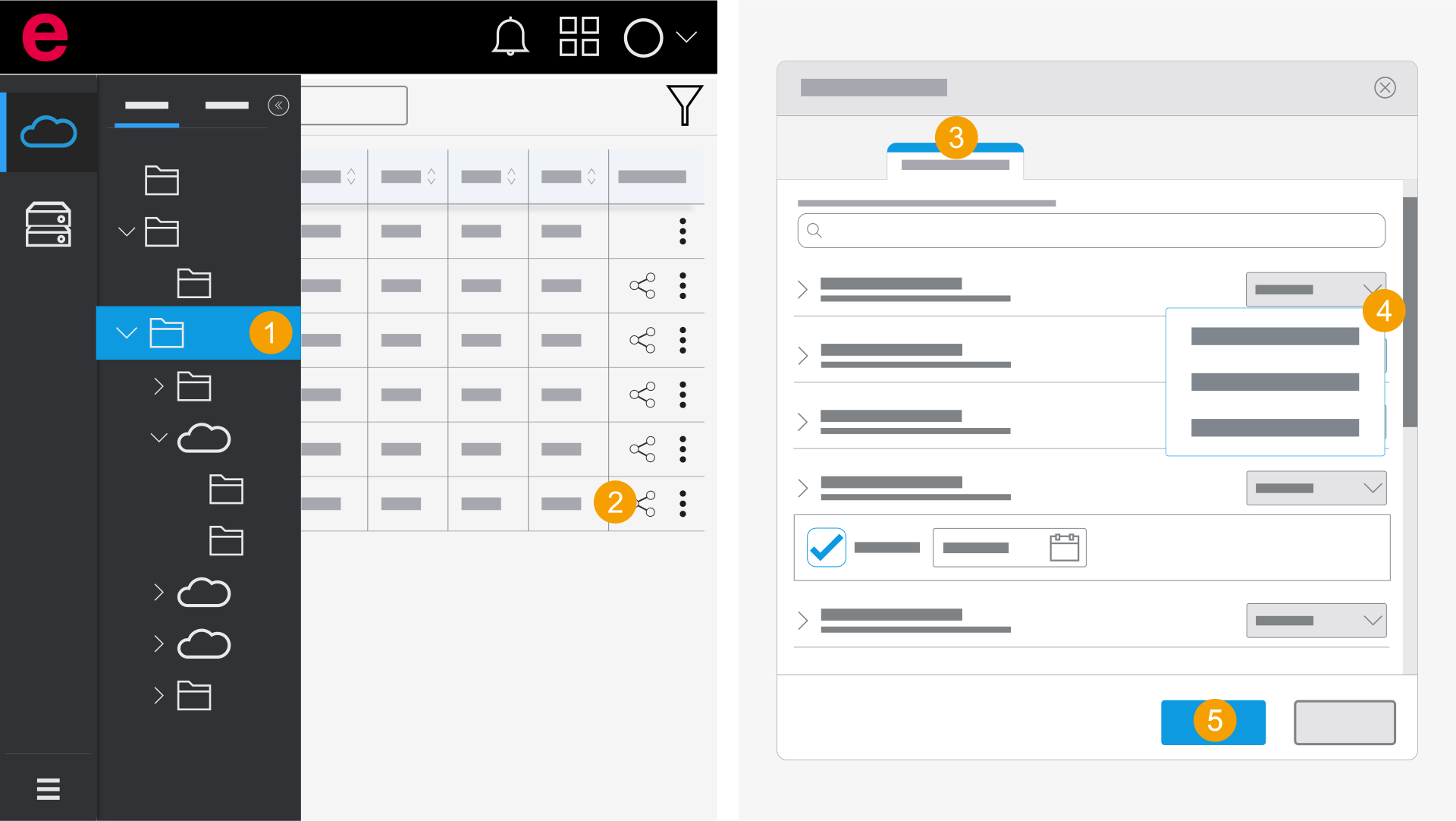
- eManage > Projects
- Open the folder with the desired file.
- On the file, click the
 icon.
icon. - Select the Internal users section.
- Click the desired user in the drop-down list and select a permission.
- The administrator of the organization must invite the user to the organization. Further information is available here.
- Click Apply.
- The file is shared with the user.
To find the team or user faster, you can enter the name of the team or user or the e-mail address of the user in the search field.
If you do not find the user, this person is not a member of the organization.
You have the following options:
You can specify the period during which the user or the team should have access to the project, master data or files. For more information, see Share a project: Specify a period.