Download, save and open a project
Projects which you open from the data management in the installed Eplan solution are downloaded and saved locally on your computer beforehand and are only then opened in the installed Eplan solution. This means each modification you perform on the project is local and can therefore be performed offline.
You can also download projects in the browser and open them at a later point in the Eplan solution with and without an Internet connection. As soon as you have finished your modifications, you can just upload the project again and the updated project is available again for those users with whom you have shared the project.
 Download, save and open project in installed Eplan solution
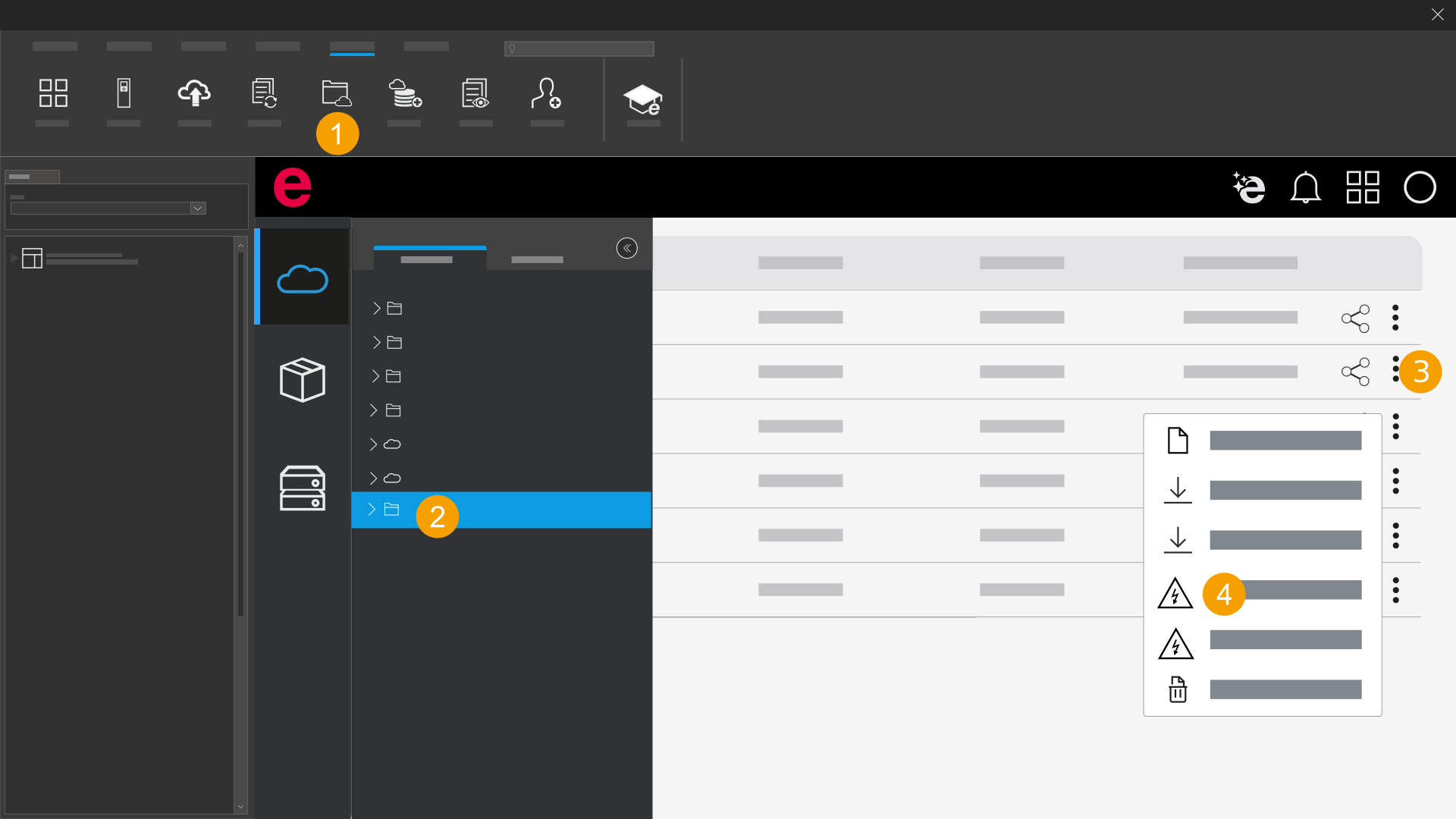
- Open the data management.
- Open the folder with the desired project.
- Click the
 icon next to the project in the Actions column.
 - Click Open project.
- Click OK.
- Click Yes.
- The project is opened in the installed Eplan solution and saved locally on your computer.
The project is downloaded.
If the project already exists, a restore dialog is displayed.
If the project already exists, a restore dialog is displayed again.
If you have finished editing a project and want to make the changed project available in the data management, you must upload it again. Further information is available in Upload a project.
Download project in browser, store and open in Eplan solution
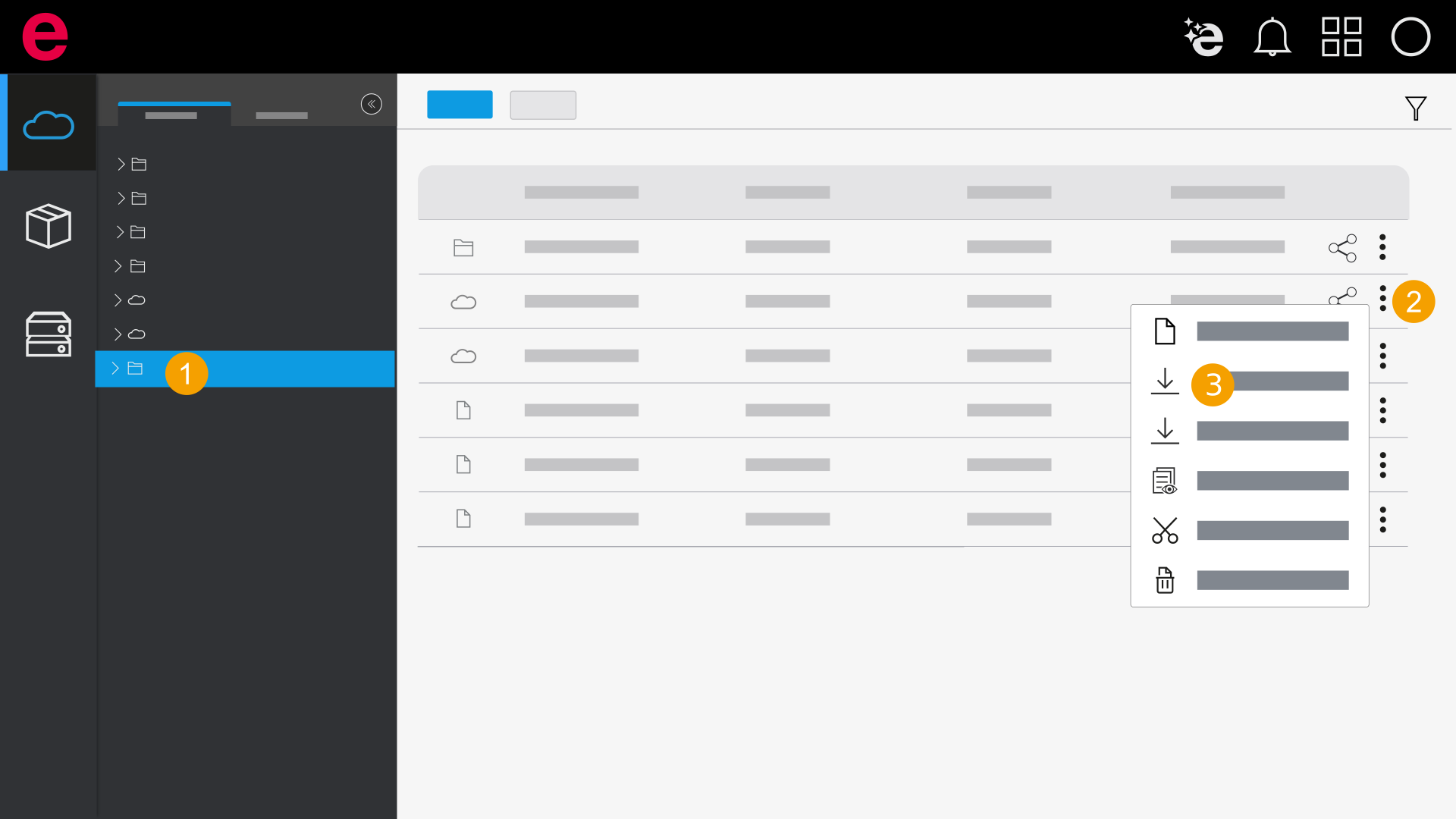
- Open the folder with the desired project.
- Click the icon next to the project in the Actions column.
- Depending on the version, click "Download XY project".
The project is downloaded.
The further steps to download, store and open depend on your browser and its settings.
If you have finished editing a project and want to make the changed project available in the data management, you must upload it again. Further information is available in Upload a project.