Enable two-factor authentication (2FA)
Prerequisite: You must create an Eplan account to enable two-factor authentication Create, add or remove account.
After activating two-factor authentication, to sign in to the Eplan Cloud you must first enter your Cloud password and then the code in your authentication app.
Important
For two-factor authentication, you need a mobile device with a (TOTP-based) authentication app installed.
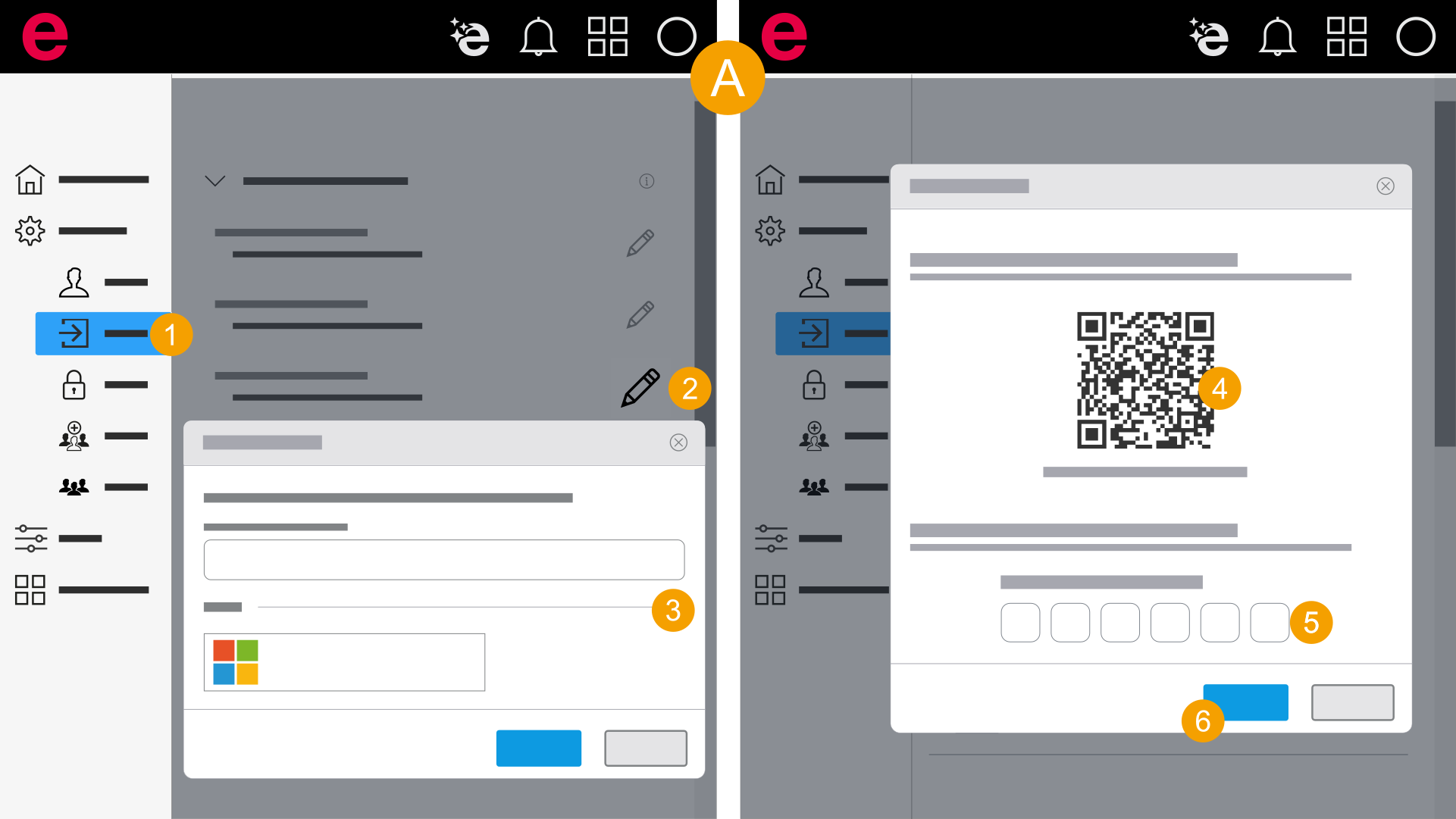
- My settings > General > Sign-in
- In the navigation bar, click General > Sign-in.
- Click the
 icon at Eplan account.
 - Enter your password or use your Microsoft account and click Next.
- On your mobile device, open the authentication app and scan the QR code.
- Enter the code that is displayed in the authentication app.
- Click Confirm.
- Click Close.
- You have enabled two-factor authentication. Now when you sign in, both your password and the code will be requested in your authentication app.
You will receive a confirmation e-mail.
Save the recovery codes separately. You will need them if your mobile device is lost.