Revoke roles and licenses
For information on the available roles and the rights they include, see Roles and permissions.
If a user is a member of a team with an assigned role template, a previously made manual change is overwritten when the role template is changed or the role template is replaced.
Requirement: Open User management
 Requirements: Roles
| Area | Function | Main administrator | "Manage" |
|---|---|---|---|
| Users | |||
| Revoke roles and licenses | x | x |
Revoke roles and licenses from a user
Roles and licenses in user management are either assigned and revoked by the main administrator of the organization or by a user to whom the main administrator has assigned the role "Manage" for user management. When no role is selected, the product disappears from the dashboard and is no longer available to the user.
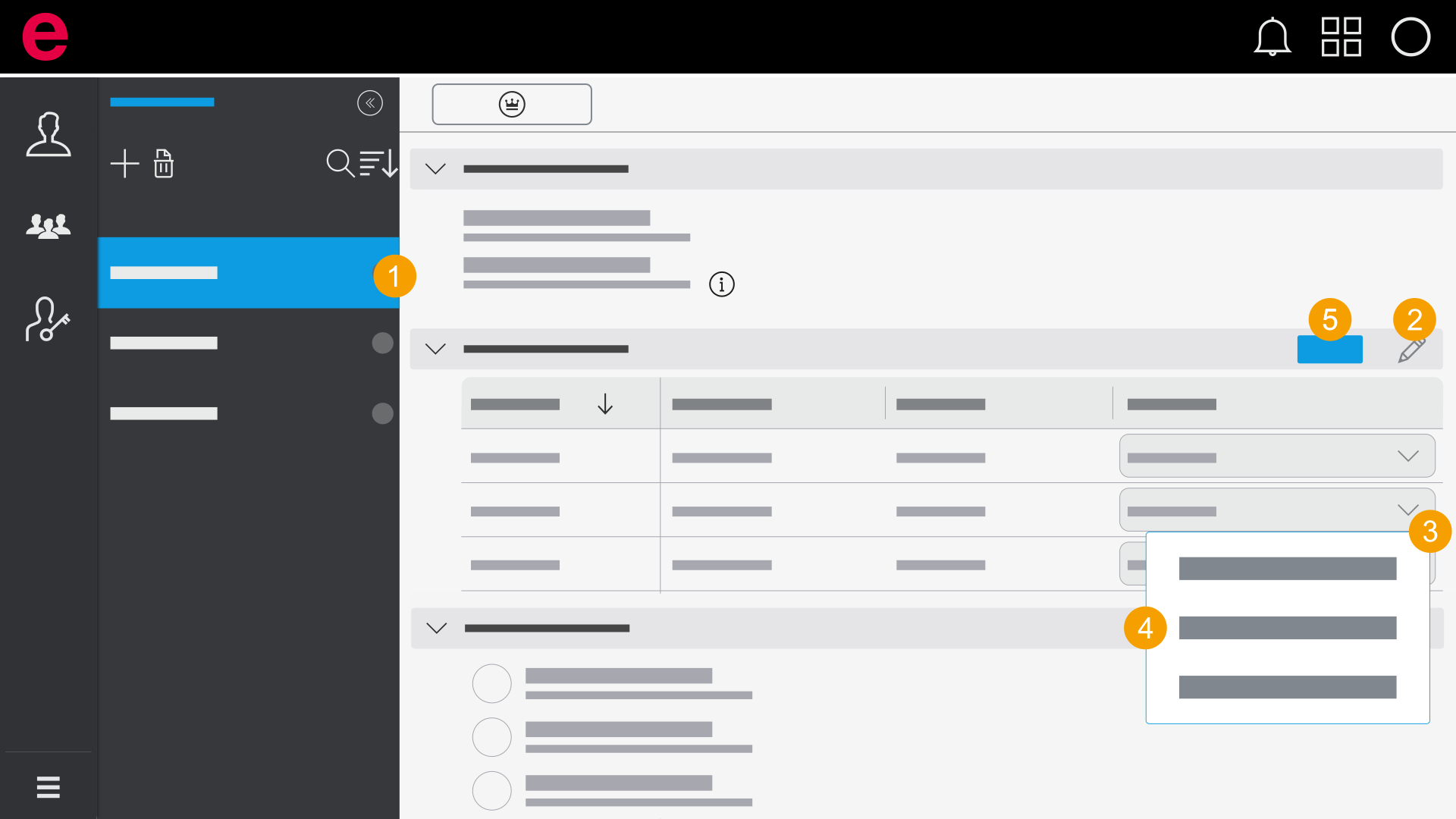
- Select a user in the selection area.
- Click the
 icon.
icon. - Open the drop-down list for the respective product.
- Select Unassigned.
- Click Save.
- You have revoked a role from a user.
By revoking a role from the user, you also revoke the Eplan license from the user at the same time. For more information about the Eplan licenses, see User management: Basics.
If a user is a member of a team with an assigned role template, a previously made manual change is overwritten when the role template is changed or the role template is replaced.
Revoke roles and licenses from multiple users
Roles and licenses in user management are either assigned and revoked by the main administrator of the organization or by a user to whom the main administrator has assigned the role "Manage" for user management.
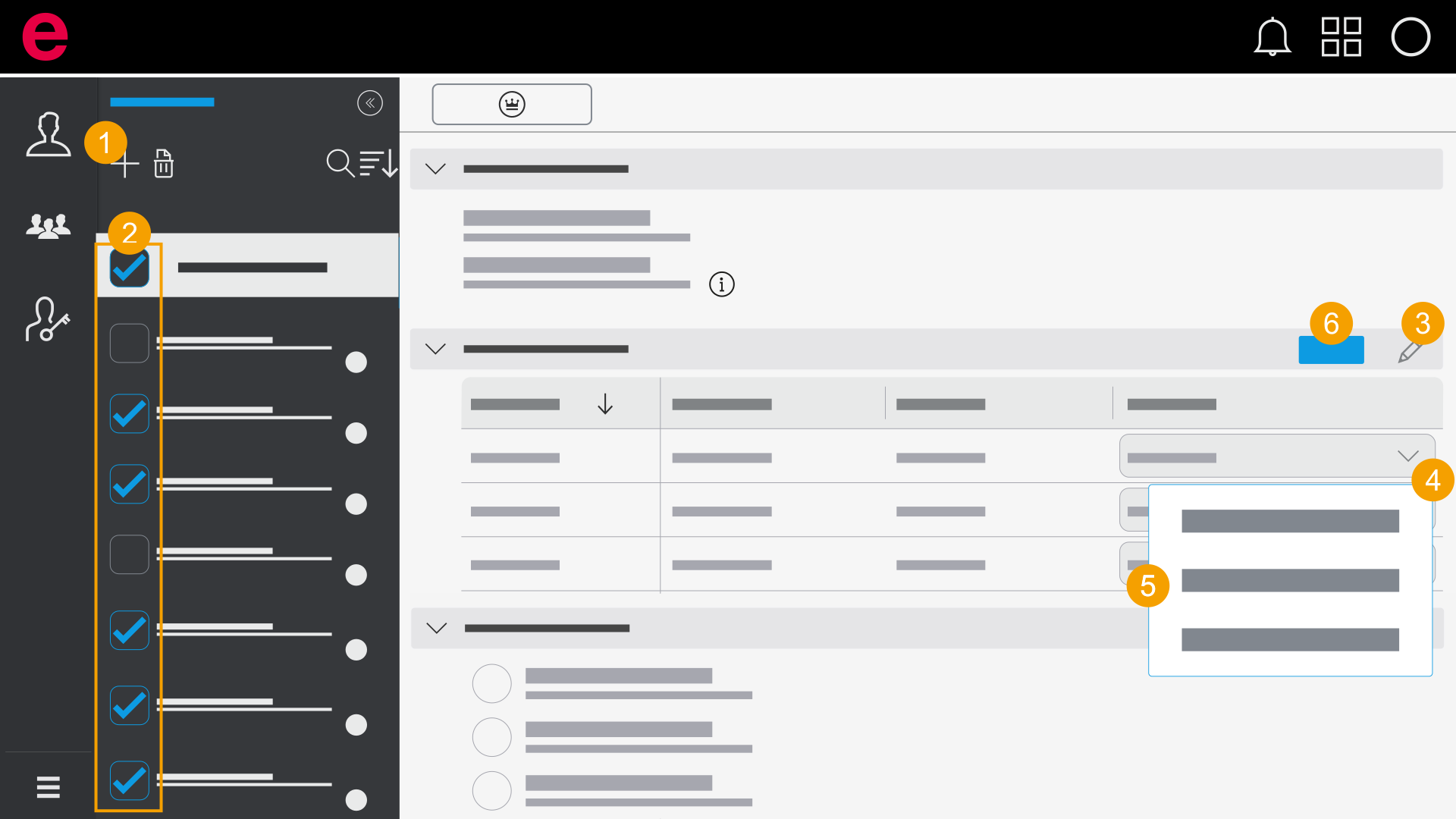
- Click the
 icon in the selection area.
 - Select all or multiple users.
- Click the icon.
- Open the drop-down list for the respective product.
- Select Unassigned.
- Click Save.
- You have revoked a role from multiple users.
By revoking a role from the user, you also revoke the Eplan license from the user at the same time. For more information about the Eplan licenses, see User management: Basics.
If a user is a member of a team with an assigned role template, a previously made manual change is overwritten when the role template is changed or the role template is replaced.
Revoke roles and licenses from a role template
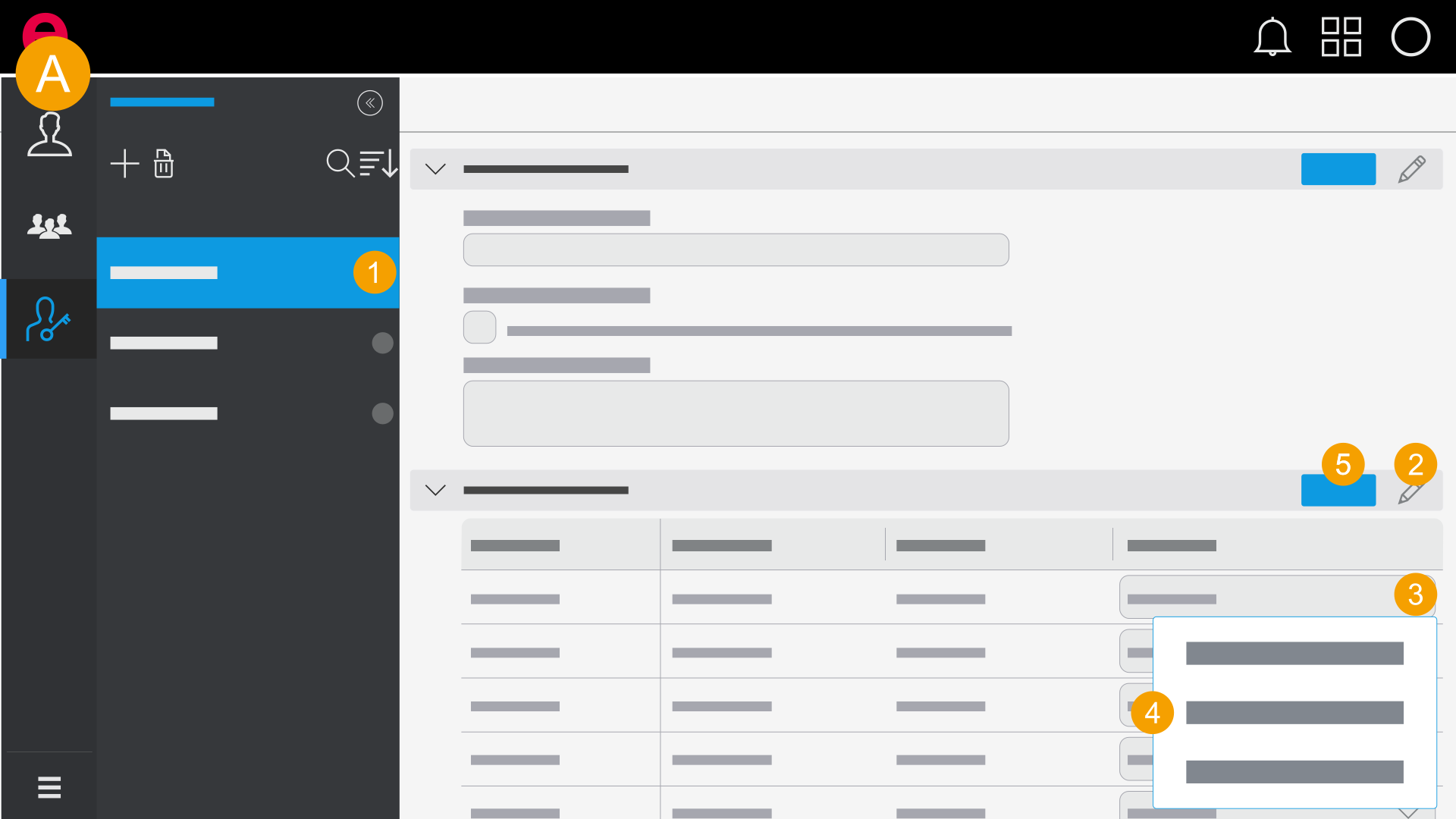
- User management > Role templates
Roles and licenses in user management are either assigned and revoked by the main administrator of the organization or by a user to whom the main administrator has assigned the role "Manage" for user management.
If you change a role template that is already assigned to a team, the roles are assigned to the team members in accordance with the new specifications of the role template. If a user is a member of multiple teams, the user always retains the role with the largest functional scope. If a user is a member of a team with an assigned role template, a previously made manual change is overwritten when the role template is changed or the role template is replaced.
- Select a role template.
- Click the icon.
- Open the drop-down list for the respective product.
- Select Unassigned.
- Click Save.
- The roles in the role template are edited.
By revoking a role template from the user, you also revoke the Eplan license from the user at the same time. For more information about the Eplan licenses, see User management: Basics.