Product change in data management
Open product change in data management
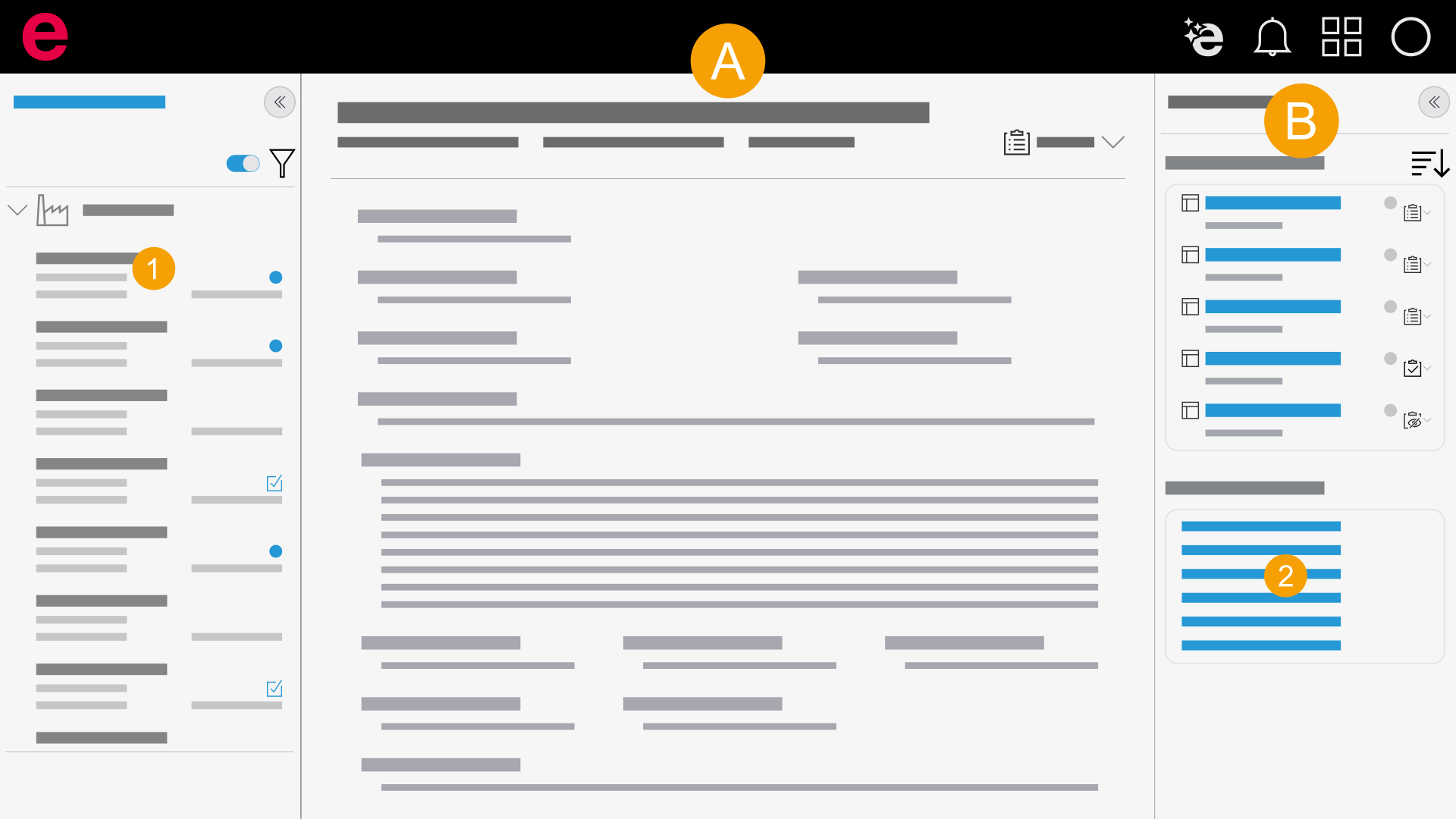
- Inbox
- Affected items > Databases
- Select a product change notification in the Inbox.
- Click a database in the Databases section.
The database opens in the data management.
The product change notification opens and shows the affected parts and details.
Edit parts data for project change
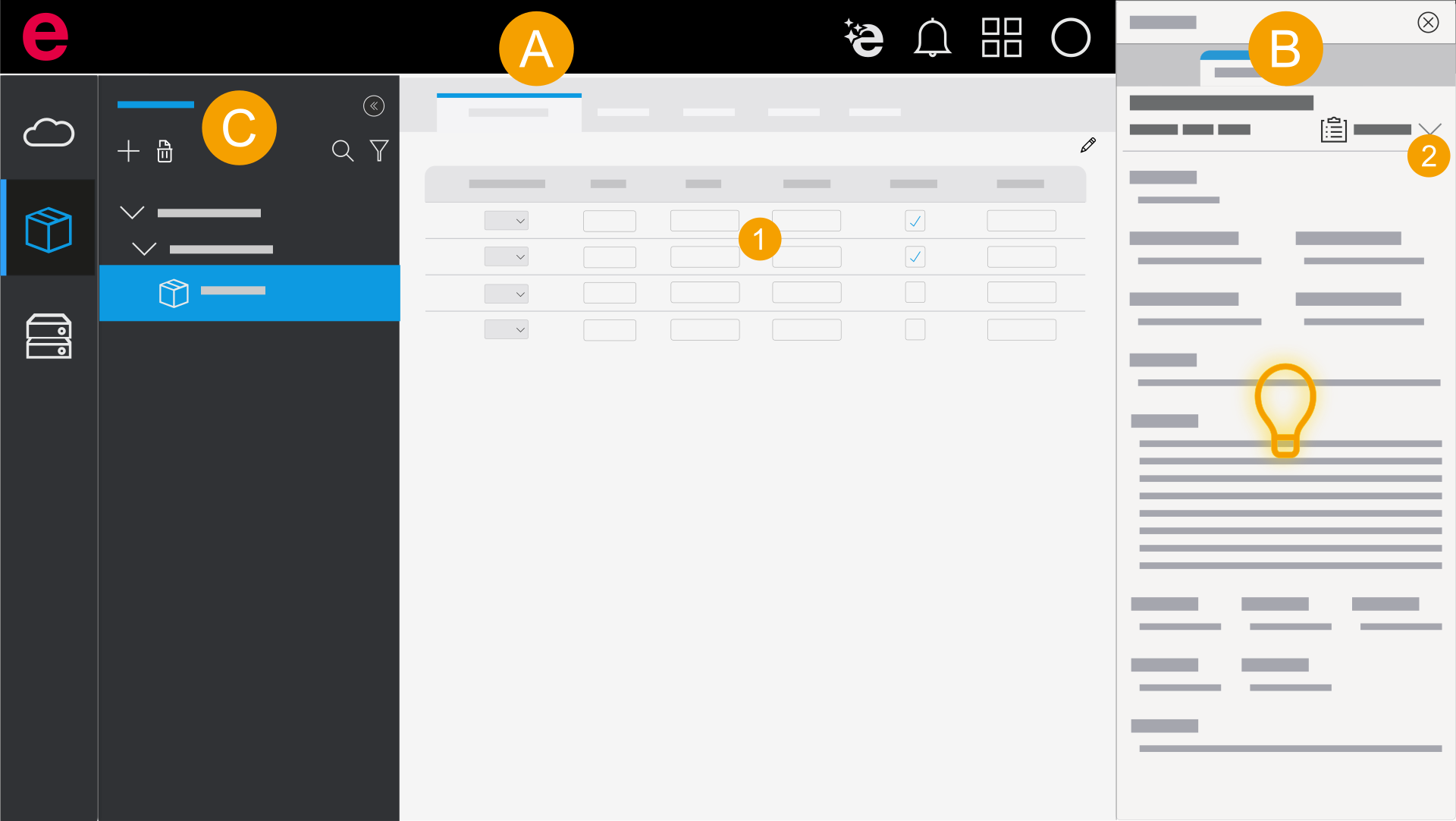
- Data management
- Product change notification > Affected parts or Details
- Selected database
The affected parts are listed in the selected database.
- Edit the parts data. Further information is available in Edit parts data.
- Set the status of the affected part to Closed. Affected element: Sort or change status.
Apply the change information of the product change notification from the Details section.
To edit further parts data in the database, you can directly click another database in the Product change notification > Affected parts > Database. The affected parts are listed in the selected database.