Affected element: Sort or change status
Sort affected items
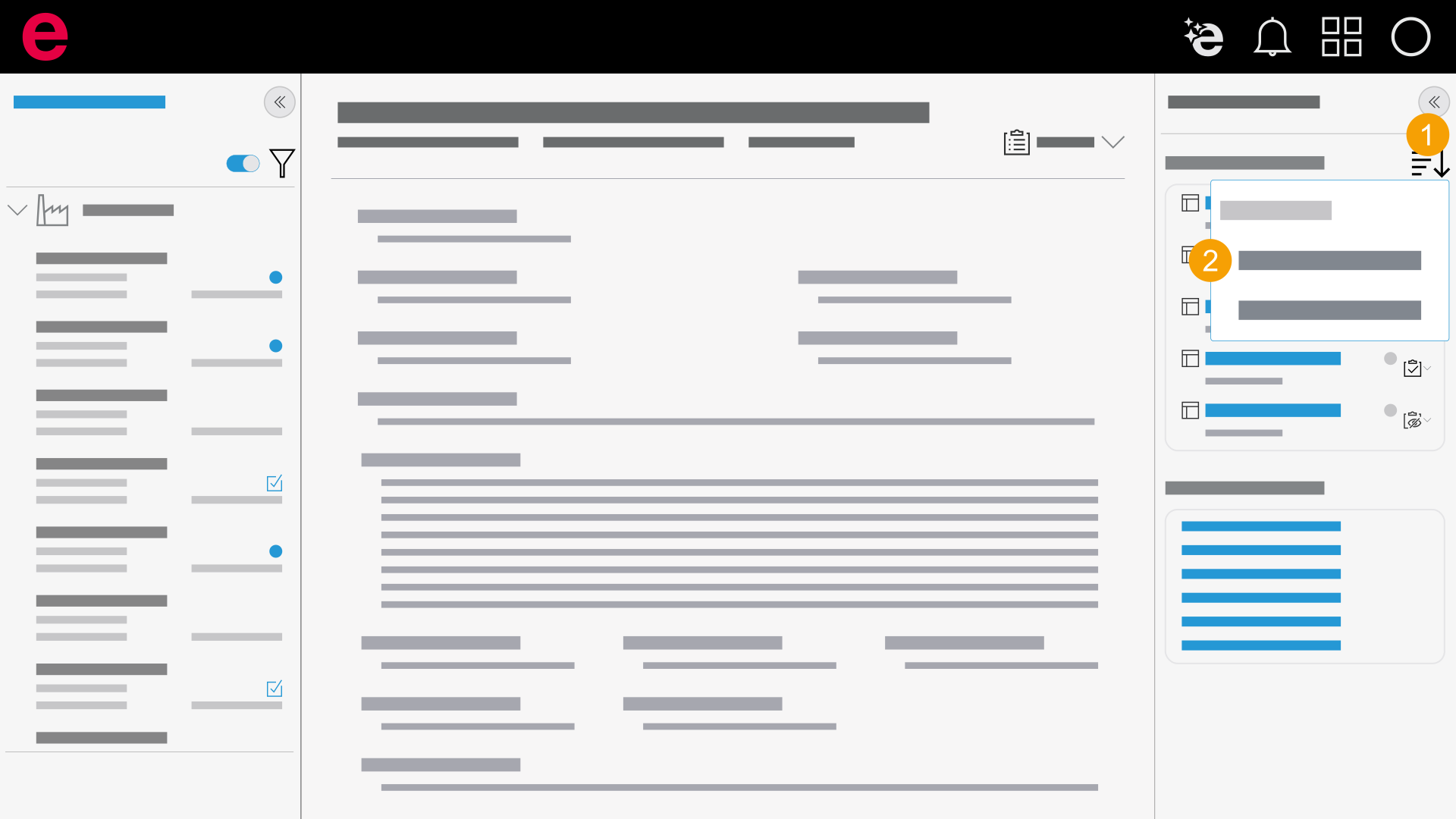
- Click the
 icon in the Affected items area.
- Select the sorting.
- The status is changed.
Change status
The status of an affected element is visible to all people in your organization who also have access to projects or databases with this affected element. If you change the status of an affected element, this change is applied to all people in your organization.
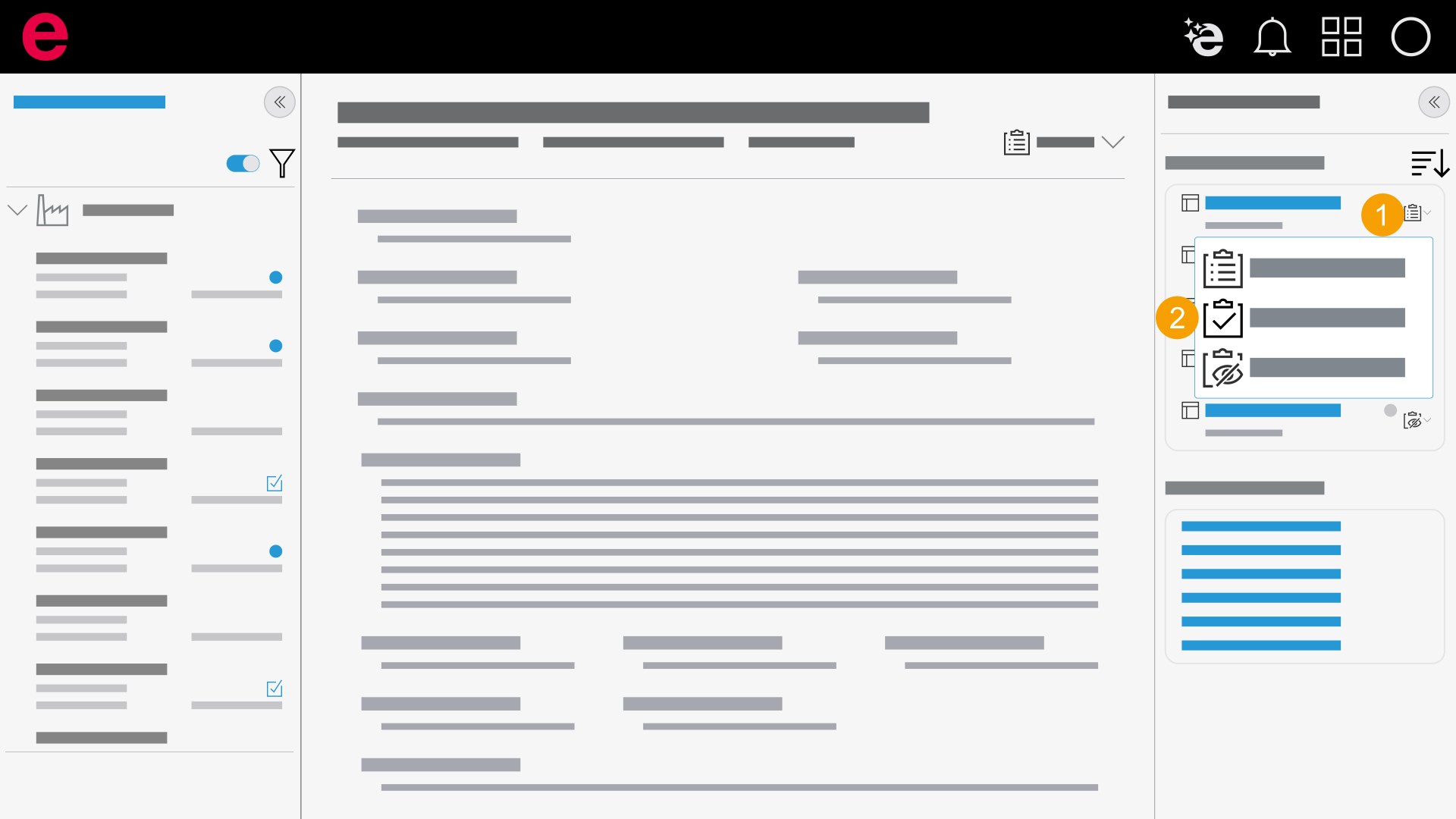
- Click the status icon at the desired project or database in the Affected items area.
- Select the status:
- The status is changed.
 Open: The elements affected by the product change have not been edited yet.
 Closed: You have edited all relevant affected elements in eView or the data management. If you only have open product change notifications displayed in the Inbox, closed affected items are no longer displayed in the product change notifications the next time you open them.
 Ignore: Use the Ignore status if the affected elements are not relevant for your projects: e.g., for outdated projects, or if no editing is required.
You can reset the status at any time. Note that the status of an affected element is visible to all persons in your organization who also have access to projects and databases with this affected element. Changes to the status therefore affect all these persons.