Product change in eView
Open product change in eView
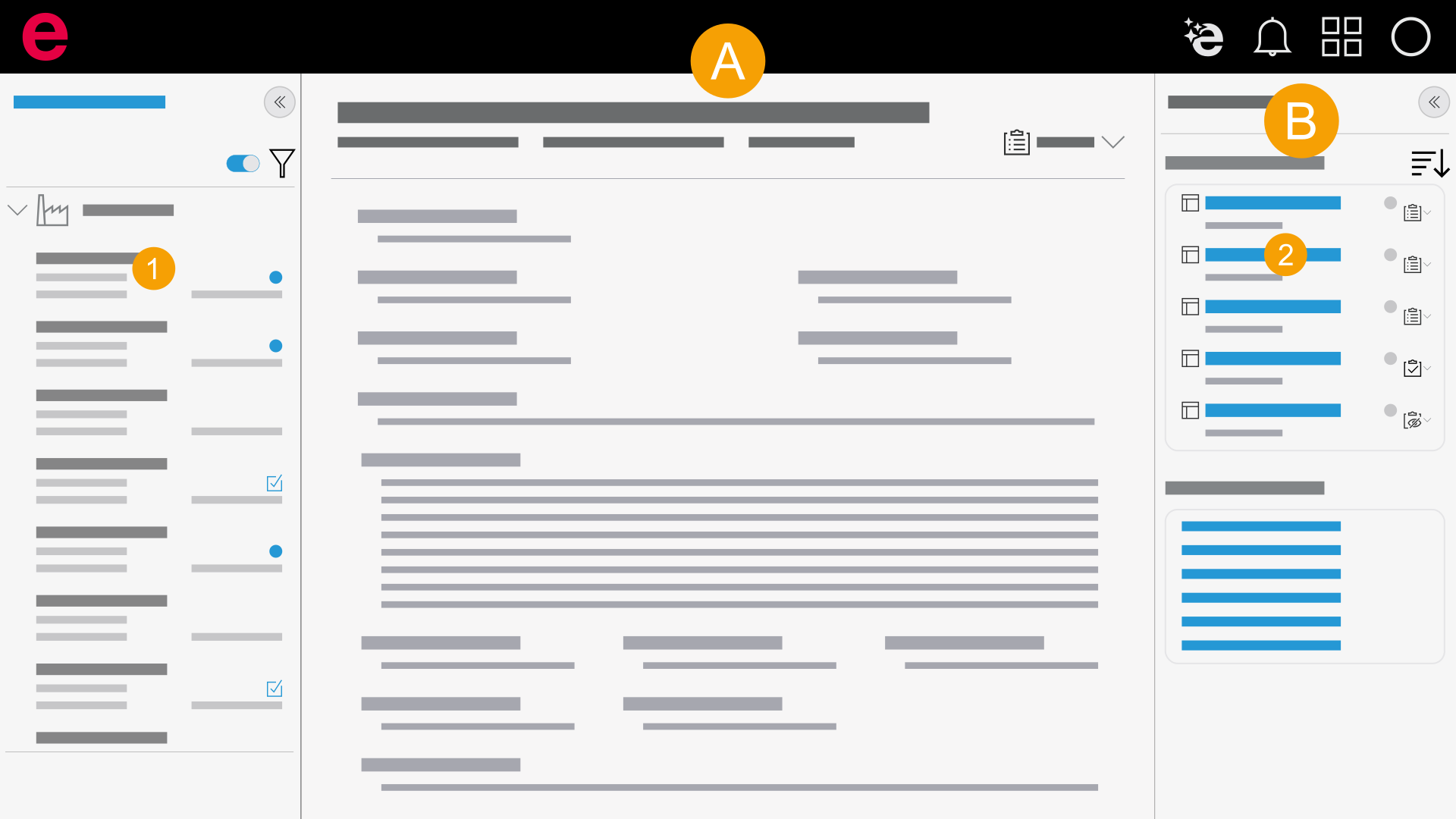
- Inbox
- Affected items > Project in eView
- Select a product change notification in the Inbox.
- In the Project in eView, area, click a project.
The project opens in eView.
The product change notification opens and shows the affected parts and details.
Create redlining for product change
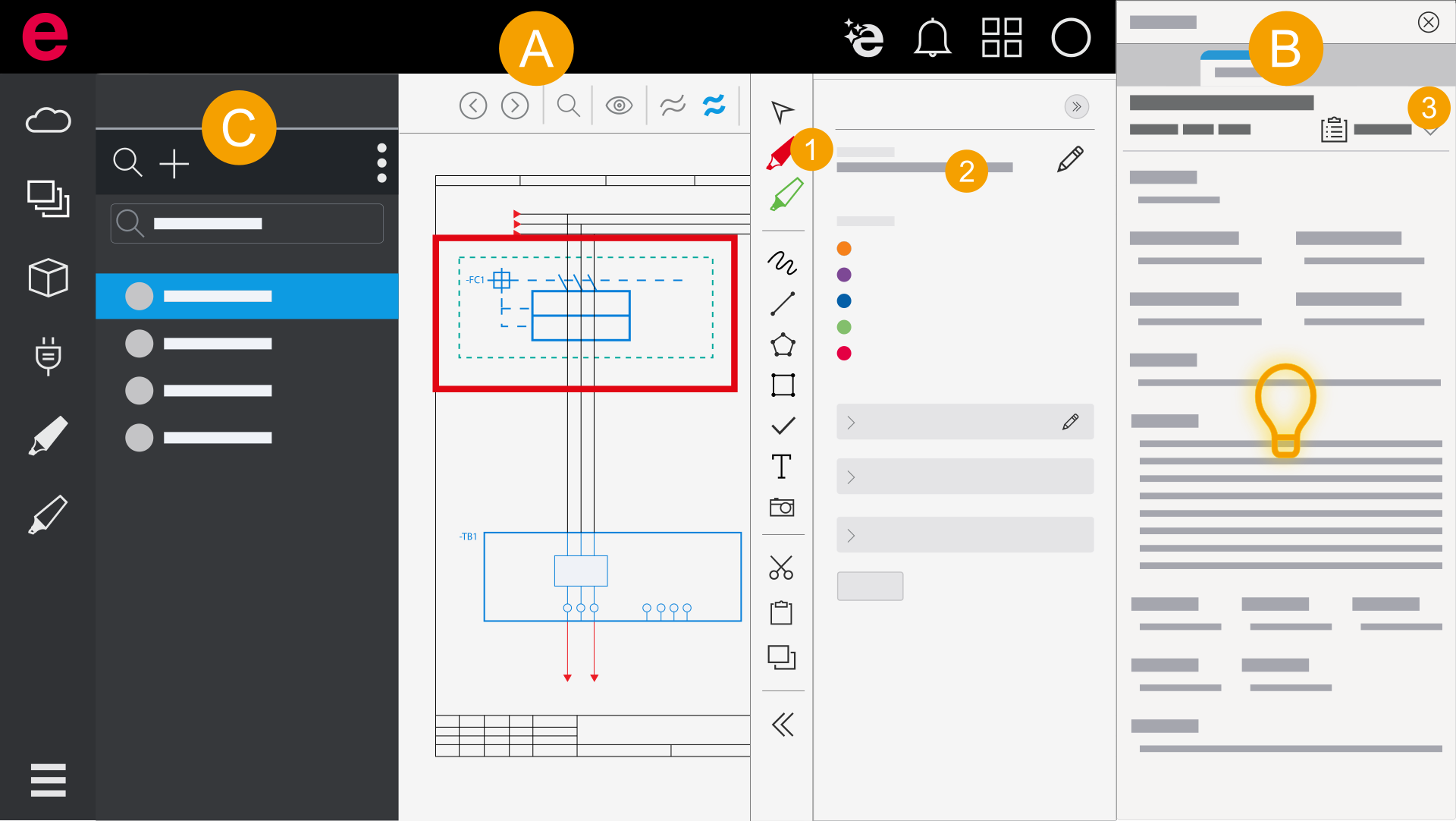
- eView
- Product change notification > Affected parts or Details
- Devices area
The affected parts are listed in the Devices area, because the part number was used in the search.
- Create a redlining for the affected parts in eView. For more information, see Create redlining.
- In the description of your redlining, note all the important information about the change at the part.
- Set the status of the affected part to Closed. Affected element: Sort or change status.
Please note that all parts with this part number are affected by the product change notification and which change is actually involved. Copy the change information of the product change notification from the Details section.
To create further redlinings for product changes, you can directly click another project in Product change notification > Affected parts > Project in eView. The affected parts are listed automatically in the Devices area.